_811205.png)
_e196d8.png)
_32b3d9.png)
_1c53fe.png)

Mophie today announced the launch of a new line of Speedport wall chargers that are powered by Gallium Nitride (GaN) for faster, more efficient power delivery.
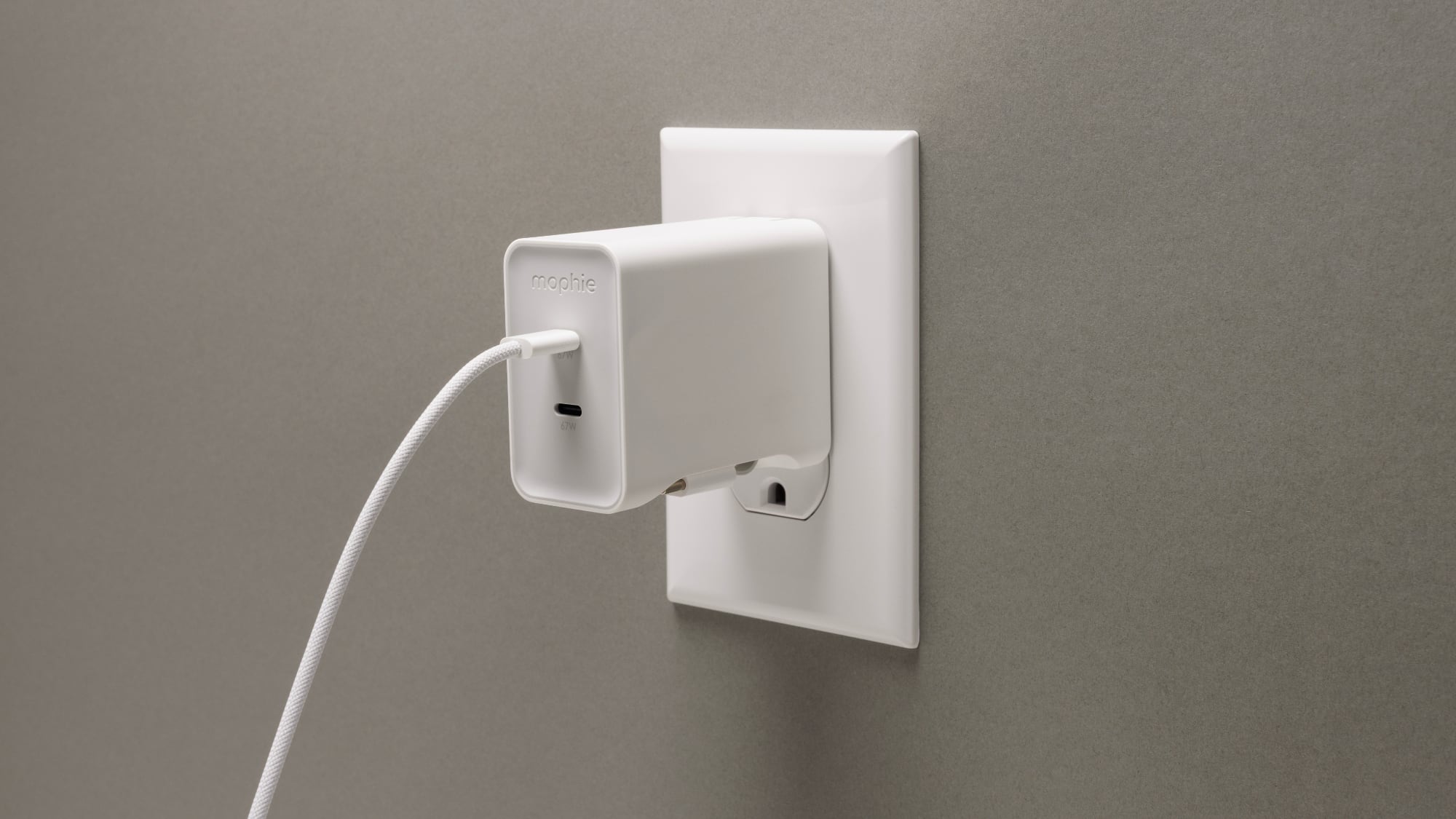
There are several charger options with single, dual, and triple ports for powering laptops, tablets, smartphones, and more. Prices range from $15 to $100.
Speedport 20 ($14.95) - 20W with one USB-C port.
Speedport 35 ($24.95) - 35W with one USB-C port.
Speedport 45 ($39.95) - 45W with two USB-C ports.
Speedport Plus 67 ($59.95) - 67W with two USB-C ports and a built-in retractable 60W USB-C cable for charging up to three devices at once.
Speedport 70 ($49.95) - 70W with two USB-C ports.
Speedport 100 ($79.95) - 100W with two USB-C ports. 
Speedport 140 ($99.95) - 140W with three USB-C ports.
All of the Speedport chargers feature a similar design, adopting plastics made from 75 percent post-consumer recycled materials and foldable prongs for travel.
With the exception of the Speedport 67 with integrated cable, all of the new chargers are available for purchase from the Mophie website as of today.
This article, "Mophie Releases New GaN-Powered Speedport USB-C Wall Chargers" first appeared on MacRumors.com
Discuss this article in our forums
There are several charger options with single, dual, and triple ports for powering laptops, tablets, smartphones, and more. Prices range from $15 to $100.
Speedport 20 ($14.95) - 20W with one USB-C port.
Speedport 35 ($24.95) - 35W with one USB-C port.
Speedport 45 ($39.95) - 45W with two USB-C ports.
Speedport Plus 67 ($59.95) - 67W with two USB-C ports and a built-in retractable 60W USB-C cable for charging up to three devices at once.
Speedport 70 ($49.95) - 70W with two USB-C ports.
Speedport 100 ($79.95) - 100W with two USB-C ports. 
Speedport 140 ($99.95) - 140W with three USB-C ports.
All of the Speedport chargers feature a similar design, adopting plastics made from 75 percent post-consumer recycled materials and foldable prongs for travel.
With the exception of the Speedport 67 with integrated cable, all of the new chargers are available for purchase from the Mophie website as of today.
Tag: Mophie
This article, "Mophie Releases New GaN-Powered Speedport USB-C Wall Chargers" first appeared on MacRumors.com
Discuss this article in our forums
Recommended Comments
Join the conversation
You can post now and register later. If you have an account, sign in now to post with your account.