_811205.png)
_e196d8.png)
_32b3d9.png)
_1c53fe.png)

Apple's iPhone became qualified for extended use in space back in February, and during the Artemis II mission to the Moon in April, NASA astronauts shared several photos taken with the iPhone 17 Pro Max.
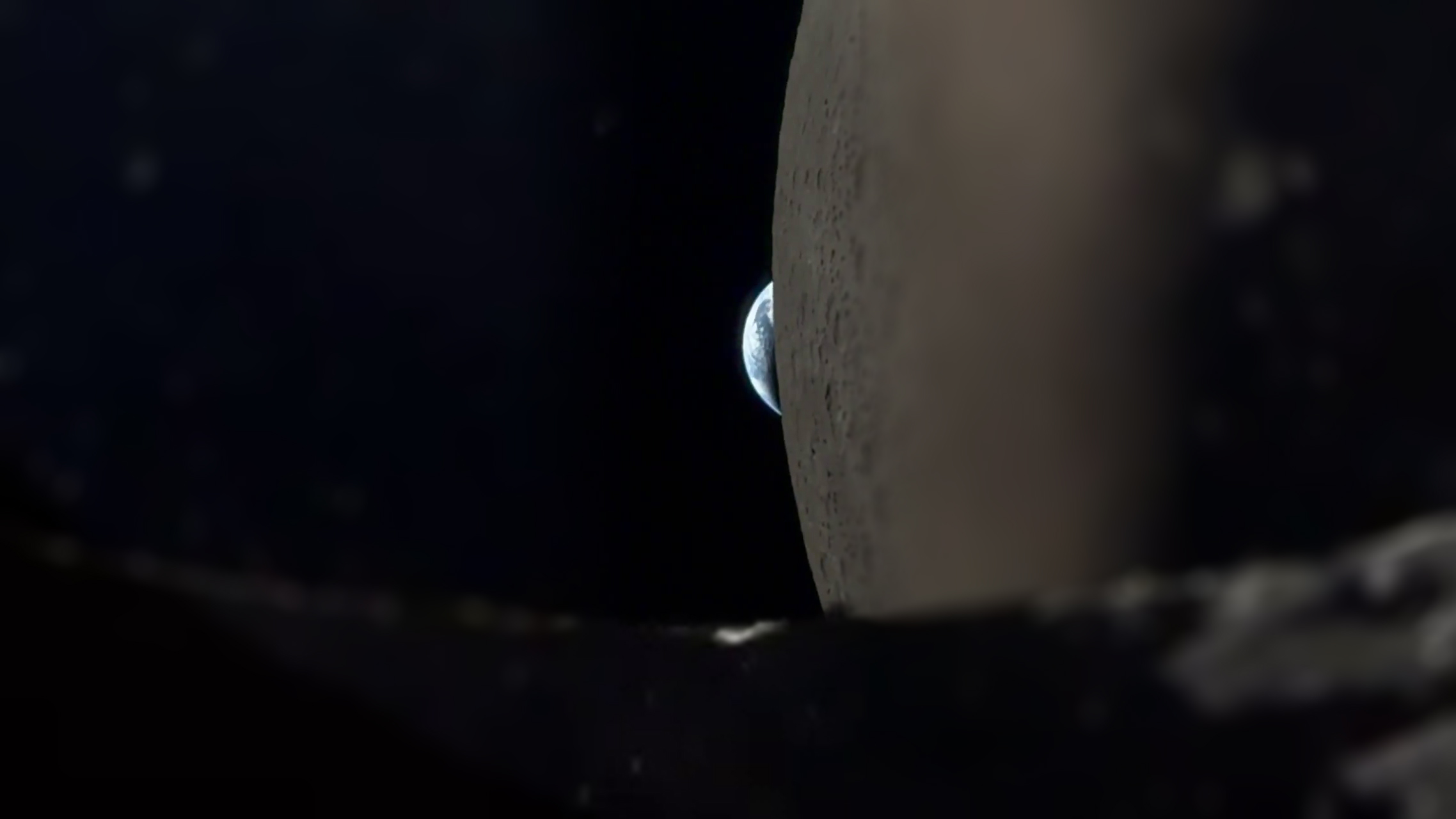
Artemis II Commander Reid Wiseman recently followed up with a shot on iPhone video of an "Earthset," or the moment that the Earth disappears behind the Moon. The video was captured from the docking hatch window on the Orion capsule, and it is the first Earthset shot on a mobile device.
It takes a second for the iPhone to focus as Wiseman switches to 8x zoom mode on his iPhone 17 Pro Max, but the rest of the 53-second video features a clear look at the craters on the Moon as the Earth slips out of sight.
Wiseman said that at 8x zoom, the view was "quite comparable to the view of the human eye."
This article, "NASA Astronaut Shares Incredible 'Earthset' Video Captured With iPhone 17 Pro Max" first appeared on MacRumors.com
Discuss this article in our forums
Artemis II Commander Reid Wiseman recently followed up with a shot on iPhone video of an "Earthset," or the moment that the Earth disappears behind the Moon. The video was captured from the docking hatch window on the Orion capsule, and it is the first Earthset shot on a mobile device.
Only one chance in this lifetime…
— Reid Wiseman (@astro_reid) April 19, 2026
Like watching sunset at the beach from the most foreign seat in the cosmos, I couldn’t resist a cell phone video of Earthset. You can hear the shutter on the Nikon as @Astro_Christina is hammering away on 3-shot brackets and capturing those… pic.twitter.com/8aWnaFJ69c
It takes a second for the iPhone to focus as Wiseman switches to 8x zoom mode on his iPhone 17 Pro Max, but the rest of the 53-second video features a clear look at the craters on the Moon as the Earth slips out of sight.
Wiseman said that at 8x zoom, the view was "quite comparable to the view of the human eye."
Related Roundup: iPhone 17 Pro
Tag: Shot on iPhone
Buyer's Guide: iPhone 17 Pro (Neutral)
Related Forum: iPhone
This article, "NASA Astronaut Shares Incredible 'Earthset' Video Captured With iPhone 17 Pro Max" first appeared on MacRumors.com
Discuss this article in our forums
Recommended Comments
Join the conversation
You can post now and register later. If you have an account, sign in now to post with your account.