_811205.png)
_e196d8.png)
_32b3d9.png)
_1c53fe.png)

The new AirTag that Apple unveiled today features a second-generation Ultra Wideband chip, enabling the Precision Finding feature to work up to 50% farther away from an item compared to the previous AirTag, according to Apple. However, you need a compatible iPhone model in order to take advantage of this improvement.
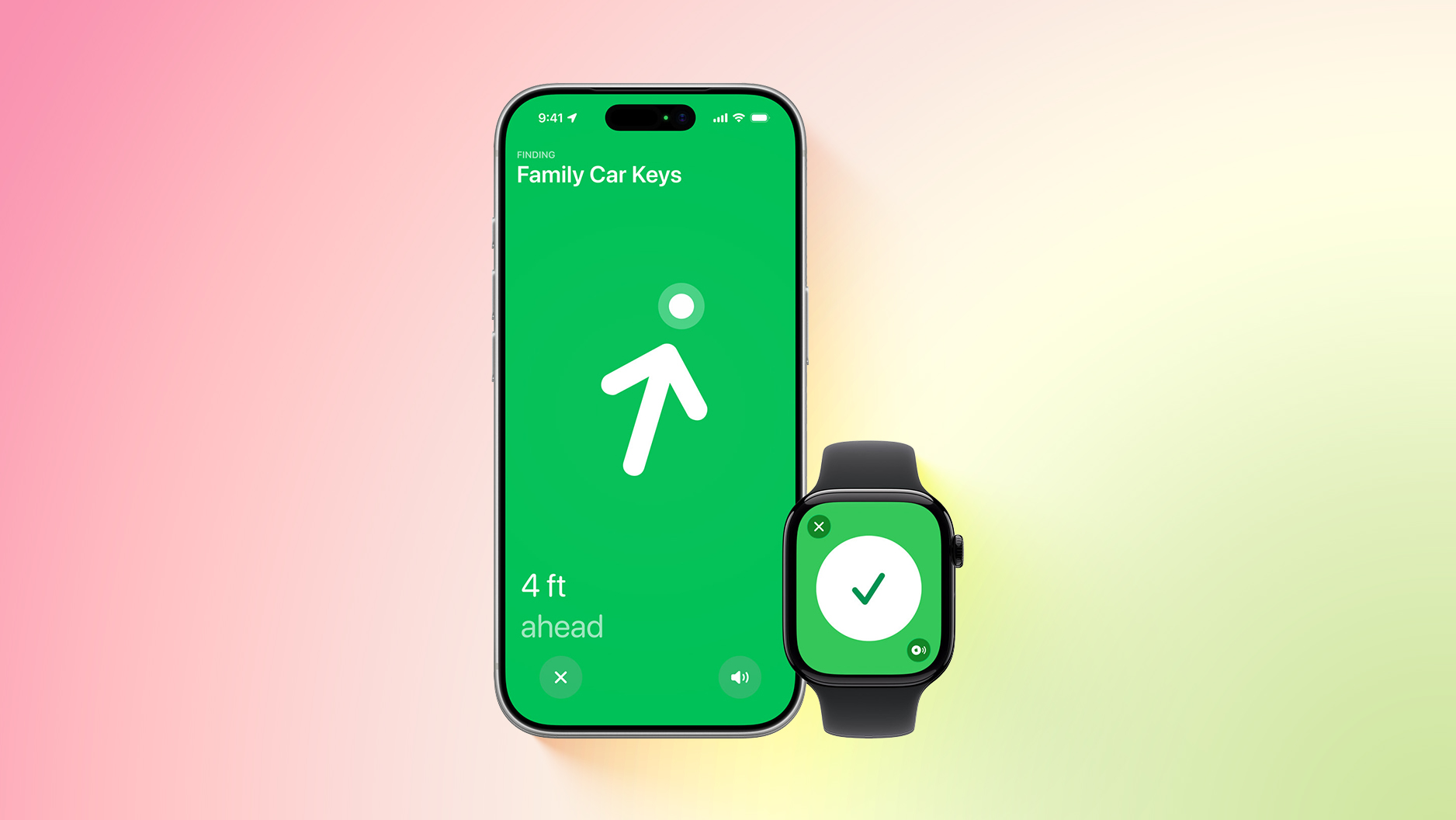
The improved Precision Finding requires one of these iPhone models:
iPhone 15
iPhone 15 Plus
iPhone 15 Pro
iPhone 15 Pro Max
iPhone 16
iPhone 16 Plus
iPhone 16 Pro
iPhone 16 Pro Max
iPhone 17
iPhone 17 Pro
iPhone 17 Pro Max
iPhone Air
Precision Finding at longer distances is limited to the iPhone models listed above because both the AirTag and the iPhone need Apple's second-generation Ultra Wideband chip, which was introduced starting with the iPhone 15 series.
Note that the lower-end iPhone 16e does not have a second-generation Ultra Wideband chip.
The new AirTag also has an upgraded Bluetooth chip for improved overall range outside of Precision Finding mode, with an iPhone 11 or newer.
The new AirTag is available to order on Apple.com and in the Apple Store app starting today, and it will be available at Apple Store locations later this week. In the U.S., pricing remains set at $29 for one AirTag and at $99 for four.
This article, "New AirTag's Improved Precision Finding Requires These iPhone Models" first appeared on MacRumors.com
Discuss this article in our forums
The improved Precision Finding requires one of these iPhone models:
iPhone 15
iPhone 15 Plus
iPhone 15 Pro
iPhone 15 Pro Max
iPhone 16
iPhone 16 Plus
iPhone 16 Pro
iPhone 16 Pro Max
iPhone 17
iPhone 17 Pro
iPhone 17 Pro Max
iPhone Air
Precision Finding at longer distances is limited to the iPhone models listed above because both the AirTag and the iPhone need Apple's second-generation Ultra Wideband chip, which was introduced starting with the iPhone 15 series.
Note that the lower-end iPhone 16e does not have a second-generation Ultra Wideband chip.
The new AirTag also has an upgraded Bluetooth chip for improved overall range outside of Precision Finding mode, with an iPhone 11 or newer.
The new AirTag is available to order on Apple.com and in the Apple Store app starting today, and it will be available at Apple Store locations later this week. In the U.S., pricing remains set at $29 for one AirTag and at $99 for four.
Tag: AirTag
This article, "New AirTag's Improved Precision Finding Requires These iPhone Models" first appeared on MacRumors.com
Discuss this article in our forums
Recommended Comments
Join the conversation
You can post now and register later. If you have an account, sign in now to post with your account.