_811205.png)
_e196d8.png)
_32b3d9.png)
_1c53fe.png)

Nintendo today announced a new mobile game called Pictonico, which is set to launch on Thursday, May 28. Pictonico turns photos into minigames like those you see in WarioWare.
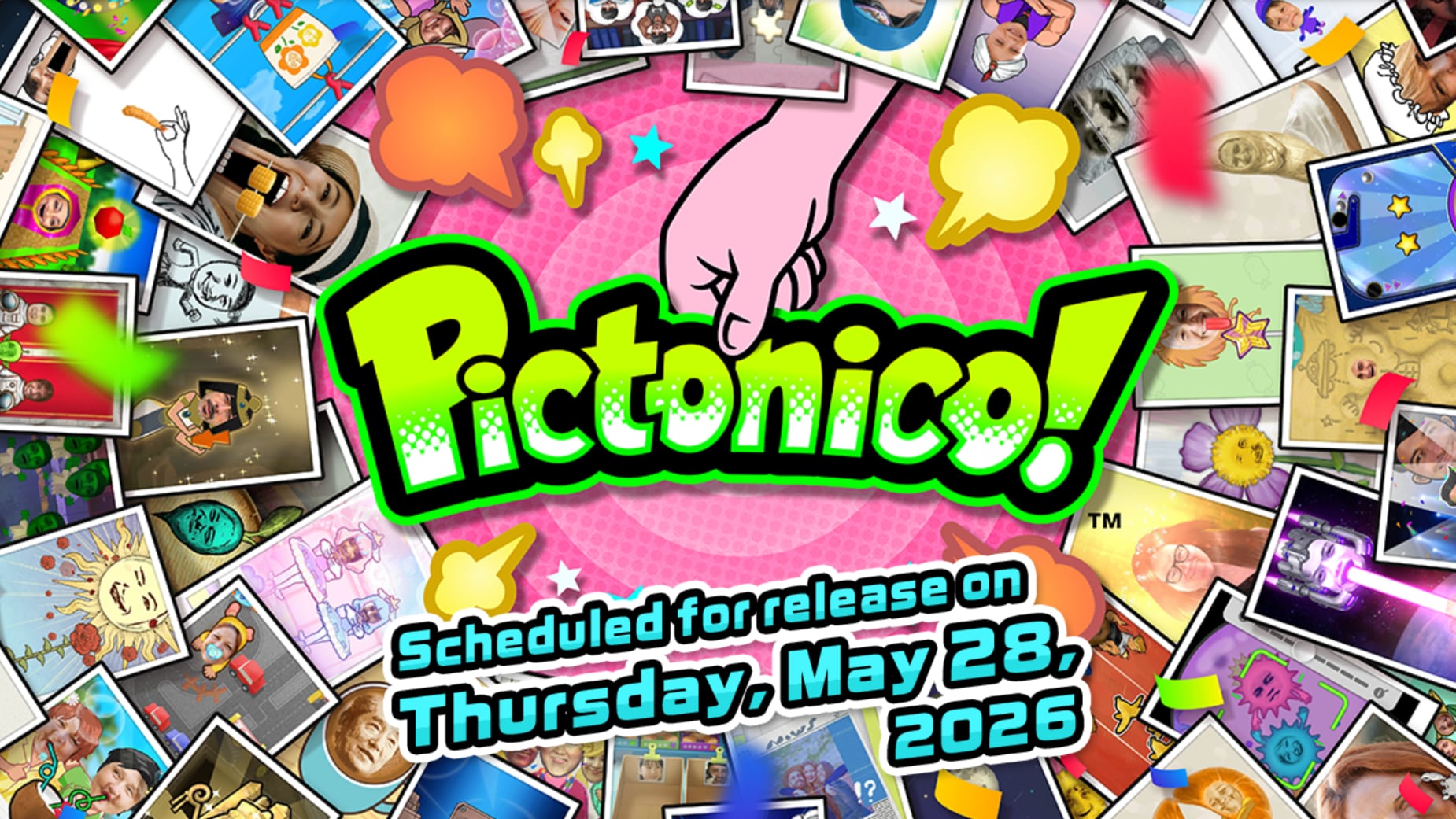
The app's website features players taking photos of themselves and their friends, with the app altering the photos in different ways. In one example, the person's mouth opens up widely to chomp on corn with a tap, and in another, a person is bundled up with a mummy and the goal is to unwrap the mummy.
There are 80 minigames to play through, at normal, high-speed, and danger zone speeds that make gameplay more challenging. As players progress through the levels, the game will get more difficult. Pictonico can use photos from the Photo Library, or photos taken with the iPhone's camera from the game interface. Nintendo says that photos remain on device and are not sent to its servers.
Pictonico was co-developed with Intelligent Systems, which is the studio that created the WarioWare game series.
According to Nintendo, the game is free to try, with three minigames available at no cost. Unlocking the "Volume 1" games costs $7.99, while a "Volume 2" series is available for $5.99.
Pictonico is available for pre-order from the App Store. [Direct Link]
This article, "Nintendo's New 'Pictonico' iOS Game Turns Your Photos Into Minigames" first appeared on MacRumors.com
Discuss this article in our forums
The app's website features players taking photos of themselves and their friends, with the app altering the photos in different ways. In one example, the person's mouth opens up widely to chomp on corn with a tap, and in another, a person is bundled up with a mummy and the goal is to unwrap the mummy.
There are 80 minigames to play through, at normal, high-speed, and danger zone speeds that make gameplay more challenging. As players progress through the levels, the game will get more difficult. Pictonico can use photos from the Photo Library, or photos taken with the iPhone's camera from the game interface. Nintendo says that photos remain on device and are not sent to its servers.
Pictonico was co-developed with Intelligent Systems, which is the studio that created the WarioWare game series.
According to Nintendo, the game is free to try, with three minigames available at no cost. Unlocking the "Volume 1" games costs $7.99, while a "Volume 2" series is available for $5.99.
Pictonico is available for pre-order from the App Store. [Direct Link]
Tag: Photos
This article, "Nintendo's New 'Pictonico' iOS Game Turns Your Photos Into Minigames" first appeared on MacRumors.com
Discuss this article in our forums
Recommended Comments
Join the conversation
You can post now and register later. If you have an account, sign in now to post with your account.