_811205.png)
_e196d8.png)
_32b3d9.png)
_1c53fe.png)

Google's NotebookLM AI-based tool can now turn your research and notes into fully animated "cinematic" videos – an advancement over its original video overview feature that was introduced last year.
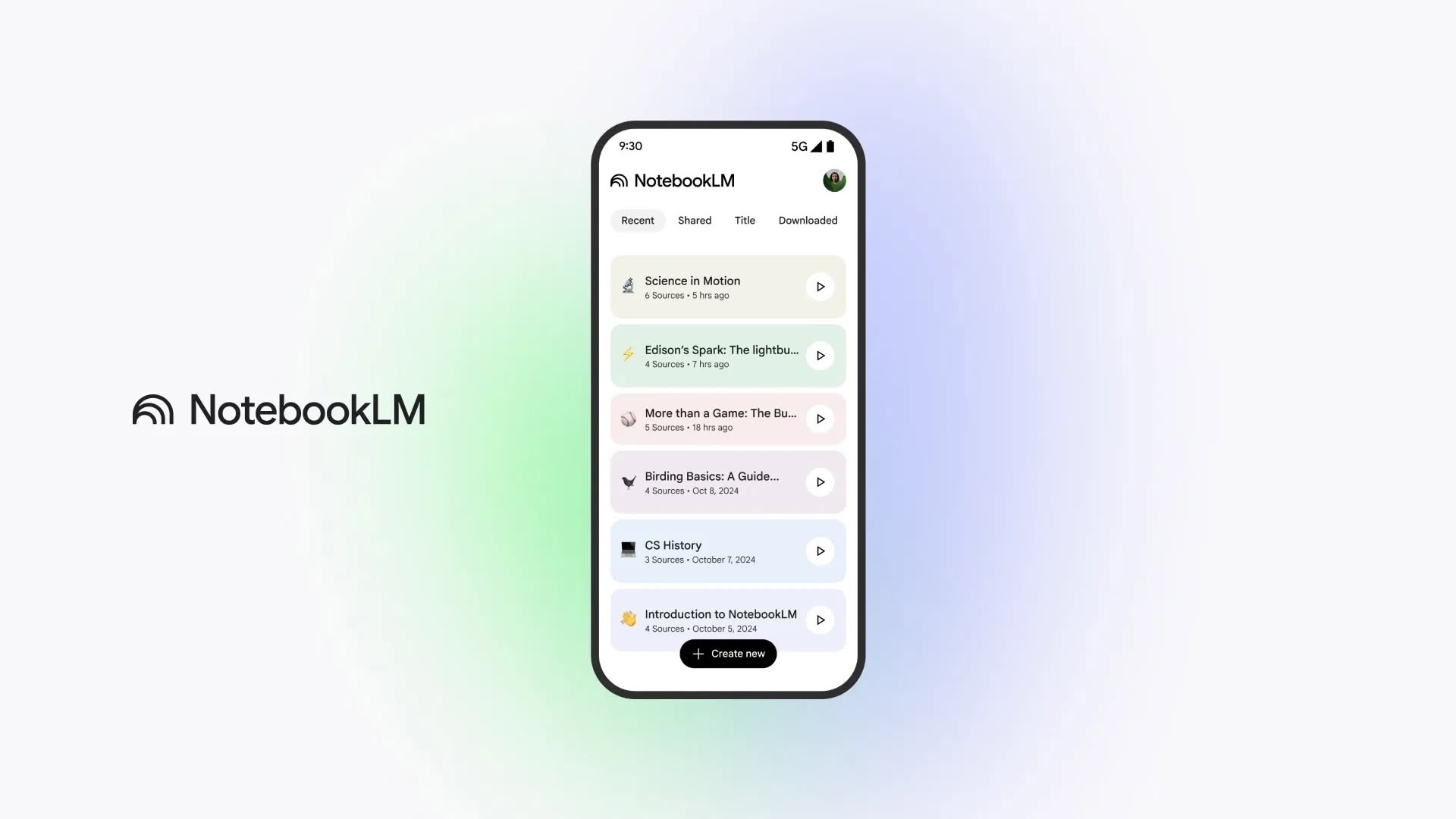
Before now, video overviews were limited to generating slideshows of your research and writing, but the new Cinematic Video Overview feature uses Gemini 3, Nano Banana Pro, and Veo 3 models to generate animated visuals "to help you learn and engage with the topics you care about," says Google.
Google says Gemini acts as a creative director, making hundreds of structural and stylistic decisions to best tell the story with your sources. It determines the best narrative, visual style and format, and also refines its own work to ensure consistency.
Cinematic Video Overviews are available in English for Google AI Ultra subscribers over 18 on web and mobile, and there's a maximum of 20 overviews generated per day. The NotebookLM app is available on the App Store for iPhone and iPad.
This article, "NotebookLM Now Creates Cinematic Video Overviews Out of Your Notes" first appeared on MacRumors.com
Discuss this article in our forums
Before now, video overviews were limited to generating slideshows of your research and writing, but the new Cinematic Video Overview feature uses Gemini 3, Nano Banana Pro, and Veo 3 models to generate animated visuals "to help you learn and engage with the topics you care about," says Google.
Google says Gemini acts as a creative director, making hundreds of structural and stylistic decisions to best tell the story with your sources. It determines the best narrative, visual style and format, and also refines its own work to ensure consistency.
Cinematic Video Overviews are available in English for Google AI Ultra subscribers over 18 on web and mobile, and there's a maximum of 20 overviews generated per day. The NotebookLM app is available on the App Store for iPhone and iPad.
Tag: Google
This article, "NotebookLM Now Creates Cinematic Video Overviews Out of Your Notes" first appeared on MacRumors.com
Discuss this article in our forums
Recommended Comments
Join the conversation
You can post now and register later. If you have an account, sign in now to post with your account.