_811205.png)
_e196d8.png)
_32b3d9.png)
_1c53fe.png)

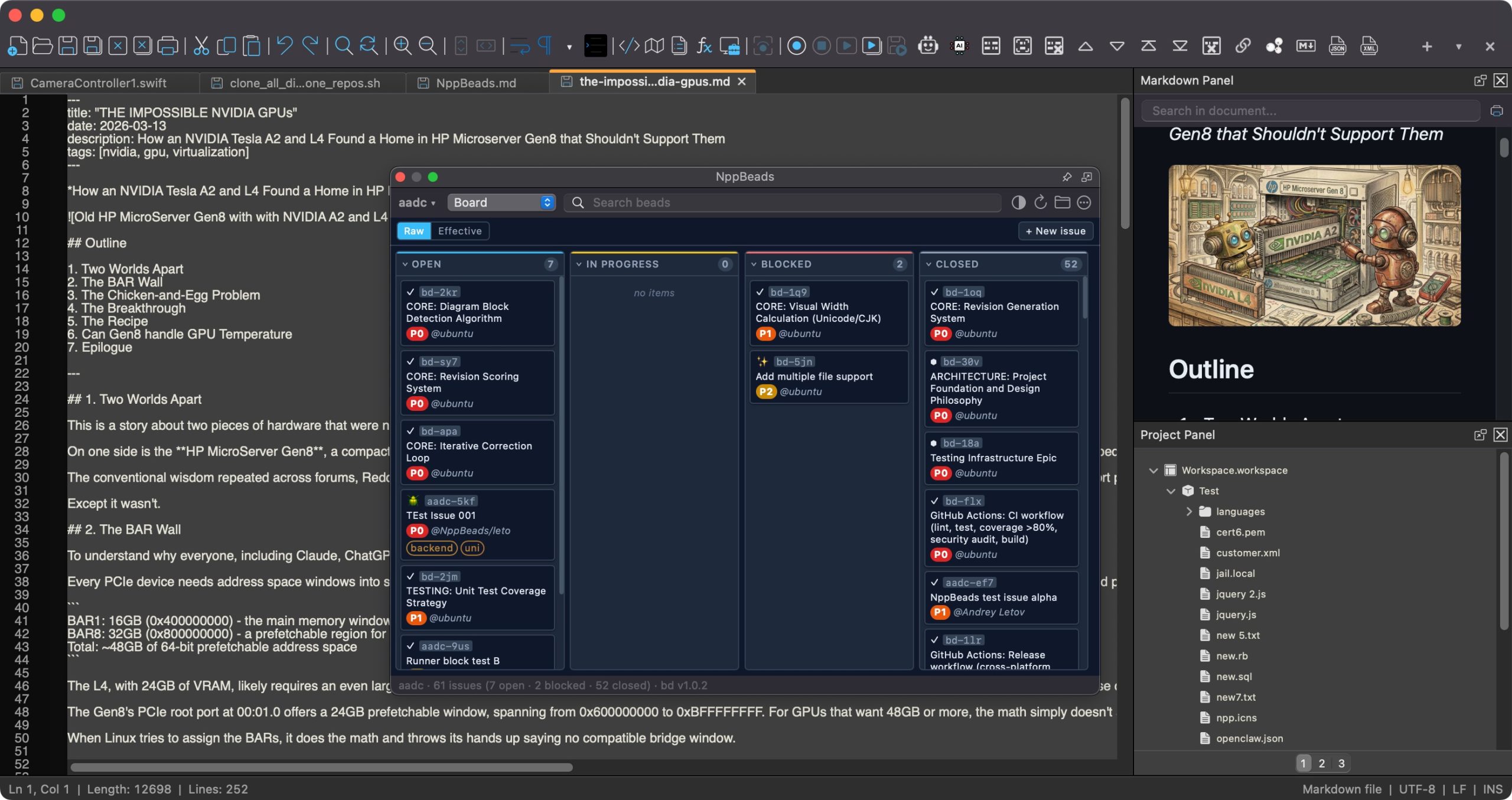
The popular Notepad++ coding editor is now available as a native macOS app, following a successful open-source community port of the original Windows codebase. The Notepad replacement runs as a universal binary, so it works on both Apple silicon and Intel Macs.
Notepad++ has been one of the most popular text editors on Windows for more than 20 years. Until now, Mac users who switched from Windows, or who worked across both platforms, had to choose between giving up the editor and running it through a Wine or CrossOver compatibility layer. Now those users have no such dilemma.
The editing experience is identical to the Windows version, right down to the Scintilla engine, tabbed editing, syntax highlighting for 80+ languages, search and replace, macro recording, and plugin support. The only difference is that the menus, dialogs, file pickers, keyboard shortcuts, and windowing all use native macOS Cocoa APIs.
Notepad++ for macOS is maintained by Andrey Letov, who wrote the Objective-C++ Cocoa UI that replaces Notepad++'s Win32 front-end. The app is available to download from the Notepad++ website. It's completely free and released under the GNU General Public License, so there are no ads, subs, or hidden costs.
(Thanks, Mike!)
This article, "Notepad++ Code Editor Comes to Mac After 20-Year Wait" first appeared on MacRumors.com
Discuss this article in our forums
Notepad++ has been one of the most popular text editors on Windows for more than 20 years. Until now, Mac users who switched from Windows, or who worked across both platforms, had to choose between giving up the editor and running it through a Wine or CrossOver compatibility layer. Now those users have no such dilemma.
The editing experience is identical to the Windows version, right down to the Scintilla engine, tabbed editing, syntax highlighting for 80+ languages, search and replace, macro recording, and plugin support. The only difference is that the menus, dialogs, file pickers, keyboard shortcuts, and windowing all use native macOS Cocoa APIs.
Notepad++ for macOS is maintained by Andrey Letov, who wrote the Objective-C++ Cocoa UI that replaces Notepad++'s Win32 front-end. The app is available to download from the Notepad++ website. It's completely free and released under the GNU General Public License, so there are no ads, subs, or hidden costs.
(Thanks, Mike!)
This article, "Notepad++ Code Editor Comes to Mac After 20-Year Wait" first appeared on MacRumors.com
Discuss this article in our forums
Recommended Comments
Join the conversation
You can post now and register later. If you have an account, sign in now to post with your account.