_811205.png)
_e196d8.png)
_32b3d9.png)
_1c53fe.png)

Notepad++ creator Don Ho said the macOS version of the popular Windows code editor is fake and using the Notepad++ trademark without permission.
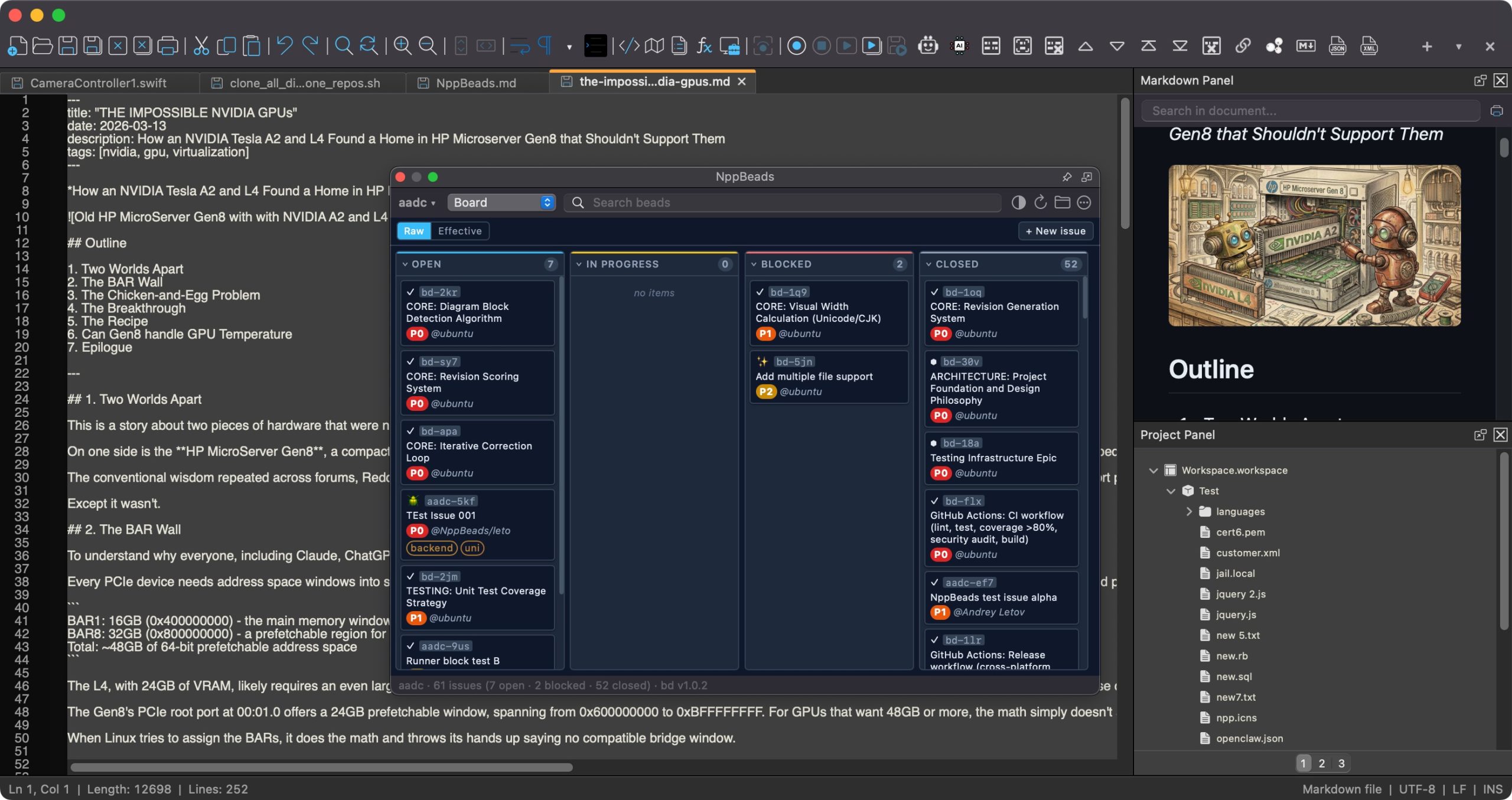 The unofficial Notepad++ app for macOS
In a blog post, Ho said the macOS app is "not authorized, not endorsed, and not affiliated with" the official version of Notepad++ in any way, adding that it is "misleading, inappropriate, and frankly disrespectful to both the project and its users."
In coordination with Ho, the developer of the macOS port Andrey Letov said he will rebrand the Mac app and its corresponding website in the coming days:
Emphasis on unofficial.
"To be crystal clear: Notepad++ has never released a macOS version," said Ho.
This article, "Notepad++ Creator Calls Out 'Fake' Mac App Over Trademark Violation" first appeared on MacRumors.com
Discuss this article in our forums
The unofficial Notepad++ app for macOSIn a blog post, Ho said the macOS app is "not authorized, not endorsed, and not affiliated with" the official version of Notepad++ in any way, adding that it is "misleading, inappropriate, and frankly disrespectful to both the project and its users."
In coordination with Ho, the developer of the macOS port Andrey Letov said he will rebrand the Mac app and its corresponding website in the coming days:
In coordination with Don Ho, the creator of the original Notepad++, I'll be evolving the branding of the macOS version so it stands on its own while respecting its lineage. These updates, such as a new logo, a refined name, and likely a new domain will ship with version 1.0.6 in the coming days. Continuity for existing users is a priority, and I'll make the transition as seamless as I can. Thank you for your patience.Notepad++ has been one of the most popular text and code editors on Windows for more than 20 years, and many users have long hoped for a Mac version. It appears the unofficial port will live on for now, but with a new name and branding.
Emphasis on unofficial.
"To be crystal clear: Notepad++ has never released a macOS version," said Ho.
This article, "Notepad++ Creator Calls Out 'Fake' Mac App Over Trademark Violation" first appeared on MacRumors.com
Discuss this article in our forums
Recommended Comments
Join the conversation
You can post now and register later. If you have an account, sign in now to post with your account.