_811205.png)
_e196d8.png)
_32b3d9.png)
_1c53fe.png)

OpenAI has updated ChatGPT with support for CarPlay, which means CarPlay users can now ask ChatGPT questions and make requests directly from their vehicle dashboard.
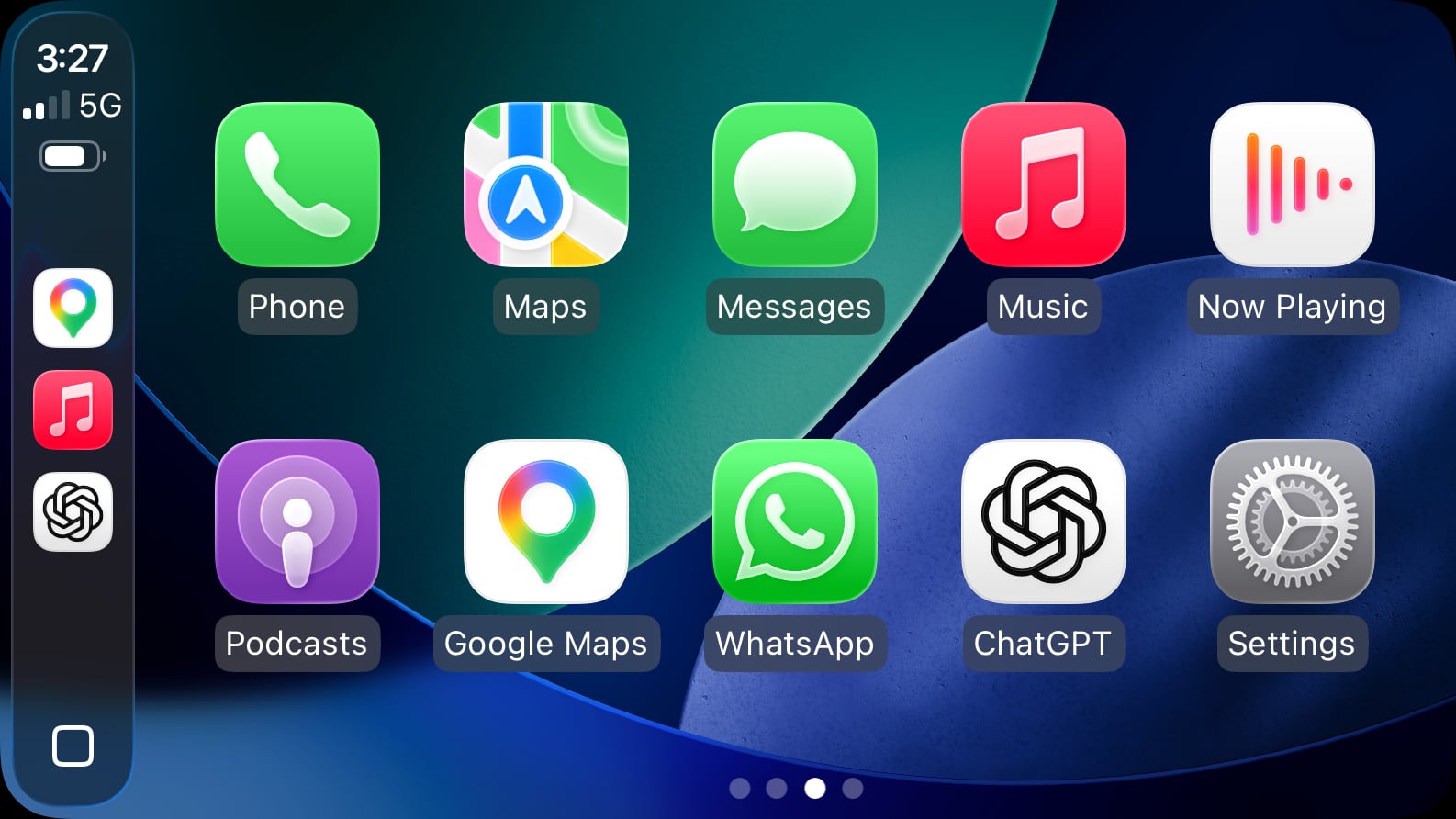
Apple began allowing third-party voice-based conversational apps to interface with CarPlay in iOS 26.4, but apps need to implement the feature and get a special entitlement from Apple.
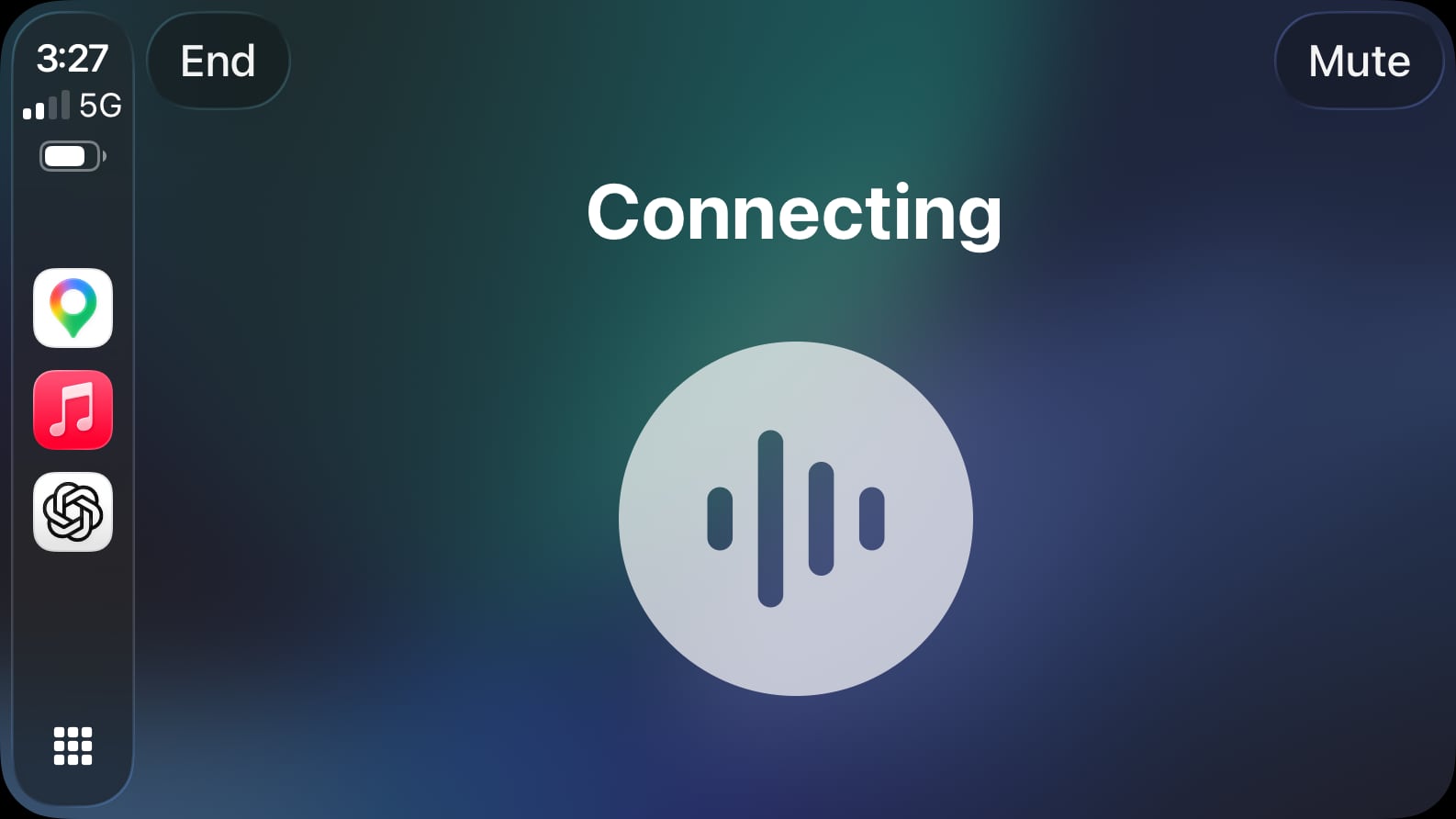
For the ChatGPT app and other apps that implement CarPlay support, voice has to be the primary method of interaction. Apple says that chatbot apps should not show text or imagery in response to queries.
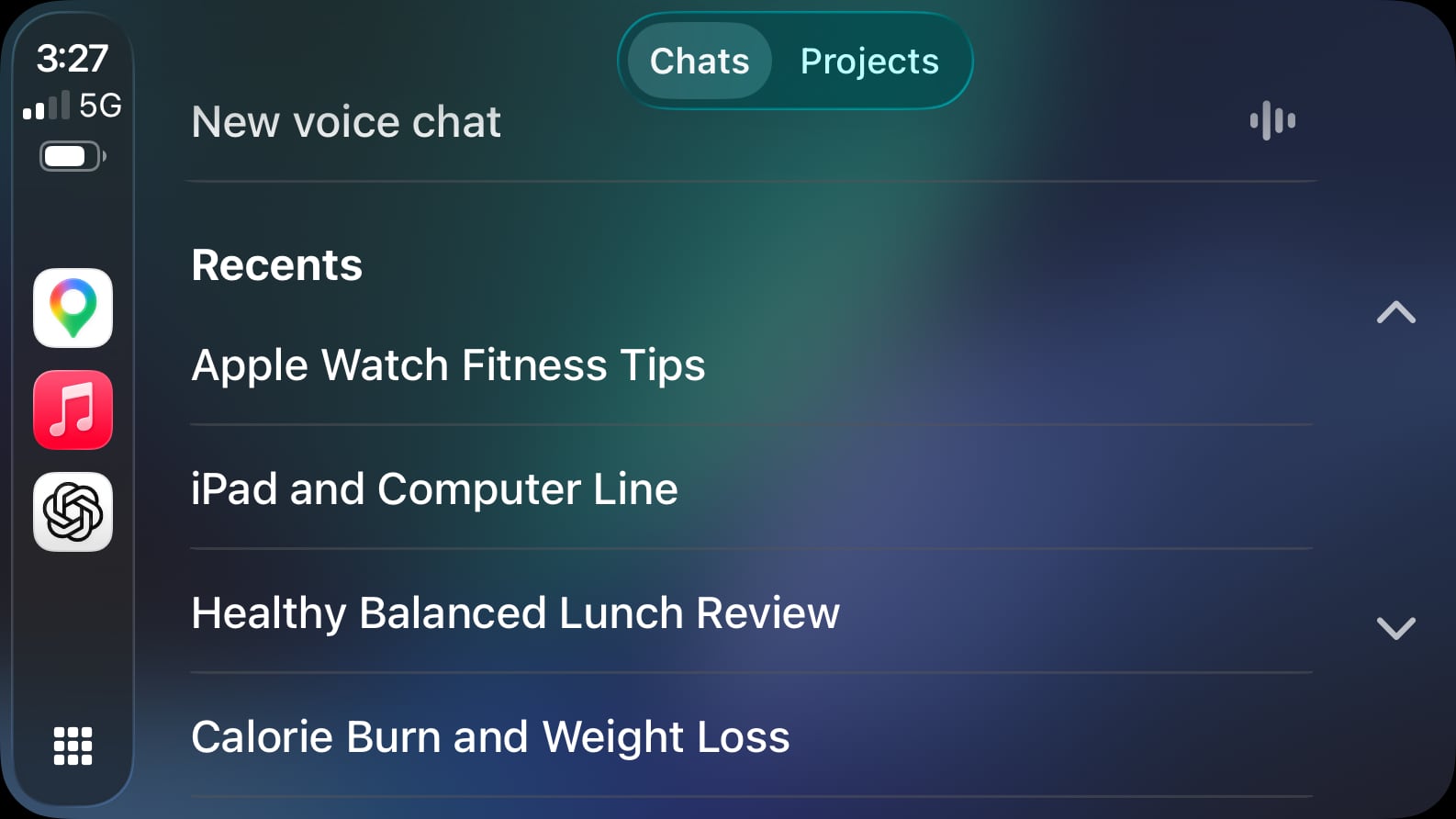
Apple has a voice control template that apps are required to use. Apps have to display the voice control screen while voice-based services are active, and apps are able to have up to four action buttons. To use ChatGPT with CarPlay, an iPhone running iOS 26.4 or later is required.
CarPlay has supported third-party apps for years, but Apple limits the types of apps that are available to cut down on driver distractions. Apple has a list of allowed app categories, which includes audio apps, communication apps, EV charging apps, and navigation apps.
ChatGPT integration will let users ask questions hands-free, but the chatbot is not able to control vehicle or iPhone functions. There is no wake word, so users will need to open the ChatGPT app to use it.
This article, "OpenAI Brings ChatGPT to CarPlay for Hands-Free Voice Conversations" first appeared on MacRumors.com
Discuss this article in our forums
Apple began allowing third-party voice-based conversational apps to interface with CarPlay in iOS 26.4, but apps need to implement the feature and get a special entitlement from Apple.
For the ChatGPT app and other apps that implement CarPlay support, voice has to be the primary method of interaction. Apple says that chatbot apps should not show text or imagery in response to queries.
Apple has a voice control template that apps are required to use. Apps have to display the voice control screen while voice-based services are active, and apps are able to have up to four action buttons. To use ChatGPT with CarPlay, an iPhone running iOS 26.4 or later is required.
CarPlay has supported third-party apps for years, but Apple limits the types of apps that are available to cut down on driver distractions. Apple has a list of allowed app categories, which includes audio apps, communication apps, EV charging apps, and navigation apps.
ChatGPT integration will let users ask questions hands-free, but the chatbot is not able to control vehicle or iPhone functions. There is no wake word, so users will need to open the ChatGPT app to use it.
Related Roundup: CarPlay
Related Forum: HomePod, HomeKit, CarPlay, Home & Auto Technology
This article, "OpenAI Brings ChatGPT to CarPlay for Hands-Free Voice Conversations" first appeared on MacRumors.com
Discuss this article in our forums
Recommended Comments
Join the conversation
You can post now and register later. If you have an account, sign in now to post with your account.