_811205.png)
_e196d8.png)
_32b3d9.png)
_1c53fe.png)

Perplexity today expanded its Comet browser to iOS, making its AI Comet Assistant available to iPhone users.
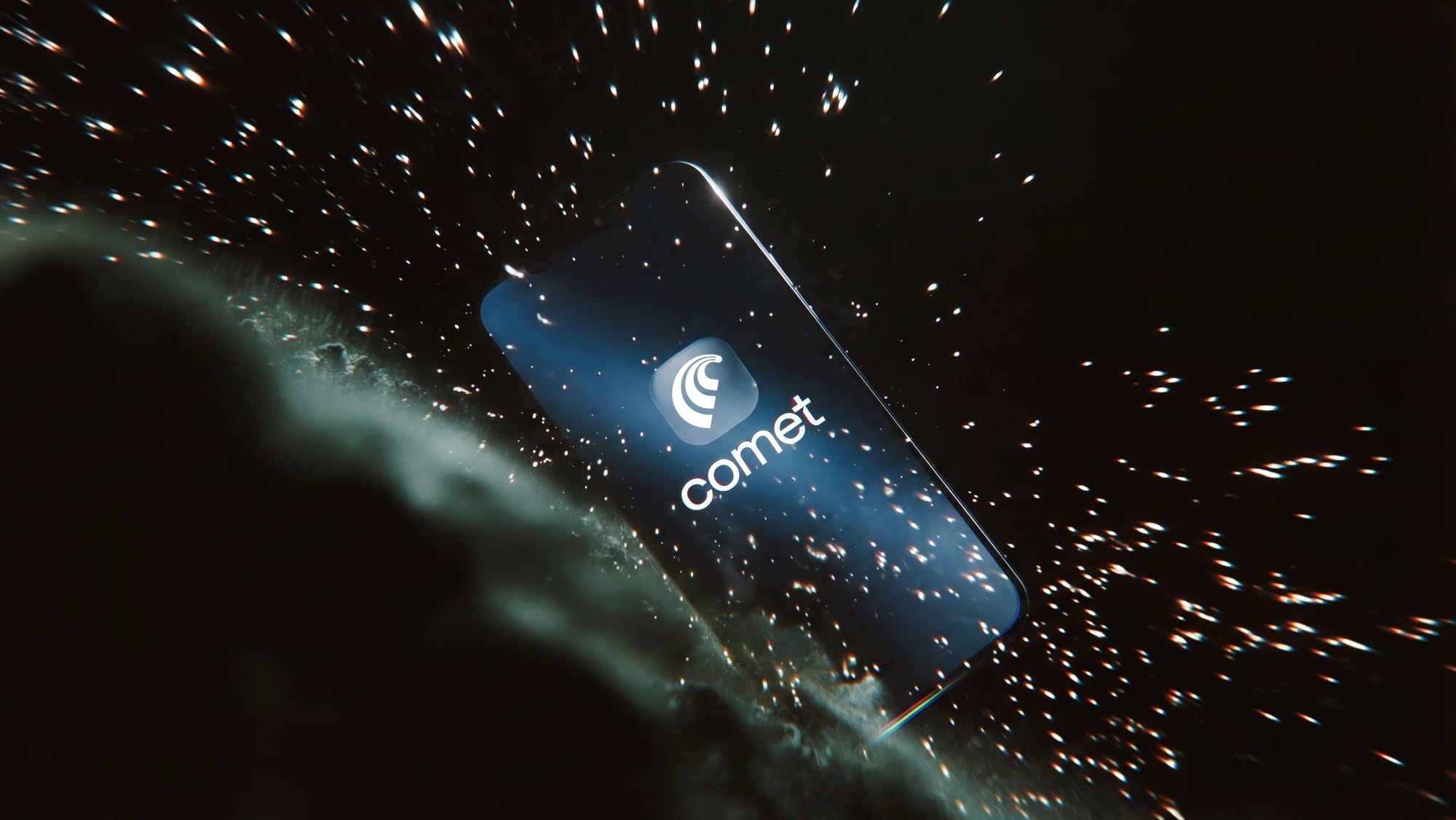
The Comet browser for iOS has many of the same features as the Comet browser for the desktop, including a voice mode for speaking questions and a hybrid search experience, but it does lack extensions. Comet offers standard search results like you might expect from any web search, but the added Comet Assistant is able to provide more in-depth answers and complete tasks.
Comet supports Perplexity's Deep Research feature that's able to ingest information from multiple web sources and provide quick, useful summaries. The Comet Assistant can also complete web-based tasks, like summarizing emails, searching for products, comparing prices across websites, and more.
With the new iOS app, Comet works across different devices, so users can start a search on one device and pick it up on another.
Perplexity does collect browsing and search history from Comet to create ad-targeting profiles to serve ads to users. Comet was priced at $200 per month when it first launched last year, but it is available on iOS for free. Pro and Max subscription plans are available starting at $20 per month.
Comet for iOS can be downloaded from the App Store as of today. [Direct Link]
This article, "Perplexity Launches Comet AI Browser for iPhone With Built-In Assistant" first appeared on MacRumors.com
Discuss this article in our forums
The Comet browser for iOS has many of the same features as the Comet browser for the desktop, including a voice mode for speaking questions and a hybrid search experience, but it does lack extensions. Comet offers standard search results like you might expect from any web search, but the added Comet Assistant is able to provide more in-depth answers and complete tasks.
Comet supports Perplexity's Deep Research feature that's able to ingest information from multiple web sources and provide quick, useful summaries. The Comet Assistant can also complete web-based tasks, like summarizing emails, searching for products, comparing prices across websites, and more.
With the new iOS app, Comet works across different devices, so users can start a search on one device and pick it up on another.
Perplexity does collect browsing and search history from Comet to create ad-targeting profiles to serve ads to users. Comet was priced at $200 per month when it first launched last year, but it is available on iOS for free. Pro and Max subscription plans are available starting at $20 per month.
Comet for iOS can be downloaded from the App Store as of today. [Direct Link]
This article, "Perplexity Launches Comet AI Browser for iPhone With Built-In Assistant" first appeared on MacRumors.com
Discuss this article in our forums
Recommended Comments
Join the conversation
You can post now and register later. If you have an account, sign in now to post with your account.