_811205.png)
_e196d8.png)
_32b3d9.png)
_1c53fe.png)

Apple's new version of Safari browser can be tasked to monitor a webpage and notify you of any changes, thanks to a new built-in feature.
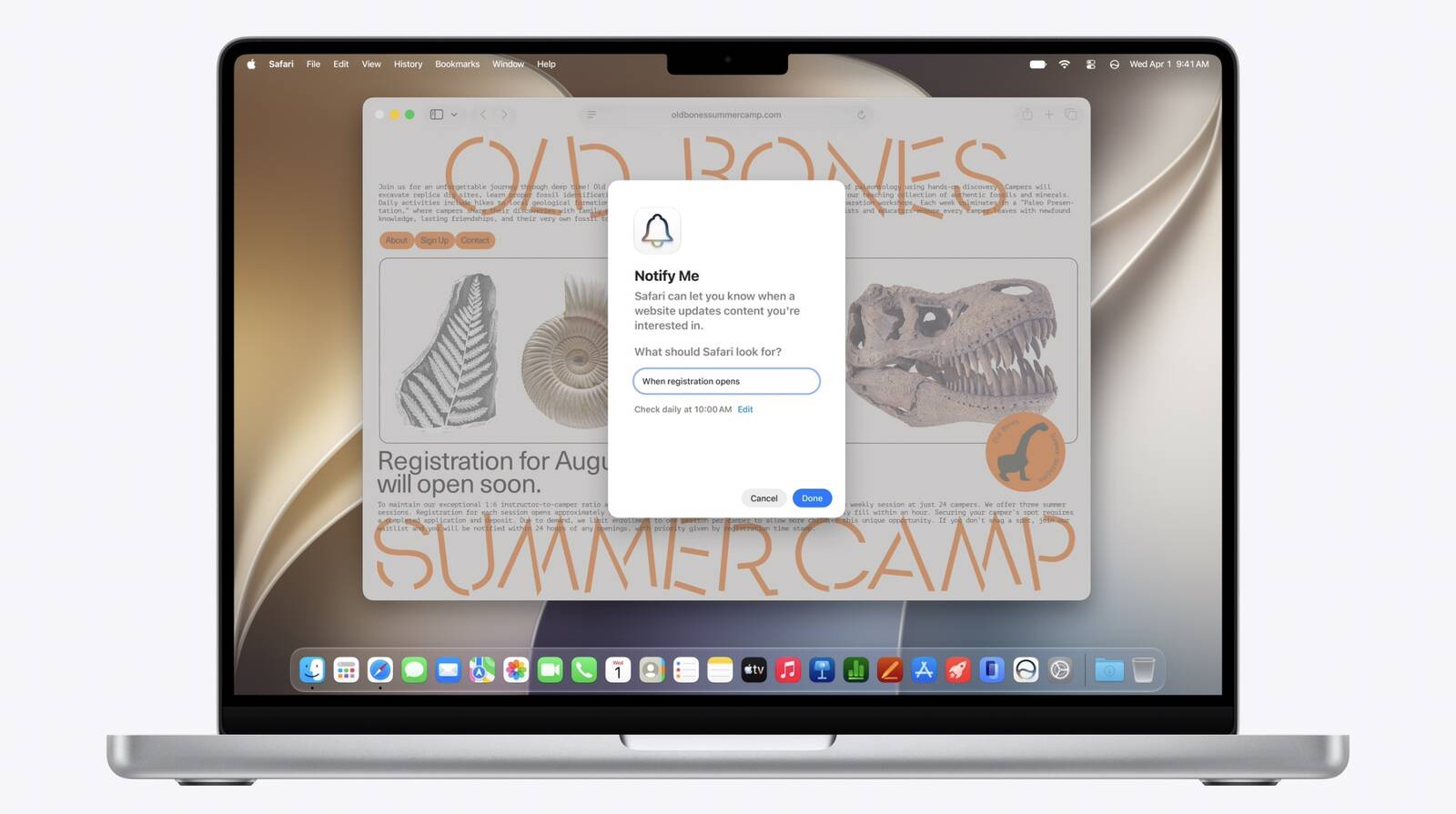
With "Notify Me," Safari can keep checking a website on your behalf – such as a product you've been watching for when it comes back in stock – and alert you when a change occurs.
In other upcoming feature additions, using the power of AI, Safari tabs that you have open can automatically be organized into topics.
Moreover, Apple says that you can describe what you want in natural language, and Safari can create a custom extension that adapts web pages just for you.
Stay tuned for all the details.
This article, "Safari Will Soon Be Able to Monitor a Webpage and Notify You of Updates" first appeared on MacRumors.com
Discuss this article in our forums
With "Notify Me," Safari can keep checking a website on your behalf – such as a product you've been watching for when it comes back in stock – and alert you when a change occurs.
In other upcoming feature additions, using the power of AI, Safari tabs that you have open can automatically be organized into topics.
Moreover, Apple says that you can describe what you want in natural language, and Safari can create a custom extension that adapts web pages just for you.
Stay tuned for all the details.
Tag: WWDC 2026
This article, "Safari Will Soon Be Able to Monitor a Webpage and Notify You of Updates" first appeared on MacRumors.com
Discuss this article in our forums
Recommended Comments
Join the conversation
You can post now and register later. If you have an account, sign in now to post with your account.