_811205.png)
_e196d8.png)
_32b3d9.png)
_1c53fe.png)

When macOS Tahoe and iPadOS 26 launched last September, Apple quietly removed Safari's Compact tab layout – the option that merged the address bar and the tab bar into a single, space-saving row. If you were a fan of it, you will have been out of luck for months.
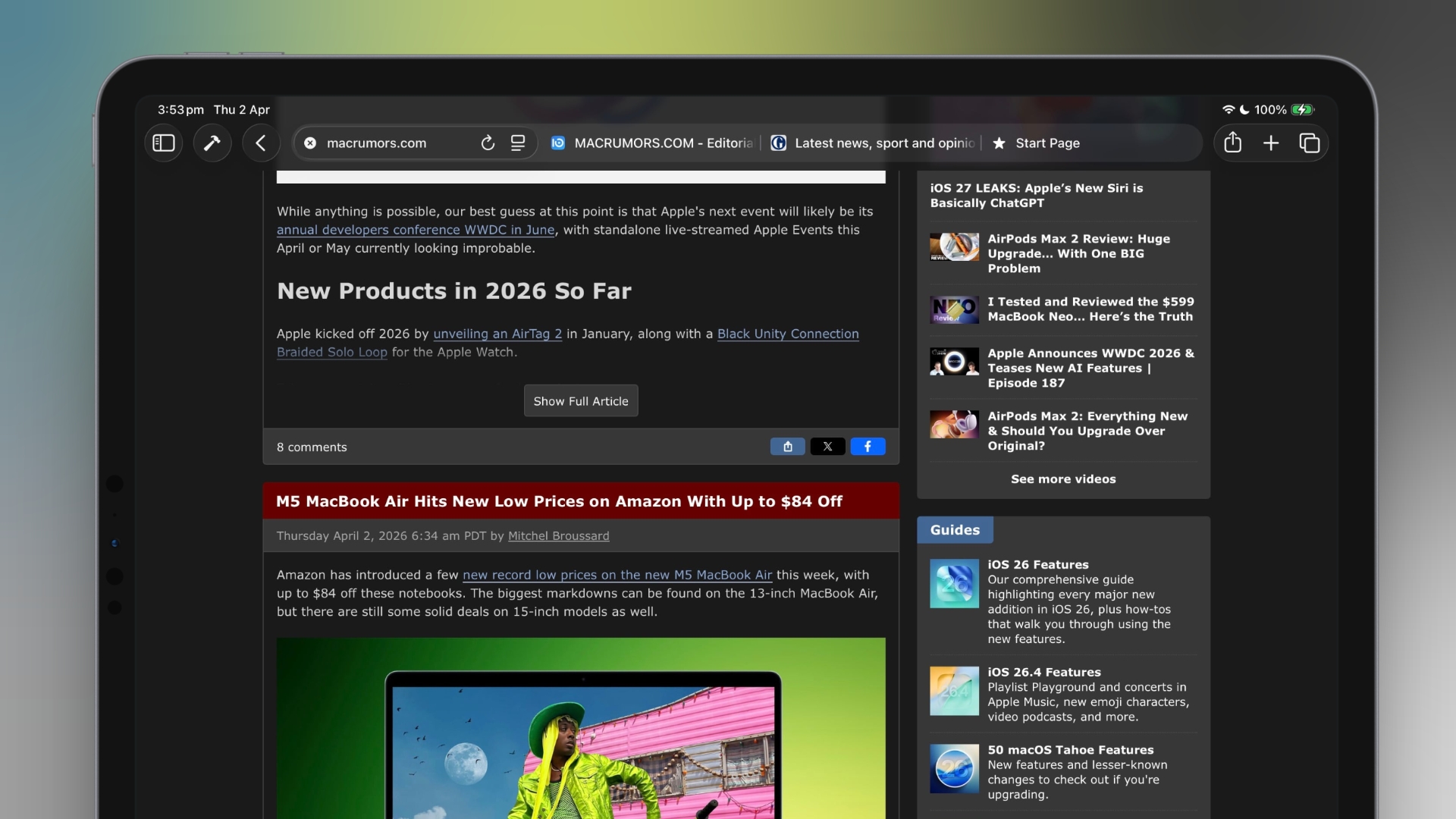
The good news is that Apple has brought it back. In macOS 26.4 and iPadOS 26.4, the Compact tab bar is once again available as an alternative to the default Separate layout. Here's how to enable it on both platforms.
Open Safari.
In the menu bar, click Safari ➝ Settings....
Click the Tabs pane.
Next to "Tabs Layout," select Compact.
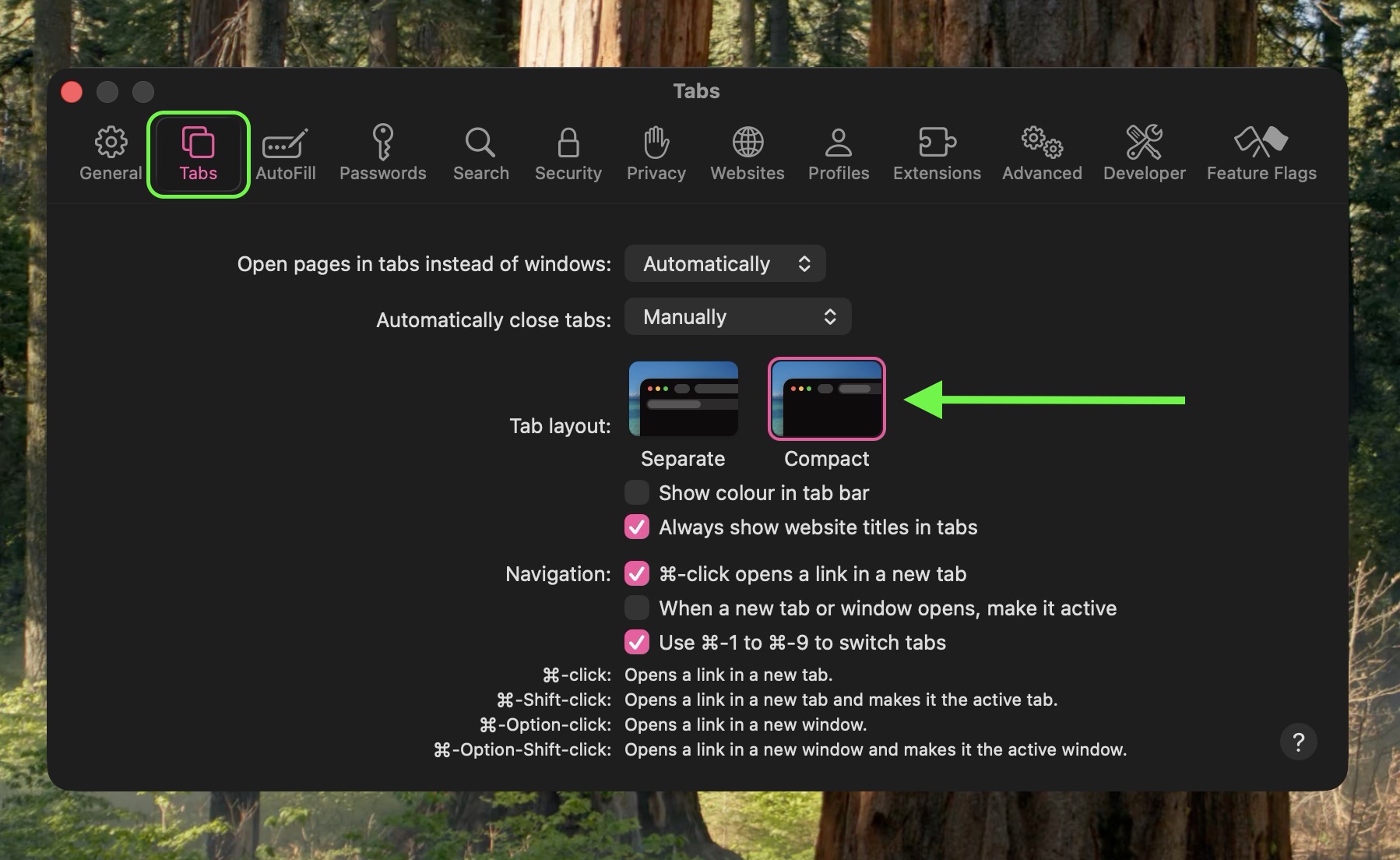
The address bar and tab bar will immediately merge into a single row, freeing up vertical screen space.
Open the Settings app.
Scroll down and tap through to Apps ➝ Safari.
Under "Tabs," tap Compact Tab Bar.
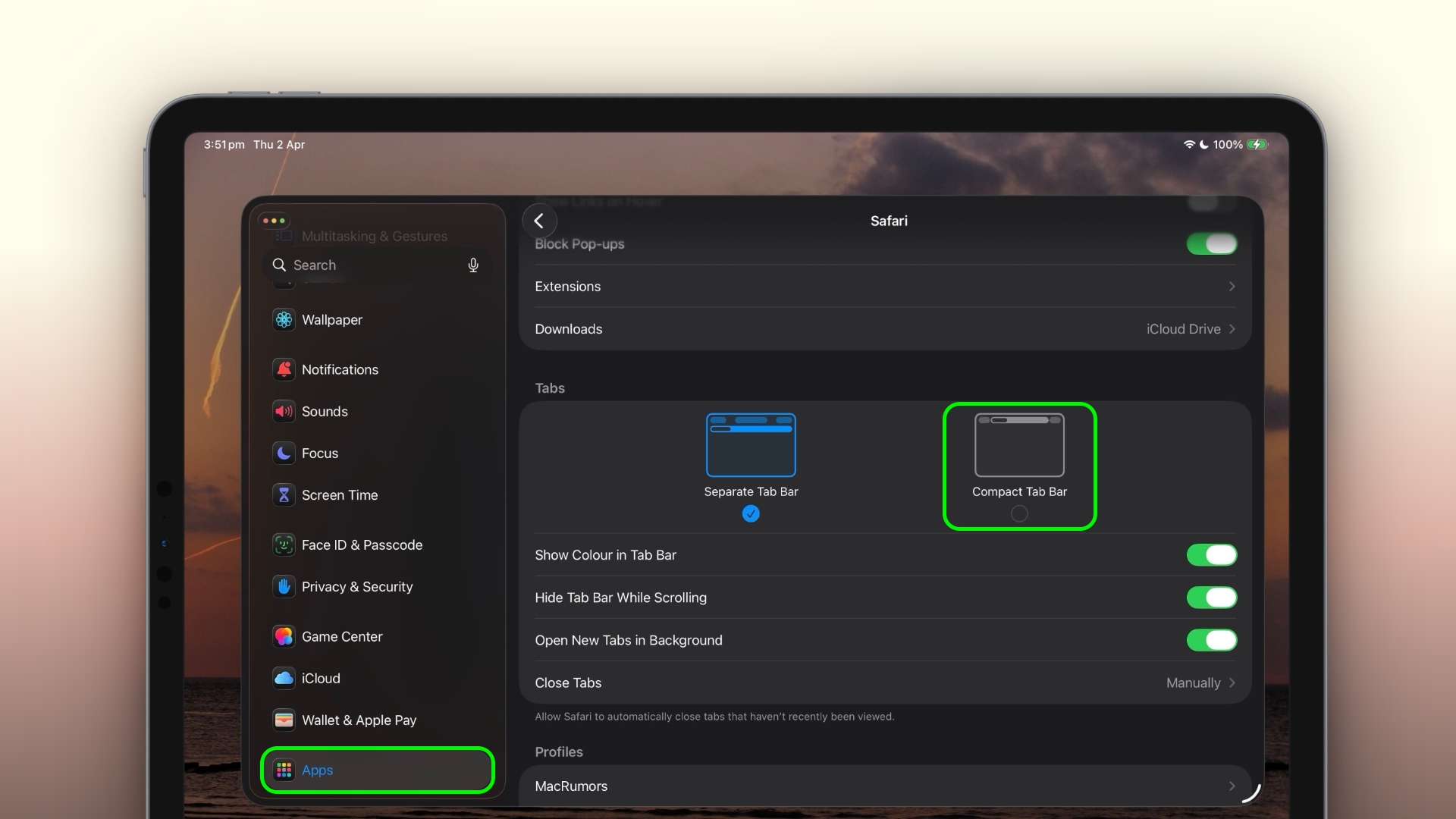
That's all there is to it. If you decide you prefer the standard layout, simply retrace your steps and select Separate (on Mac) or Separate Tab Bar (on iPad).
The Compact layout can be handy on the smaller screens of the MacBook Air or iPad mini, where every pixel of vertical space counts. It's worth trying if you've never used it, just be aware that tab titles are truncated more aggressively in this view, so when switching between many open tabs you'll have to rely more on favicons than on page names.
This article, "Safari's Compact Tab Bar Is Back on Mac and iPad" first appeared on MacRumors.com
Discuss this article in our forums
The good news is that Apple has brought it back. In macOS 26.4 and iPadOS 26.4, the Compact tab bar is once again available as an alternative to the default Separate layout. Here's how to enable it on both platforms.
On Mac
Open Safari.
In the menu bar, click Safari ➝ Settings....
Click the Tabs pane.
Next to "Tabs Layout," select Compact.
The address bar and tab bar will immediately merge into a single row, freeing up vertical screen space.
On iPad
Open the Settings app.
Scroll down and tap through to Apps ➝ Safari.
Under "Tabs," tap Compact Tab Bar.
That's all there is to it. If you decide you prefer the standard layout, simply retrace your steps and select Separate (on Mac) or Separate Tab Bar (on iPad).
The Compact layout can be handy on the smaller screens of the MacBook Air or iPad mini, where every pixel of vertical space counts. It's worth trying if you've never used it, just be aware that tab titles are truncated more aggressively in this view, so when switching between many open tabs you'll have to rely more on favicons than on page names.
Tag: Safari
This article, "Safari's Compact Tab Bar Is Back on Mac and iPad" first appeared on MacRumors.com
Discuss this article in our forums
Recommended Comments
Join the conversation
You can post now and register later. If you have an account, sign in now to post with your account.