_811205.png)
_e196d8.png)
_32b3d9.png)
_1c53fe.png)

Satechi is adding to its lineup of charging solutions for Apple devices with the new ChargeView 140W Desktop Charger that’s available starting today. The ChargeView is a gallium-nitride charger that has adaptive charging intelligence and a digital display that shows real-time power usage.
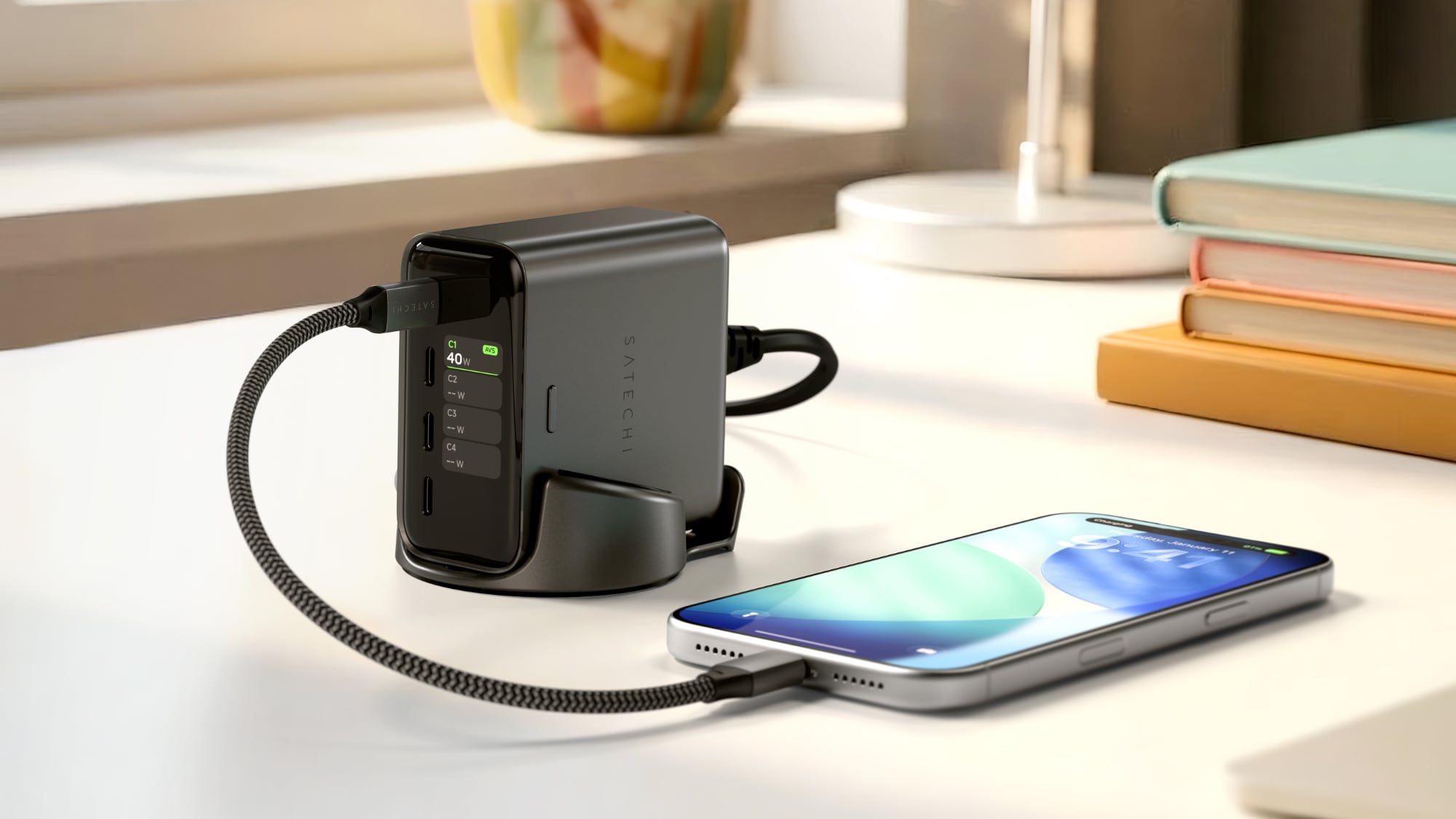
The ChargeView is meant to be used on top of a desk, so it has space black aluminum build to match Apple’s Macs and a clean, modern design. It is meant to be used upright to minimize the amount of space that it takes up on a desk. The ChargeView includes four USB-C ports, with 140W total output. 140W is enough to charge a 16-inch MacBook Pro at full speed, but power is split when using more than one port. The included display shows how power is distributed.
Fast charging for the iPhone, iPad, and Macs is supported, and Satechi says the ChargeView supports USB PD 3.2 with AVS for advanced power optimization. Satechi’s power optimization makes sure devices get optimal output with protection against overheating, overcurrent, and overvoltage.
The ChargeView 140W Desktop Charger is priced at $100 and it can be purchased from the Satechi website or from Amazon.com.
This article, "Satechi Launches ChargeView 140W Desktop Charger" first appeared on MacRumors.com
Discuss this article in our forums
The ChargeView is meant to be used on top of a desk, so it has space black aluminum build to match Apple’s Macs and a clean, modern design. It is meant to be used upright to minimize the amount of space that it takes up on a desk. The ChargeView includes four USB-C ports, with 140W total output. 140W is enough to charge a 16-inch MacBook Pro at full speed, but power is split when using more than one port. The included display shows how power is distributed.
Fast charging for the iPhone, iPad, and Macs is supported, and Satechi says the ChargeView supports USB PD 3.2 with AVS for advanced power optimization. Satechi’s power optimization makes sure devices get optimal output with protection against overheating, overcurrent, and overvoltage.
The ChargeView 140W Desktop Charger is priced at $100 and it can be purchased from the Satechi website or from Amazon.com.
Tag: Satechi
This article, "Satechi Launches ChargeView 140W Desktop Charger" first appeared on MacRumors.com
Discuss this article in our forums
Recommended Comments
Join the conversation
You can post now and register later. If you have an account, sign in now to post with your account.