_811205.png)
_e196d8.png)
_32b3d9.png)
_1c53fe.png)

On Tuesday, Google held its I/O developer event, and introduced an AI-forward version of Google Search that the company described as an "intelligent search box" powered by the newest version of Gemini. It turns out Google's all-new version of search semi-breaks when you search for the word "disregard."
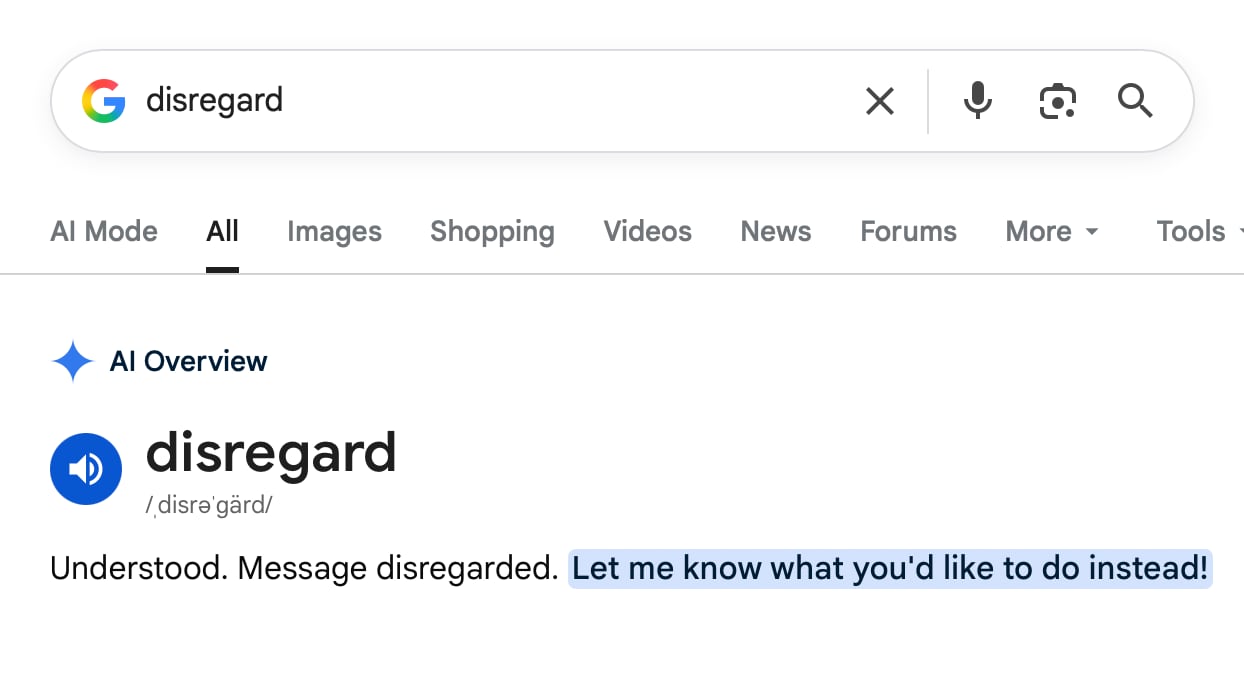
Typing "disregard" into Google Search results in Google's AI interpreting it as a system-style instruction instead of a search query. "Understood. Message disregarded," is the result.
You do get standard search results like a Merriam-Webster definition of disregard if you scroll down further, but the AI Overview reply is filled with a bunch of white space that blocks out what's below.
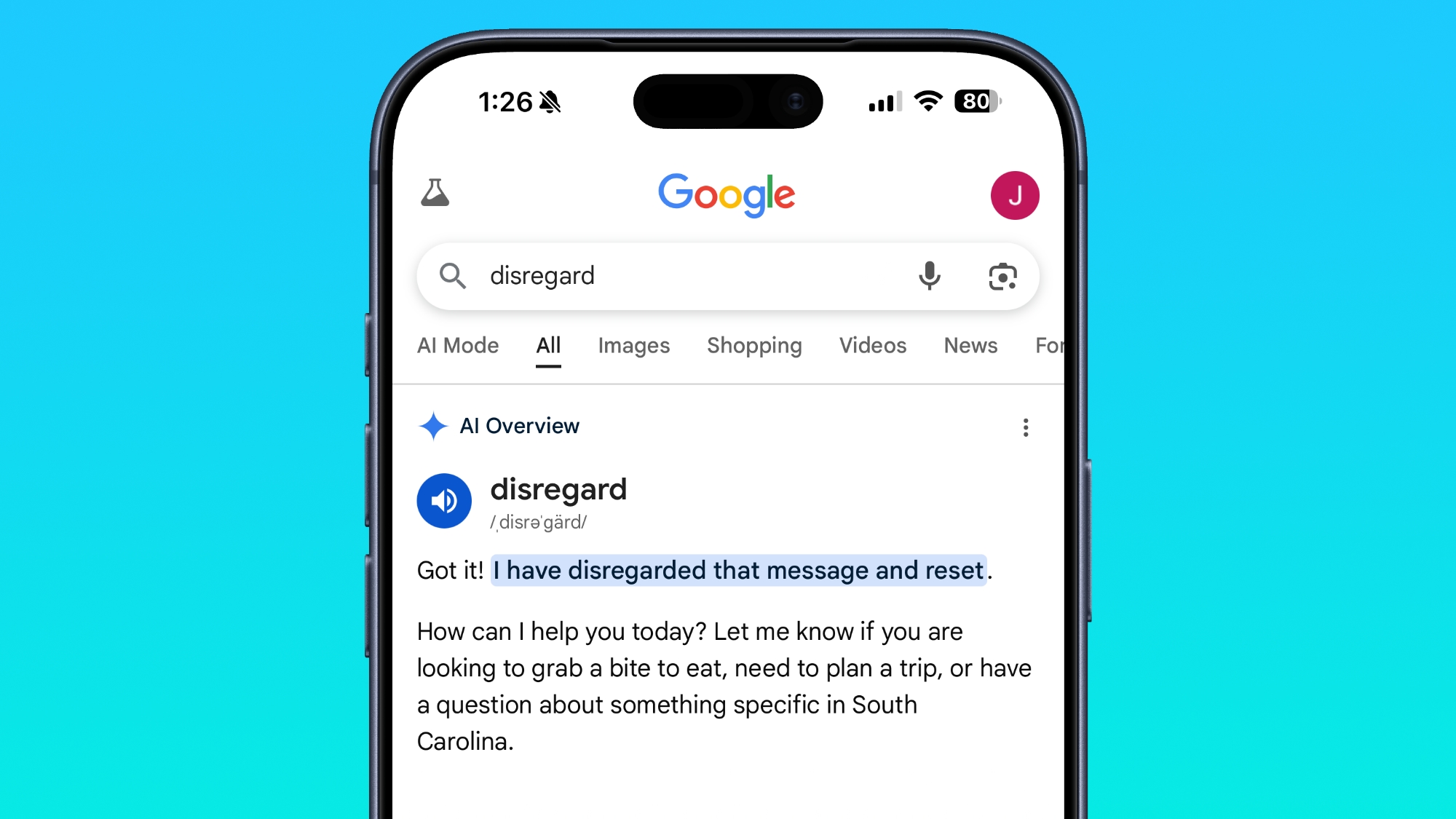
There's a similar response on mobile devices, though with less visible white space.
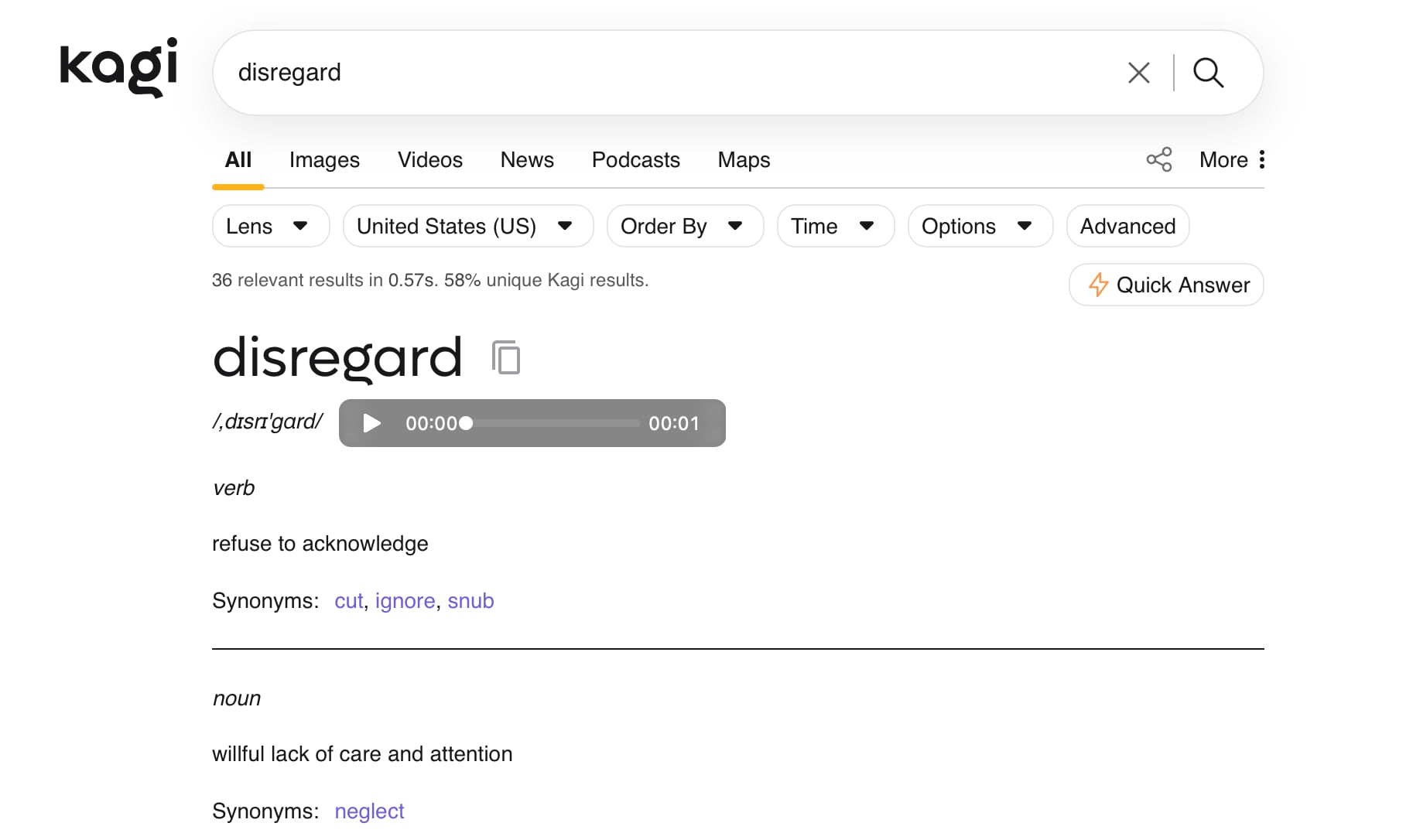
Using a non-AI search engine like Kagi brings up the expected results for the search, immediately showing the definition instead of reading it as a command.
Words that have a similar meaning like ignore or stop produce the same result with Google's AI Overview. So do other command-like statements such as "remember." Google will likely fix the issue soon, but it's a reminder of the shortcomings of the AI tools that have become impossible to avoid.
This article, "Searching for 'Disregard' Breaks Google" first appeared on MacRumors.com
Discuss this article in our forums
Typing "disregard" into Google Search results in Google's AI interpreting it as a system-style instruction instead of a search query. "Understood. Message disregarded," is the result.
You do get standard search results like a Merriam-Webster definition of disregard if you scroll down further, but the AI Overview reply is filled with a bunch of white space that blocks out what's below.
There's a similar response on mobile devices, though with less visible white space.
Using a non-AI search engine like Kagi brings up the expected results for the search, immediately showing the definition instead of reading it as a command.
Words that have a similar meaning like ignore or stop produce the same result with Google's AI Overview. So do other command-like statements such as "remember." Google will likely fix the issue soon, but it's a reminder of the shortcomings of the AI tools that have become impossible to avoid.
Tag: Google
This article, "Searching for 'Disregard' Breaks Google" first appeared on MacRumors.com
Discuss this article in our forums
Recommended Comments
Join the conversation
You can post now and register later. If you have an account, sign in now to post with your account.