_811205.png)
_e196d8.png)
_32b3d9.png)
_1c53fe.png)

Apple appears to be quietly updating some apps, based on curious new update notes that have appeared on the App Store.
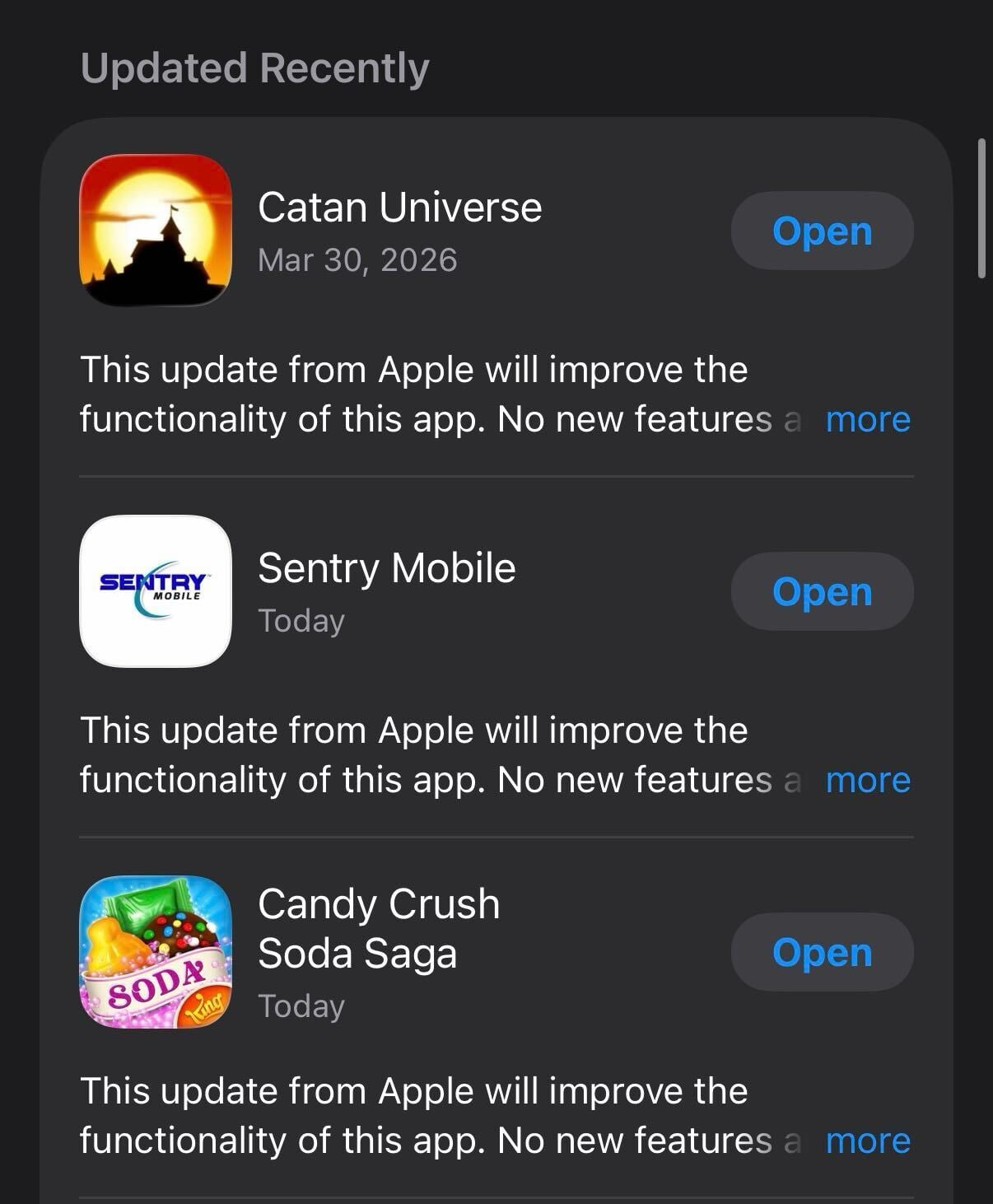
Over the last week, some app updates have included notes that suggest the update is coming from Apple rather than an app developer. "This update from Apple will improve the functionality of this app. No new features are included," reads the description.
Some of the apps that have been updated include Candy Crush Soda Saga, Sentry Mobile, Catan Universe, Bluetti, Mortal Kombat, Duet Display, VLC, and many more.
It's not clear what functionality Apple is improving with each app update, if any. One developer on Reddit said that Apple inserted the text into an app update that had the same version number and content as a prior update.
The update text is appearing on apps that have not been updated in some time, as well as apps that received recent updates, so it's not clear what the apps have in common. When analyzing the code of one of the apps that received an Apple update, MacRumors could not find what had changed.
This article, "Some iPhone Apps Receive Mysterious Update 'From Apple'" first appeared on MacRumors.com
Discuss this article in our forums
Over the last week, some app updates have included notes that suggest the update is coming from Apple rather than an app developer. "This update from Apple will improve the functionality of this app. No new features are included," reads the description.
Some of the apps that have been updated include Candy Crush Soda Saga, Sentry Mobile, Catan Universe, Bluetti, Mortal Kombat, Duet Display, VLC, and many more.
It's not clear what functionality Apple is improving with each app update, if any. One developer on Reddit said that Apple inserted the text into an app update that had the same version number and content as a prior update.
The update text is appearing on apps that have not been updated in some time, as well as apps that received recent updates, so it's not clear what the apps have in common. When analyzing the code of one of the apps that received an Apple update, MacRumors could not find what had changed.
Tag: App Store
This article, "Some iPhone Apps Receive Mysterious Update 'From Apple'" first appeared on MacRumors.com
Discuss this article in our forums
Recommended Comments
Join the conversation
You can post now and register later. If you have an account, sign in now to post with your account.