_811205.png)
_e196d8.png)
_32b3d9.png)
_1c53fe.png)

Back in September, Algoriddim's djay apps for Mac and Windows regained Spotify integration, allowing Spotify Premium subscribers to access the service's full music catalog and their own libraries and playlists, and today that support is expanding to iOS, iPadOS, and Android.
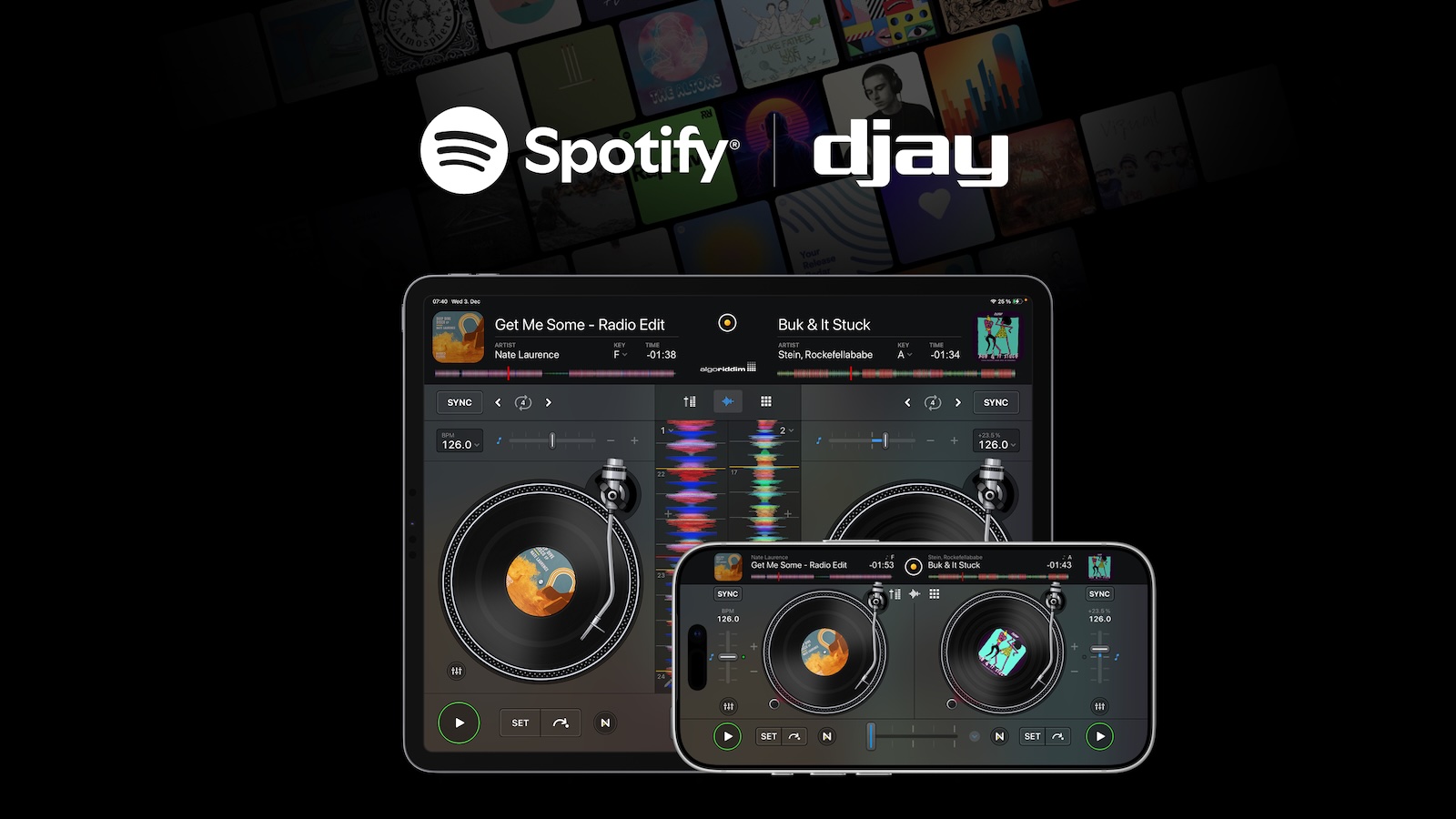
Spotify integration across desktop and mobile is available in 56 markets around the world, and it works with djay's AI-powered Automix feature to deliver DJ-quality transitions to your Spotify playlists. Intelligent beat-matching and a full set of DJ tools, loops, and effects enhance the experience.
Algoriddim's djay app is a free download from the App Store and Mac App Store, as well as the Google Play Store and the Microsoft Store, with an optional Pro subscription priced at $6.99 per month or $49.99 per year to unlock all features.
This article, "Spotify Integration for Algoriddim's Djay App Expands to iOS and iPadOS" first appeared on MacRumors.com
Discuss this article in our forums
Spotify integration across desktop and mobile is available in 56 markets around the world, and it works with djay's AI-powered Automix feature to deliver DJ-quality transitions to your Spotify playlists. Intelligent beat-matching and a full set of DJ tools, loops, and effects enhance the experience.
"Integrating Spotify across djay's entire mobile and desktop lineup marks an exciting new chapter for our users and anyone aspiring to DJ," said Karim Morsy, CEO of Algoriddim. "Whether you're using your phone, tablet, or laptop, you can now tap into Spotify's massive catalog and mix the music you love across all your devices, anywhere you go.The djay apps already support Apple Music integration, and now Spotify offers the same type of support across platforms.
Algoriddim's djay app is a free download from the App Store and Mac App Store, as well as the Google Play Store and the Microsoft Store, with an optional Pro subscription priced at $6.99 per month or $49.99 per year to unlock all features.
This article, "Spotify Integration for Algoriddim's Djay App Expands to iOS and iPadOS" first appeared on MacRumors.com
Discuss this article in our forums
Recommended Comments
Join the conversation
You can post now and register later. If you have an account, sign in now to post with your account.