_811205.png)
_e196d8.png)
_32b3d9.png)
_1c53fe.png)

In iOS, Apple's Audio Zoom feature automatically focuses your iPhone's microphones on whatever you've zoomed in on while recording video. It's great for isolating a subject in a noisy environment, but it can also strip away the ambient sound that can give your footage a broader context. Fortunately, iOS 26.4 adds a dedicated toggle for Audio Zoom so you can decide for yourself when it's truly required.
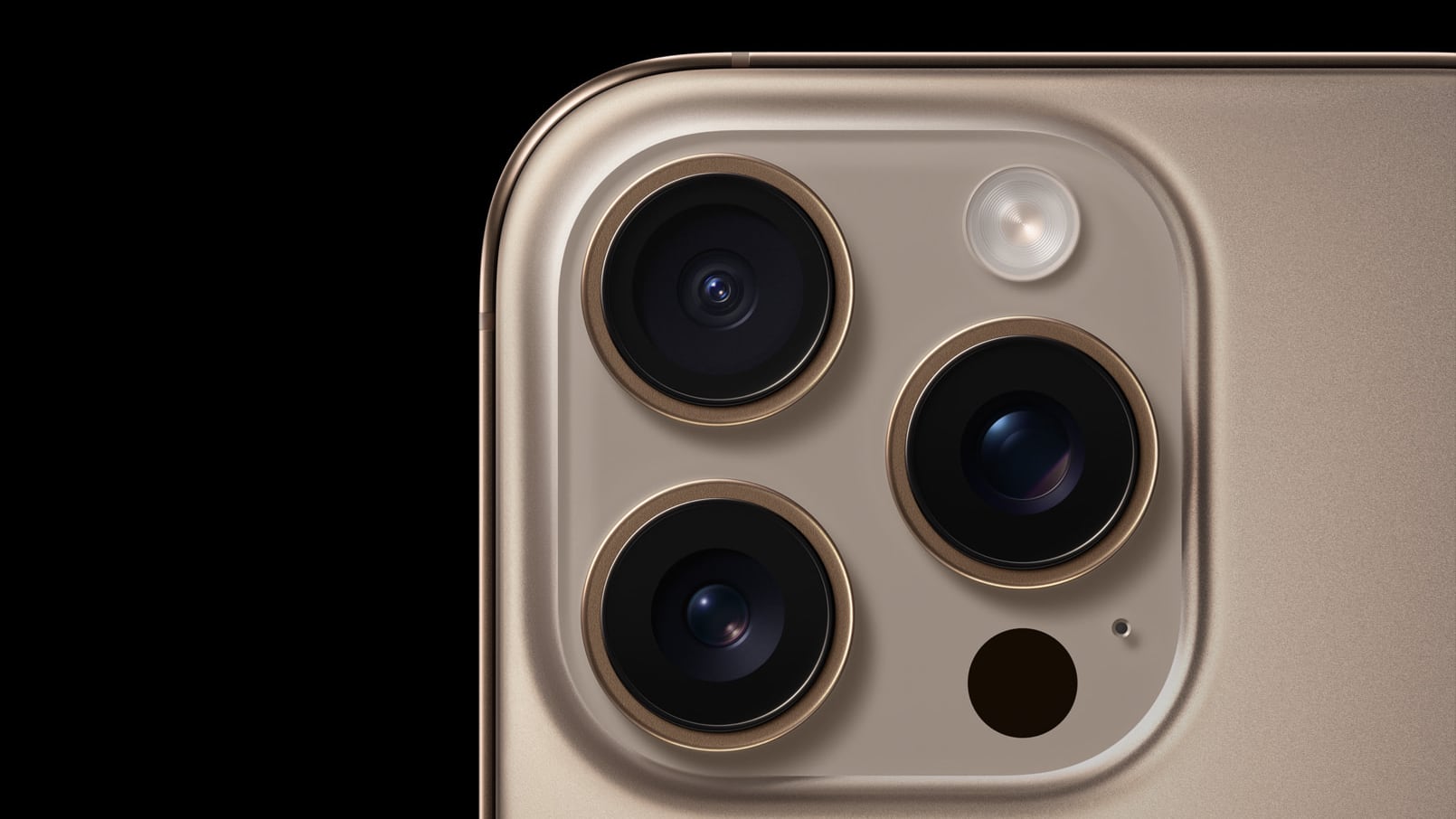
Audio Zoom is likely to be most useful if you're recording at a concert, sporting event, or any scenario where you want to isolate a specific sound source from a noisy environment. But what if you want to capture the full acoustic experience rather than just the subject you've zoomed in on? In those situations, the audio narrowing effect could risk making your video sound flat and unnatural.
In iOS 26.4, Audio Zoom is on by default, but now you can also turn it off. If you haven't updated yet, head to Settings ➝ General ➝ Software Update on your iPhone to download the latest version. Once you're up and running, here's how to find the setting:
Open Settings on your iPhone.
Scroll down and tap Camera.
Tap Record Sound.
Toggle Audio Zoom on or off.
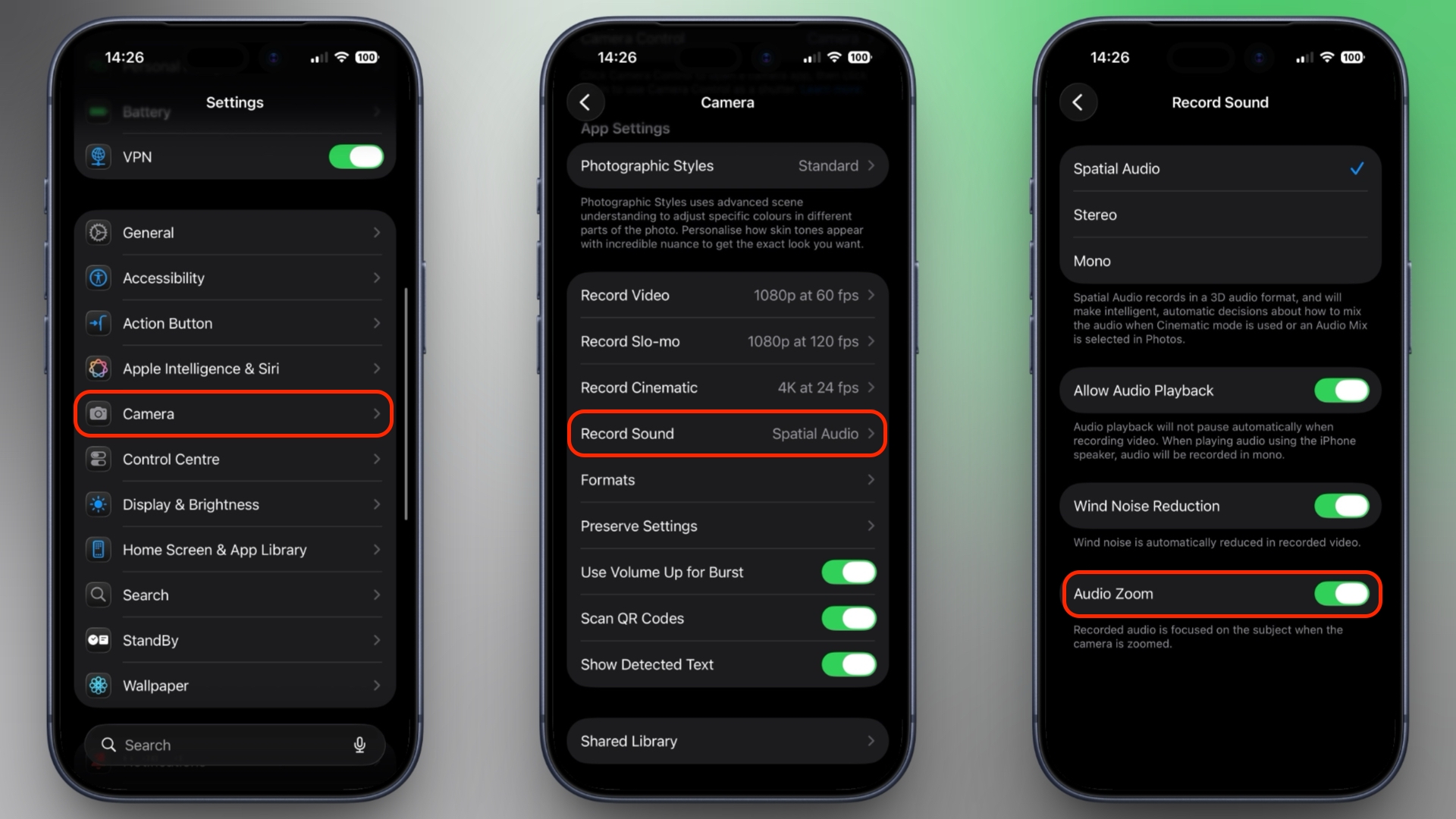
Note that Audio Zoom only works when Spatial Audio or Stereo is selected as your recording format. If you've switched to Mono, the option will be grayed out.
If you shoot a lot of zoomed-in video and want the clearest possible audio of your subject, it's best to leave Audio Zoom enabled. But if you prefer capturing the full ambient soundscape of a scene regardless of zoom level, be sure to switch it off.
This article, "Stop Your iPhone Suppressing Background Audio in Videos" first appeared on MacRumors.com
Discuss this article in our forums
What Is Audio Zoom?
Audio Zoom is likely to be most useful if you're recording at a concert, sporting event, or any scenario where you want to isolate a specific sound source from a noisy environment. But what if you want to capture the full acoustic experience rather than just the subject you've zoomed in on? In those situations, the audio narrowing effect could risk making your video sound flat and unnatural.
In iOS 26.4, Audio Zoom is on by default, but now you can also turn it off. If you haven't updated yet, head to Settings ➝ General ➝ Software Update on your iPhone to download the latest version. Once you're up and running, here's how to find the setting:
Open Settings on your iPhone.
Scroll down and tap Camera.
Tap Record Sound.
Toggle Audio Zoom on or off.
Note that Audio Zoom only works when Spatial Audio or Stereo is selected as your recording format. If you've switched to Mono, the option will be grayed out.
If you shoot a lot of zoomed-in video and want the clearest possible audio of your subject, it's best to leave Audio Zoom enabled. But if you prefer capturing the full ambient soundscape of a scene regardless of zoom level, be sure to switch it off.
This article, "Stop Your iPhone Suppressing Background Audio in Videos" first appeared on MacRumors.com
Discuss this article in our forums
Recommended Comments
Join the conversation
You can post now and register later. If you have an account, sign in now to post with your account.