_811205.png)
_e196d8.png)
_32b3d9.png)
_1c53fe.png)

Strava appears to be rolling out full route navigation and mapping to its watchOS app, bringing the long-awaited functionality to runners, hikers, and cyclists with Apple Watch for the first time.
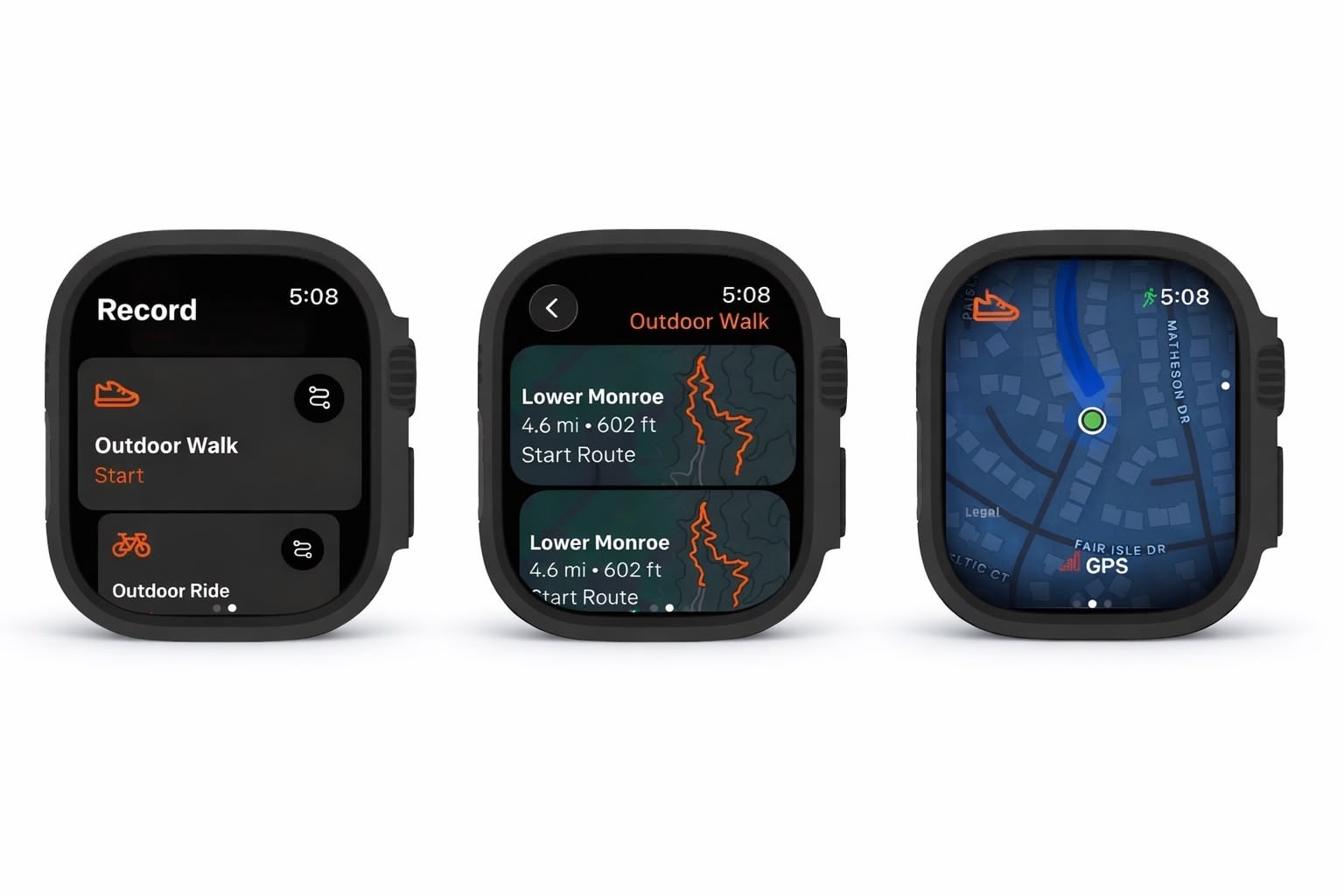
The feature, which remains in beta, allows users to select a pre-loaded route, view elevation details, and follow directions directly from their wrist without having to look at their iPhone. Strava users on Reddit noted the feature began appearing over the weekend.
Since this time last year, Strava users have been able to share an Apple Fitness+ workout directly to the Strava app, but the ability to get turn-by-turn directions on an outdoor walk/run or bike ride feels like more of a game-changer for users of the fitness service.
Both paying and non-paying Strava users currently seem to have access to the beta feature, but it's unclear whether it will be reserved for paying subscribers when finalized. Strava has yet to officially comment on the rollout.
This article, "Strava Apple Watch App Gains Route Navigation in Beta" first appeared on MacRumors.com
Discuss this article in our forums
The feature, which remains in beta, allows users to select a pre-loaded route, view elevation details, and follow directions directly from their wrist without having to look at their iPhone. Strava users on Reddit noted the feature began appearing over the weekend.
Since this time last year, Strava users have been able to share an Apple Fitness+ workout directly to the Strava app, but the ability to get turn-by-turn directions on an outdoor walk/run or bike ride feels like more of a game-changer for users of the fitness service.
Both paying and non-paying Strava users currently seem to have access to the beta feature, but it's unclear whether it will be reserved for paying subscribers when finalized. Strava has yet to officially comment on the rollout.
Tag: Strava
This article, "Strava Apple Watch App Gains Route Navigation in Beta" first appeared on MacRumors.com
Discuss this article in our forums
Recommended Comments
Join the conversation
You can post now and register later. If you have an account, sign in now to post with your account.