_811205.png)
_e196d8.png)
_32b3d9.png)
_1c53fe.png)

Apple wants users to look again at their use of generative Genmoji in iOS 27, according to Bloomberg's Mark Gurman.
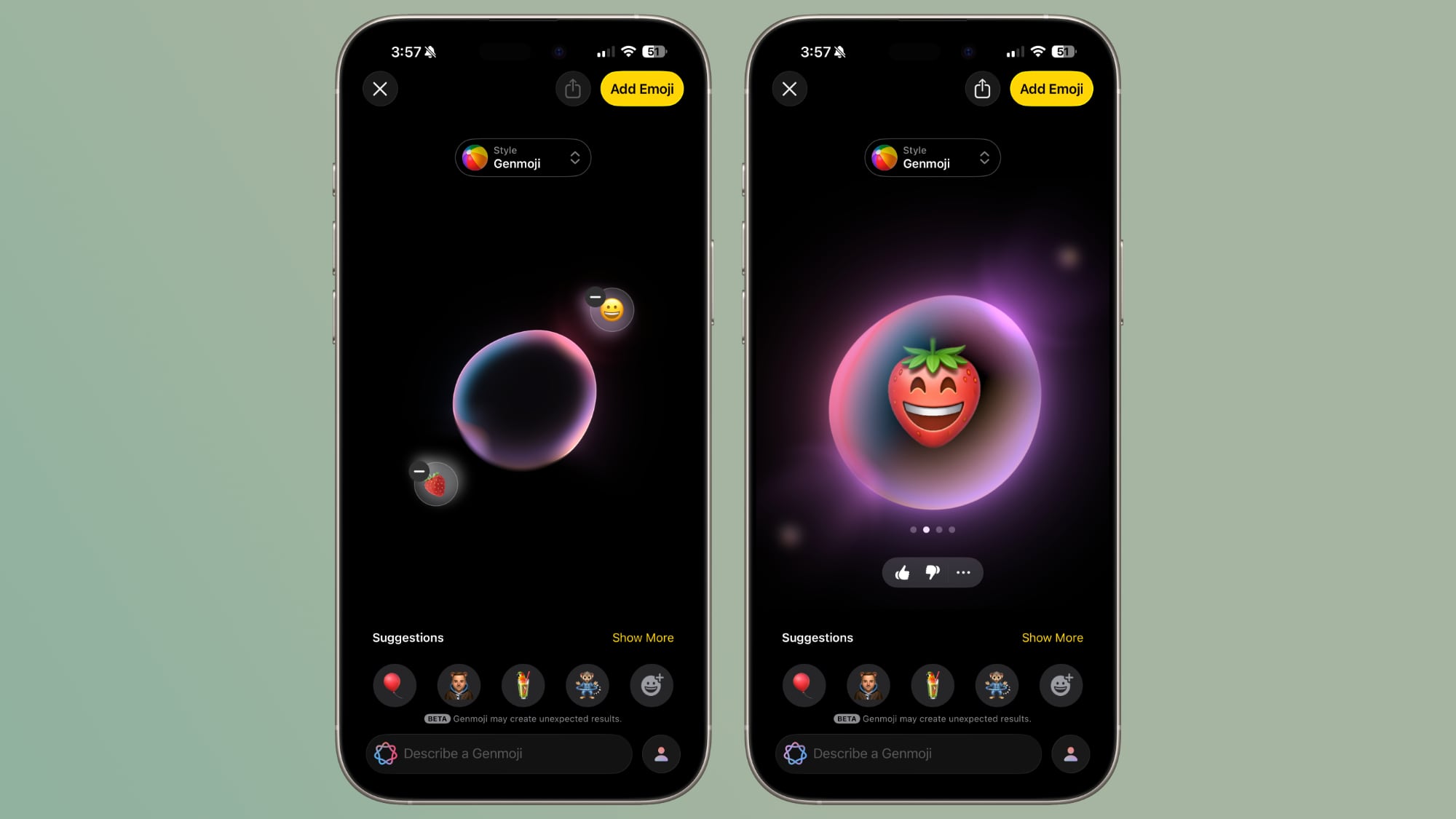
Genmoji is an Apple Intelligence feature that lets you use AI to generate all-new emoji characters based on text input. All Genmoji generation happens directly on-device, but the feature has had a rocky run.
Writing in his latest Power On newsletter, Gurman says that the generated images often looked nothing like Apple's polished marketing examples, and the underlying models were demanding enough to heat up iPhones and drain their batteries.
Apple has apparently made some tweaks so that no longer happens, while also adding a new supplementary feature.
"Suggested Genmoji" will reportedly offer you custom emoji ideas automatically based on your media and text history, rather than you having to think them up yourself. The feature is said to be optional in the next iPhone and iPad software update.
Gurman says a new toggle in the Keyboard settings of iOS 27 reads: "Suggested Genmoji are created from your photos and your commonly typed phrases."
iOS 27 will be previewed at WWDC next month, with a public release expected in the fall.
This article, "'Suggested Genmoji' Are Coming to an iPhone Near You" first appeared on MacRumors.com
Discuss this article in our forums
Genmoji is an Apple Intelligence feature that lets you use AI to generate all-new emoji characters based on text input. All Genmoji generation happens directly on-device, but the feature has had a rocky run.
Writing in his latest Power On newsletter, Gurman says that the generated images often looked nothing like Apple's polished marketing examples, and the underlying models were demanding enough to heat up iPhones and drain their batteries.
Apple has apparently made some tweaks so that no longer happens, while also adding a new supplementary feature.
"Suggested Genmoji" will reportedly offer you custom emoji ideas automatically based on your media and text history, rather than you having to think them up yourself. The feature is said to be optional in the next iPhone and iPad software update.
Gurman says a new toggle in the Keyboard settings of iOS 27 reads: "Suggested Genmoji are created from your photos and your commonly typed phrases."
iOS 27 will be previewed at WWDC next month, with a public release expected in the fall.
Tags: Genmoji, Mark Gurman
This article, "'Suggested Genmoji' Are Coming to an iPhone Near You" first appeared on MacRumors.com
Discuss this article in our forums
Recommended Comments
Join the conversation
You can post now and register later. If you have an account, sign in now to post with your account.