_811205.png)
_e196d8.png)
_32b3d9.png)
_1c53fe.png)

Apple plans to upgrade the iPad mini, MacBook Pro, iPad Air, iMac, and MacBook Air with OLED displays between 2026 and 2028, according to DigiTimes.
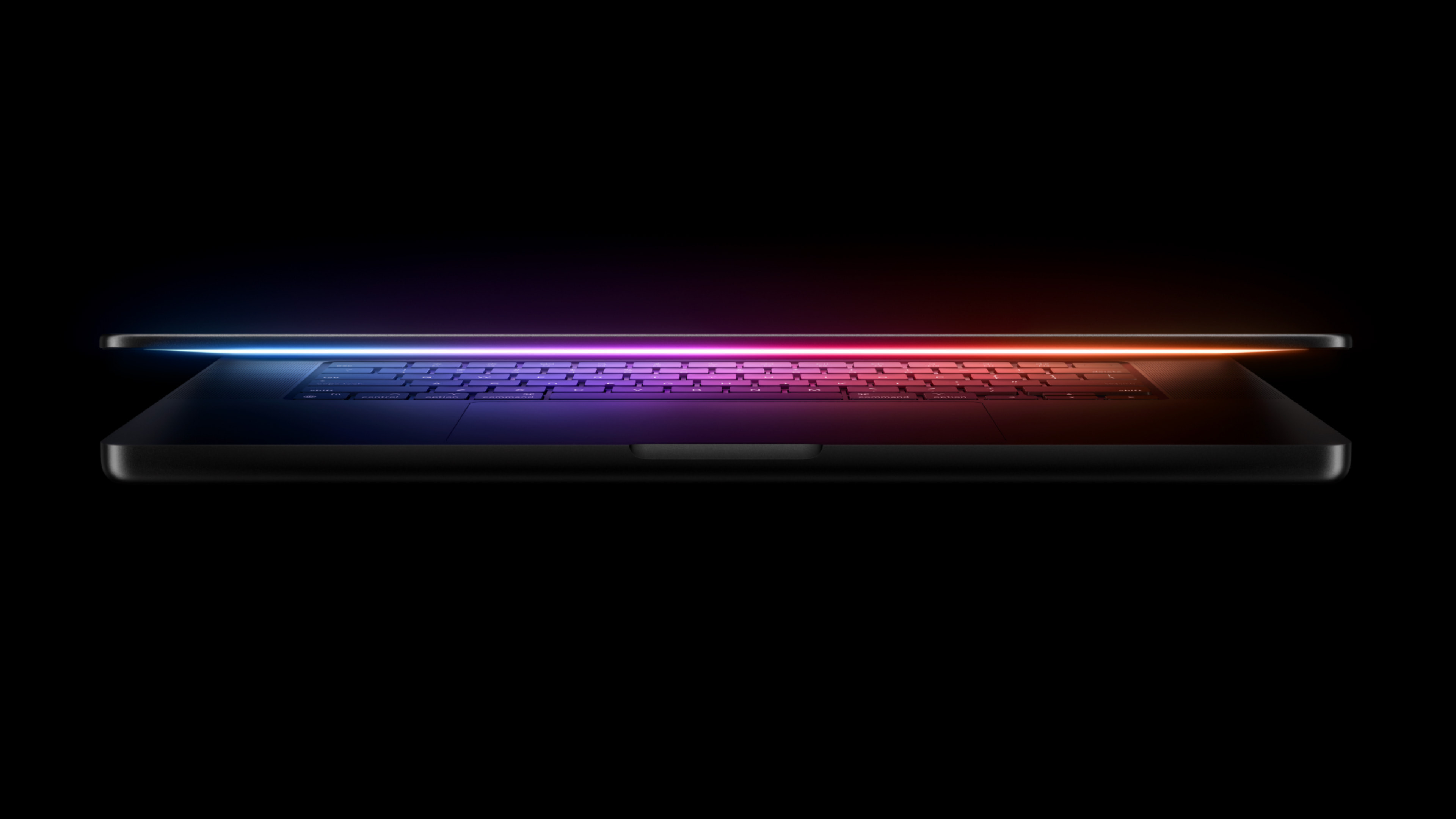
Bloomberg's Mark Gurman previously reported that the iPad mini and MacBook Pro will receive an OLED display as early as this year, but he does not expect the MacBook Air to adopt the technology until 2028 at the earliest.
A new iPad Air is expected to be released this year, but Gurman said it will have an LCD display. He expects a subsequent iPad Air model to have an OLED display, suggesting that the device will not adopt the technology until at least 2027.
Last month, the South Korean publication The Elec reported that Apple is planning to release a 24-inch iMac with an OLED display in 2027 or 2028.
All in all, here is when each device is expected to get an OLED display:
MacBook Pro: Late 2026 or 2027
iPad Air: 2027
iMac: 2027 or 2028
MacBook Air: 2028OLED displays have better overall image quality compared to LCD displays, thanks to richer colors and higher contrast ratio with true blacks.
This article, "These 5 Apple Products Will Reportedly Be Upgraded With OLED Displays" first appeared on MacRumors.com
Discuss this article in our forums
Bloomberg's Mark Gurman previously reported that the iPad mini and MacBook Pro will receive an OLED display as early as this year, but he does not expect the MacBook Air to adopt the technology until 2028 at the earliest.
A new iPad Air is expected to be released this year, but Gurman said it will have an LCD display. He expects a subsequent iPad Air model to have an OLED display, suggesting that the device will not adopt the technology until at least 2027.
Last month, the South Korean publication The Elec reported that Apple is planning to release a 24-inch iMac with an OLED display in 2027 or 2028.
All in all, here is when each device is expected to get an OLED display:
- iPad mini: 2026
MacBook Pro: Late 2026 or 2027
iPad Air: 2027
iMac: 2027 or 2028
MacBook Air: 2028OLED displays have better overall image quality compared to LCD displays, thanks to richer colors and higher contrast ratio with true blacks.
Tag: DigiTimes
Buyer's Guide: iMac (Caution), iPad Air (Neutral), iPad Mini (Caution), 15" MacBook Air (Caution), MacBook Pro (Caution), 13" MacBook Air (Caution)
This article, "These 5 Apple Products Will Reportedly Be Upgraded With OLED Displays" first appeared on MacRumors.com
Discuss this article in our forums
Recommended Comments
Join the conversation
You can post now and register later. If you have an account, sign in now to post with your account.