_811205.png)
_e196d8.png)
_32b3d9.png)
_1c53fe.png)

The new Studio Display XDR features a mini-LED display with up to a 120Hz refresh rate, but you'll need a newer Mac to get support for the full 120Hz.
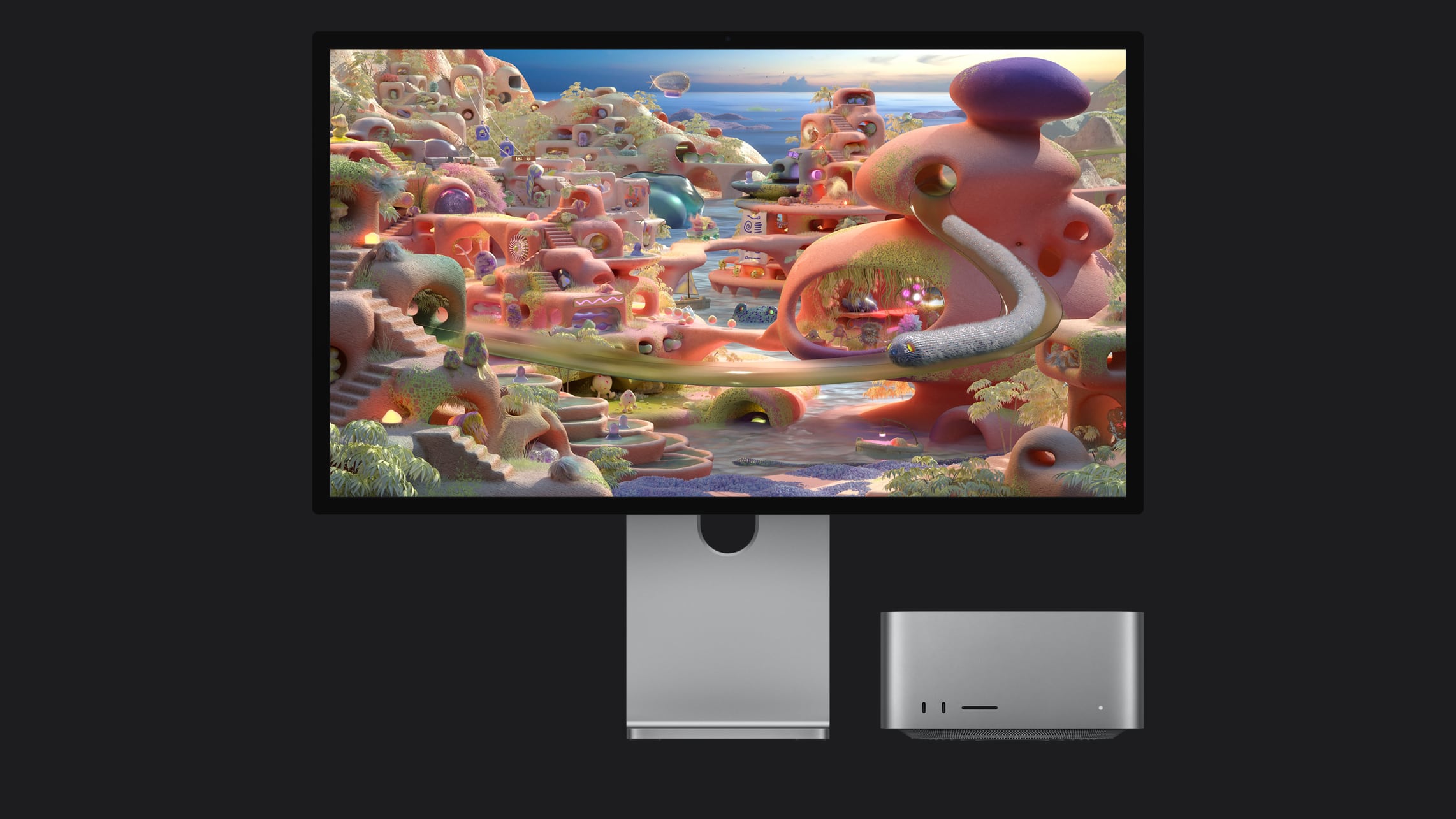
According to Apple, Macs that have an M1, M1 Pro, M1 Max, M1 Ultra, M2, or M3 will only support the Studio Display XDR at 60Hz. All other features remain available.
For the full 120Hz refresh rate, you'll need to have a Mac with one of the following chips:
M2 Pro, M2 Max, M2 Ultra
M3 Pro, M3 Max, M3 Ultra
M4 Pro, M4 Max
M5, M5 Pro, M5 Max
All Macs that have an Apple silicon chip can be used with the Studio Display XDR with the upcoming macOS Tahoe 26.3.1 update.
As for the iPad, The M5 iPad Pro supports the Studio Display at 120Hz, but all other compatible iPad models are limited to 60Hz. Compatible iPads include the M4 iPad Pro, the 3rd-6th generation 12.9-inch iPad Pro, 1st-4th generation 11-inch iPad Pro, the M2, M3, and M4 iPad Air models, and the 5th-generation iPad Air.
For older Macs and iPads that don't support 120Hz, there is little reason to select the more expensive Studio Display XDR over the standard Studio Display. The Studio Display starts at $1,599, while the XDR model starts at $3,299.
The Studio Display XDR will be available for pre-order tomorrow at 9:15 a.m. Eastern Time, with a launch to follow on March 11.
This article, "These Macs Can't Run the Studio Display XDR at 120Hz" first appeared on MacRumors.com
Discuss this article in our forums
According to Apple, Macs that have an M1, M1 Pro, M1 Max, M1 Ultra, M2, or M3 will only support the Studio Display XDR at 60Hz. All other features remain available.
For the full 120Hz refresh rate, you'll need to have a Mac with one of the following chips:
M2 Pro, M2 Max, M2 Ultra
M3 Pro, M3 Max, M3 Ultra
M4 Pro, M4 Max
M5, M5 Pro, M5 Max
All Macs that have an Apple silicon chip can be used with the Studio Display XDR with the upcoming macOS Tahoe 26.3.1 update.
As for the iPad, The M5 iPad Pro supports the Studio Display at 120Hz, but all other compatible iPad models are limited to 60Hz. Compatible iPads include the M4 iPad Pro, the 3rd-6th generation 12.9-inch iPad Pro, 1st-4th generation 11-inch iPad Pro, the M2, M3, and M4 iPad Air models, and the 5th-generation iPad Air.
For older Macs and iPads that don't support 120Hz, there is little reason to select the more expensive Studio Display XDR over the standard Studio Display. The Studio Display starts at $1,599, while the XDR model starts at $3,299.
The Studio Display XDR will be available for pre-order tomorrow at 9:15 a.m. Eastern Time, with a launch to follow on March 11.
Related Roundups: Apple Pro Display XDR, Apple Studio Display
Related Forum: Mac Accessories
This article, "These Macs Can't Run the Studio Display XDR at 120Hz" first appeared on MacRumors.com
Discuss this article in our forums
Recommended Comments
Join the conversation
You can post now and register later. If you have an account, sign in now to post with your account.