_811205.png)
_e196d8.png)
_32b3d9.png)
_1c53fe.png)

Tim Cook closed out what is expected to be his last keynote as Apple's chief executive officer today with some emotive final remarks.
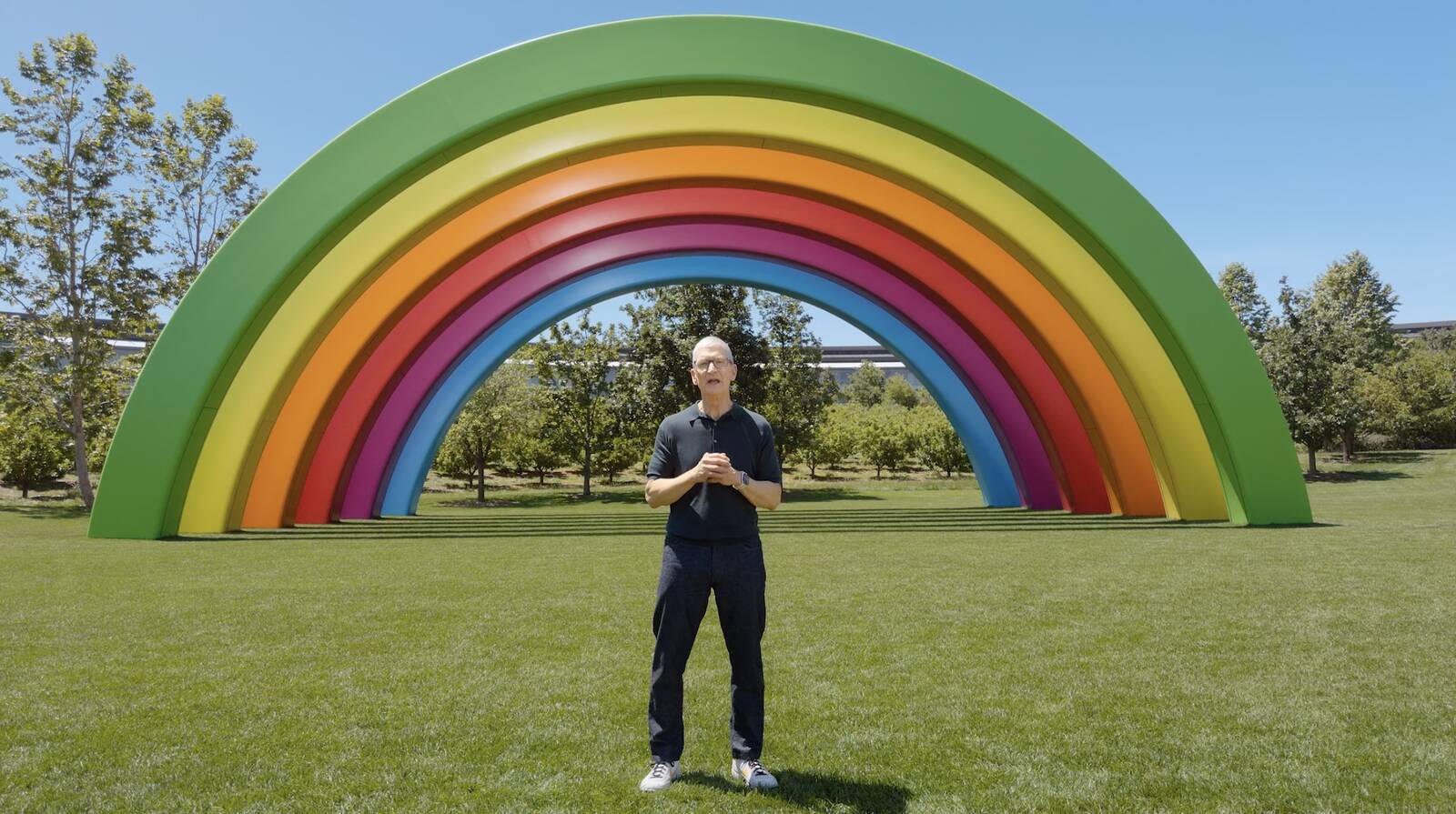
Wrapping up a pre-recorded video message, Cook reflected on his tenure at the company. "Some of the highlights of my time as CEO have been events like this, sharing powerful new tools with all of you," he said, adding that what developers create with Apple's platforms has been "a constant reminder that imagination has no limits."
Cook said it had been "an honor" to lead the company, describing Apple's north star as always creating products that serve people's needs. "I truly believe the best is still ahead," he said, before thanking the audience.
Cook has served as CEO since 2011, succeeding Steve Jobs. John Ternus, Apple's SVP of Hardware Engineering, will takeover from Cook in September, just in time for the announcement of new iPhone models.
This article, "Tim Cook Delivers Farewell Remarks at His Last Apple Keynote as CEO" first appeared on MacRumors.com
Discuss this article in our forums
Wrapping up a pre-recorded video message, Cook reflected on his tenure at the company. "Some of the highlights of my time as CEO have been events like this, sharing powerful new tools with all of you," he said, adding that what developers create with Apple's platforms has been "a constant reminder that imagination has no limits."
One of the greatest highlights of my time as CEO have been events like this, sharing powerful new tools with all of you and what you create with them has been a constant reminder that imagination has no limits.
Over the years, you have helped people create, learn, and experience the world in explain ways, and with the incredible capabilities we introduced today, I truly believe the best is still ahead.
Cook said it had been "an honor" to lead the company, describing Apple's north star as always creating products that serve people's needs. "I truly believe the best is still ahead," he said, before thanking the audience.
Cook has served as CEO since 2011, succeeding Steve Jobs. John Ternus, Apple's SVP of Hardware Engineering, will takeover from Cook in September, just in time for the announcement of new iPhone models.
This article, "Tim Cook Delivers Farewell Remarks at His Last Apple Keynote as CEO" first appeared on MacRumors.com
Discuss this article in our forums
Recommended Comments
Join the conversation
You can post now and register later. If you have an account, sign in now to post with your account.