_811205.png)
_e196d8.png)
_32b3d9.png)
_1c53fe.png)

Have you been good this year? If so, you may be interested to know that Google has launched its annual Santa tracking feature, allowing Santa to be tracked in real time on his journey to the North Pole as he prepares to deliver presents to children around the world.
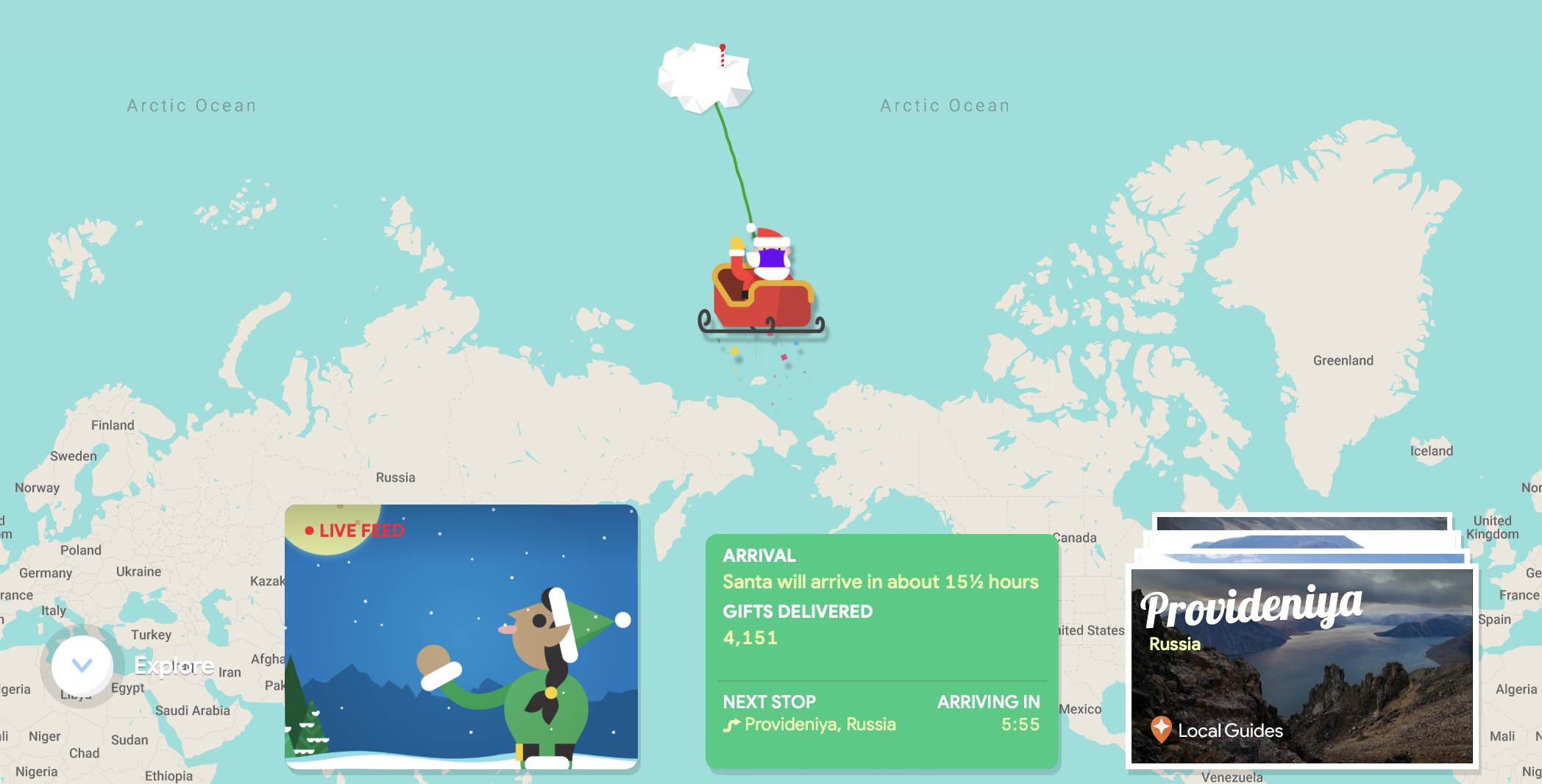
Google's Santa Tracker continues a two-decade tradition for the company, allowing excited children (and grown-ups!) to keep up with the jolly gift-giver's travels throughout December 24. On this day, Santa's Village transforms into a tracking experience where children can follow Santa and his reindeer as they merrily go about their important work.
Santa can be tracked using a web browser on iPhone, iPad, or Mac by visiting Google's official Santa Tracking website. The site features a live map of Santa's current location, his next stop, a live video feed of his journey, and the estimated time that he will arrive in each specific location.
The Santa site provides pictures of locations that Santa has already visited, a live count of gifts that have been delivered, and Santa's current distance from your location. There are also a selection of games to play, creative things to do, and videos to watch.
Other Santa tracking services are also available, such as the NORAD Tracks Santa Claus app and website, but Google's site is often the most interactive and detailed. Happy holidays!
This article, "Track Santa's Journey From the North Pole Using Google's Santa Tracker" first appeared on MacRumors.com
Discuss this article in our forums
Google's Santa Tracker continues a two-decade tradition for the company, allowing excited children (and grown-ups!) to keep up with the jolly gift-giver's travels throughout December 24. On this day, Santa's Village transforms into a tracking experience where children can follow Santa and his reindeer as they merrily go about their important work.
Santa can be tracked using a web browser on iPhone, iPad, or Mac by visiting Google's official Santa Tracking website. The site features a live map of Santa's current location, his next stop, a live video feed of his journey, and the estimated time that he will arrive in each specific location.
The Santa site provides pictures of locations that Santa has already visited, a live count of gifts that have been delivered, and Santa's current distance from your location. There are also a selection of games to play, creative things to do, and videos to watch.
Other Santa tracking services are also available, such as the NORAD Tracks Santa Claus app and website, but Google's site is often the most interactive and detailed. Happy holidays!
This article, "Track Santa's Journey From the North Pole Using Google's Santa Tracker" first appeared on MacRumors.com
Discuss this article in our forums
Recommended Comments
Join the conversation
You can post now and register later. If you have an account, sign in now to post with your account.