_811205.png)
_e196d8.png)
_32b3d9.png)
_1c53fe.png)

Starting with tvOS 26.2, Apple TVs began displaying a user profile selection screen every time you wake the device from sleep. The feature helps households with multiple users maintain separate viewing histories and recommendations, but it can feel like an unnecessary step if you're the sole user.
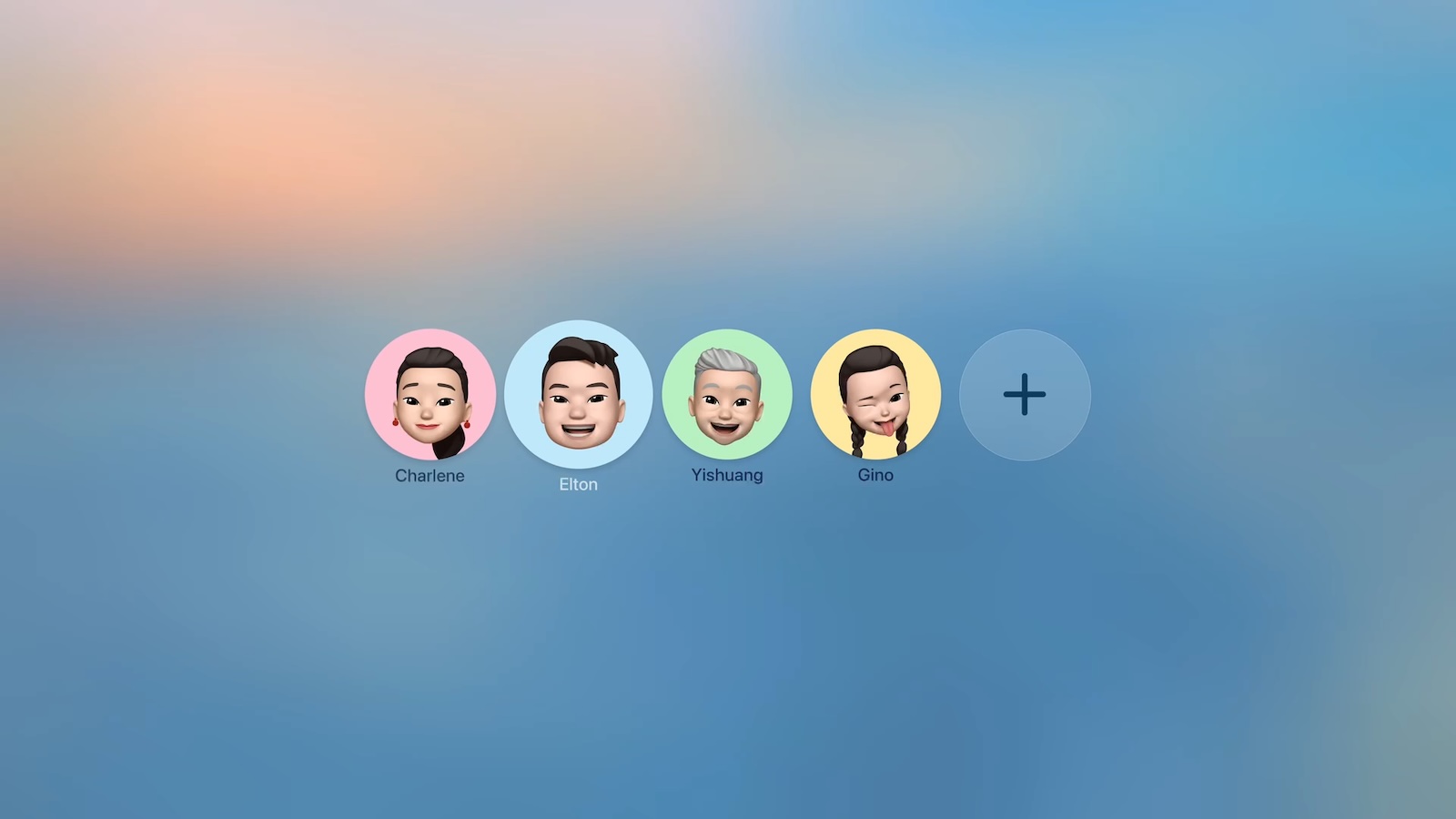
Fortunately, Apple lets you disable this prompt entirely. Here's how to turn off the user profiles screen and go straight to your Home screen.
Open Settings on your Apple TV.
Select Profiles and Accounts.
Toggle off Choose Profile on Wake.
With this setting disabled, your Apple TV will skip the profile selection screen and take you directly to the Home Screen when you wake it.
Turning off the profile switcher doesn't delete your user profiles or their associated watch history and recommendations. It simply removes the prompt that appears each time you turn on your TV or Apple TV.
If you share your Apple TV with others and want to switch profiles manually, you can still access profile options by going to Settings ➝ Users and Accounts and selecting a different user profile from there.
To learn more about how user profiles can be genuinely useful, check out our dedicated hands-on article.
This article, "Turn Off the User Profiles Screen on Apple TV 4K" first appeared on MacRumors.com
Discuss this article in our forums
Fortunately, Apple lets you disable this prompt entirely. Here's how to turn off the user profiles screen and go straight to your Home screen.
Disable the User Profile Selection Screen
Open Settings on your Apple TV.
Select Profiles and Accounts.
Toggle off Choose Profile on Wake.
With this setting disabled, your Apple TV will skip the profile selection screen and take you directly to the Home Screen when you wake it.
What Happens When You Disable Profile Switching
Turning off the profile switcher doesn't delete your user profiles or their associated watch history and recommendations. It simply removes the prompt that appears each time you turn on your TV or Apple TV.
If you share your Apple TV with others and want to switch profiles manually, you can still access profile options by going to Settings ➝ Users and Accounts and selecting a different user profile from there.
To learn more about how user profiles can be genuinely useful, check out our dedicated hands-on article.
This article, "Turn Off the User Profiles Screen on Apple TV 4K" first appeared on MacRumors.com
Discuss this article in our forums
Recommended Comments
Join the conversation
You can post now and register later. If you have an account, sign in now to post with your account.