_811205.png)
_e196d8.png)
_32b3d9.png)
_1c53fe.png)

The upcoming tvOS 27 update that was previewed today drops support for two Apple TV models.
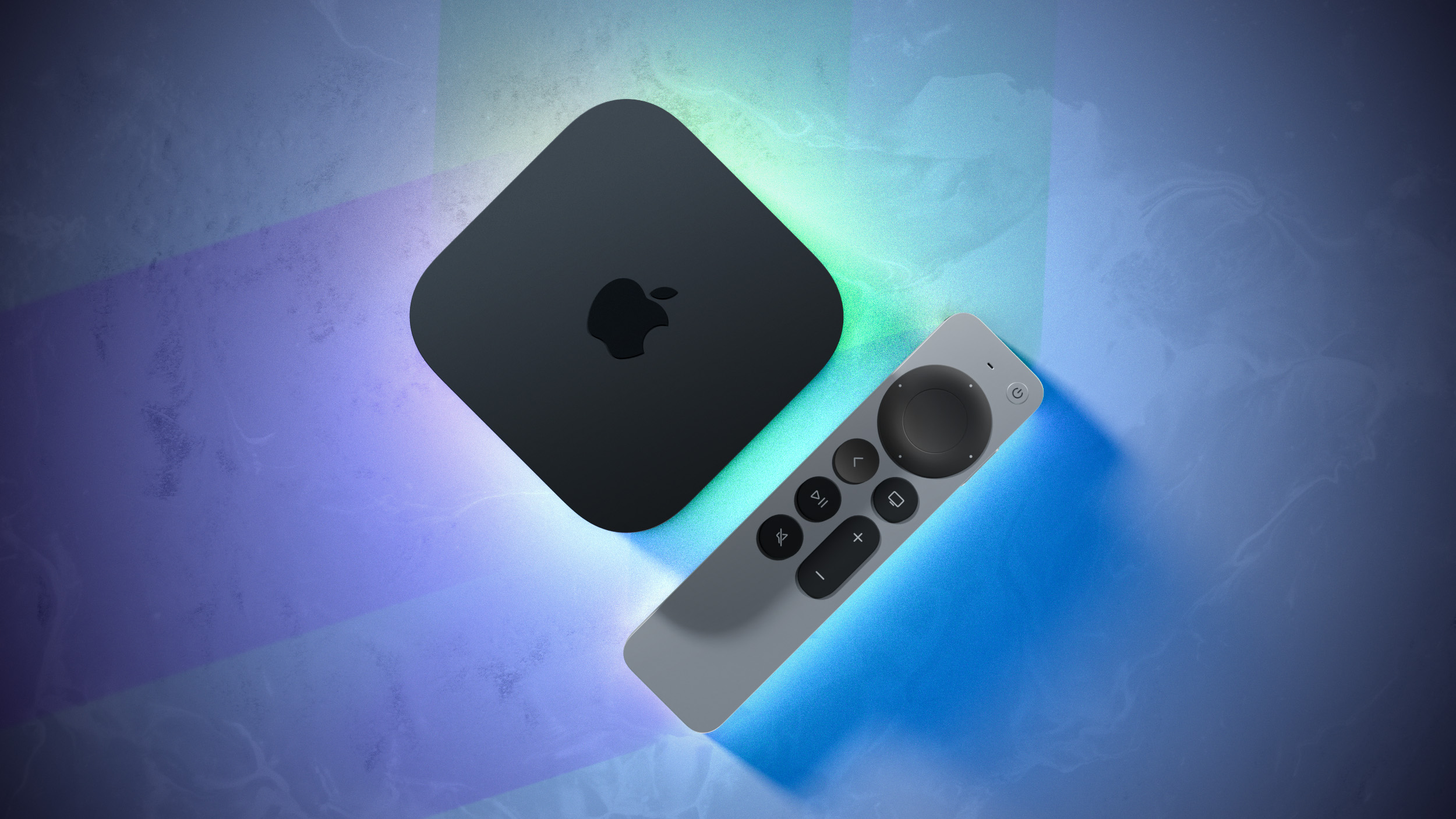
The two Apple TV models that are compatible with tvOS 26 but not tvOS 27 are the Apple TV HD from 2015 and the Apple TV 4K (1st generation) from 2017.
tvOS 27 is compatible with the Apple TV 4K (2nd generation) and newer, according to Apple's documentation.
tvOS 27 features a redesigned Podcasts app, smoother app launches and animations, support for larger text across the interface, and more. Apple did not give tvOS 27 much attention during its WWDC 2026 keynote, so we are still in the process of learning what other new features and enhancements are included in the update.
Apple TV HD (2015)
Apple TV 4K (1st generation, 2017)
Apple TV 4K (2nd generation, 2021)
Apple TV 4K (3rd generation, 2022)
Apple TV 4K (2nd generation, 2021)
Apple TV 4K (3rd generation, 2022)
The first tvOS 27 developer beta is available today, and a public beta will follow in July. The update will be released later this year — likely in September.
A new Apple TV 4K (4th generation) is expected to launch later this year.
This article, "tvOS 27 Drops Support for Two Apple TV Models" first appeared on MacRumors.com
Discuss this article in our forums
The two Apple TV models that are compatible with tvOS 26 but not tvOS 27 are the Apple TV HD from 2015 and the Apple TV 4K (1st generation) from 2017.
tvOS 27 is compatible with the Apple TV 4K (2nd generation) and newer, according to Apple's documentation.
tvOS 27 features a redesigned Podcasts app, smoother app launches and animations, support for larger text across the interface, and more. Apple did not give tvOS 27 much attention during its WWDC 2026 keynote, so we are still in the process of learning what other new features and enhancements are included in the update.
tvOS 26 Compatibility
Apple TV HD (2015)
Apple TV 4K (1st generation, 2017)
Apple TV 4K (2nd generation, 2021)
Apple TV 4K (3rd generation, 2022)
tvOS 27 Compatibility
Apple TV 4K (2nd generation, 2021)
Apple TV 4K (3rd generation, 2022)
The first tvOS 27 developer beta is available today, and a public beta will follow in July. The update will be released later this year — likely in September.
A new Apple TV 4K (4th generation) is expected to launch later this year.
Related Roundup: Apple TV
Buyer's Guide: Apple TV (Don't Buy)
Related Forum: Apple TV and Home Theater
This article, "tvOS 27 Drops Support for Two Apple TV Models" first appeared on MacRumors.com
Discuss this article in our forums
Recommended Comments
Join the conversation
You can post now and register later. If you have an account, sign in now to post with your account.