_811205.png)
_e196d8.png)
_32b3d9.png)
_1c53fe.png)

Apple has tested a range of playful color options for its upcoming low-cost MacBook, going well beyond the muted tones available on its current laptop lineup, according to Bloomberg's Mark Gurman.
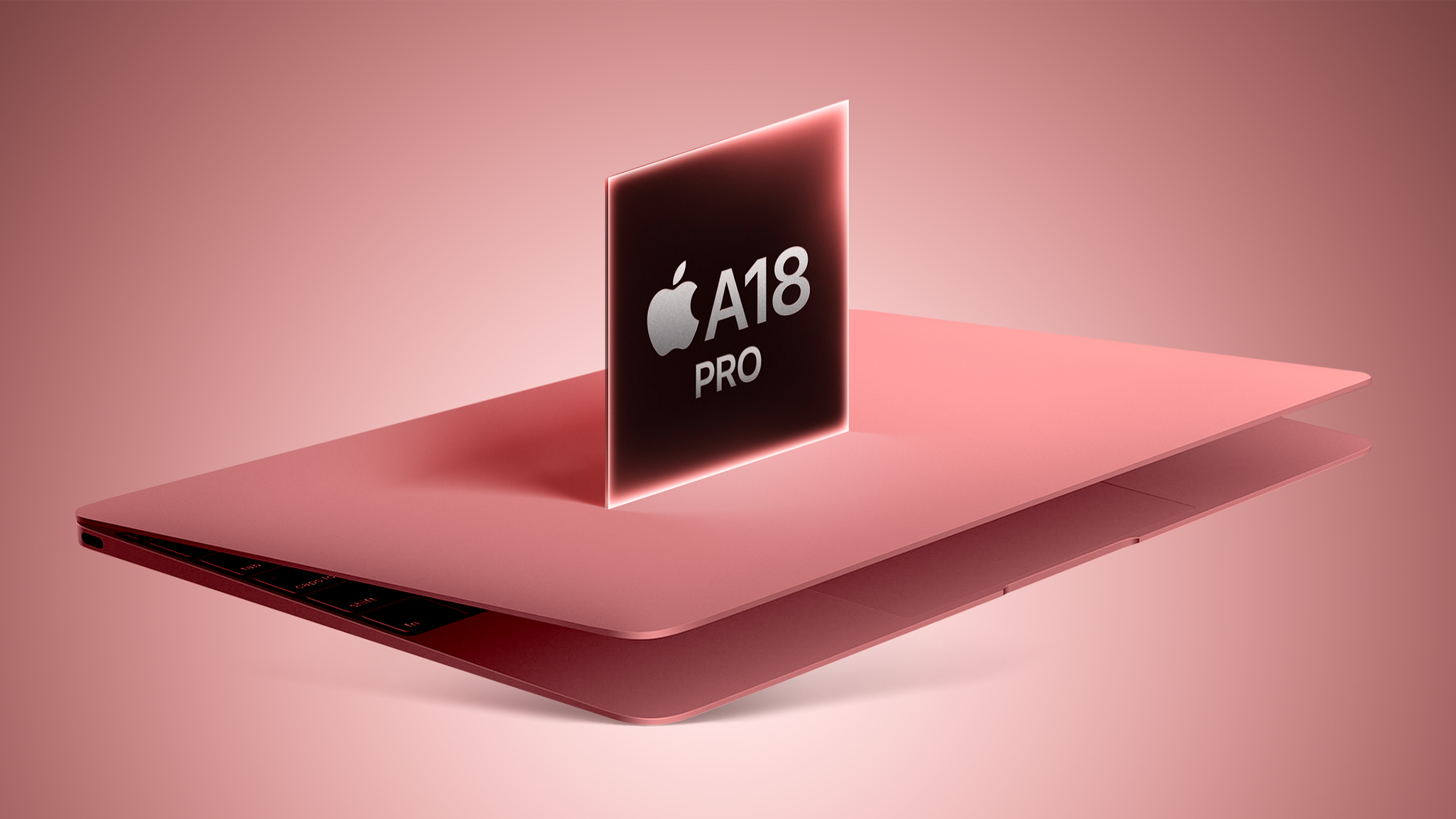
Writing in his latest Power On newsletter, Gurman says the colors tested so far include light yellow, light green, blue, pink, classic silver, and dark gray, although he says it's unlikely all of them will ship. The palette would make the budget MacBook the most colorful laptop Apple has offered since the polycarbonate MacBook era that ran from 2006 to 2010.
As previously reported by Apple analyst Ming-Chi Kuo, the low-cost machine will retail for well under $1,000 and run an iPhone chip – potentially the A18 Pro – rather than an M-series processor. It will feature a slightly-under-13-inch display and an aluminum chassis, built using a new, faster manufacturing process that Apple developed to keep costs down, according to Gurman.
Apple is targeting the MacBook at students and enterprise users, and is reportedly preparing for a launch event as early as March.
This article, "Upcoming Low-Cost MacBook May Come in Yellow, Green, Blue, and Pink" first appeared on MacRumors.com
Discuss this article in our forums
Writing in his latest Power On newsletter, Gurman says the colors tested so far include light yellow, light green, blue, pink, classic silver, and dark gray, although he says it's unlikely all of them will ship. The palette would make the budget MacBook the most colorful laptop Apple has offered since the polycarbonate MacBook era that ran from 2006 to 2010.
As previously reported by Apple analyst Ming-Chi Kuo, the low-cost machine will retail for well under $1,000 and run an iPhone chip – potentially the A18 Pro – rather than an M-series processor. It will feature a slightly-under-13-inch display and an aluminum chassis, built using a new, faster manufacturing process that Apple developed to keep costs down, according to Gurman.
Apple is targeting the MacBook at students and enterprise users, and is reportedly preparing for a launch event as early as March.
Tags: MacBook (A18 Pro), Mark Gurman
This article, "Upcoming Low-Cost MacBook May Come in Yellow, Green, Blue, and Pink" first appeared on MacRumors.com
Discuss this article in our forums
Recommended Comments
Join the conversation
You can post now and register later. If you have an account, sign in now to post with your account.