_811205.png)
_e196d8.png)
_32b3d9.png)
_1c53fe.png)

Apple made the visionOS 27 beta available to Vision Pro developers after Monday's WWDC 2026 keynote, and in this version there is a new Environment that allows you to immerse yourself in the Icelandic highlands.
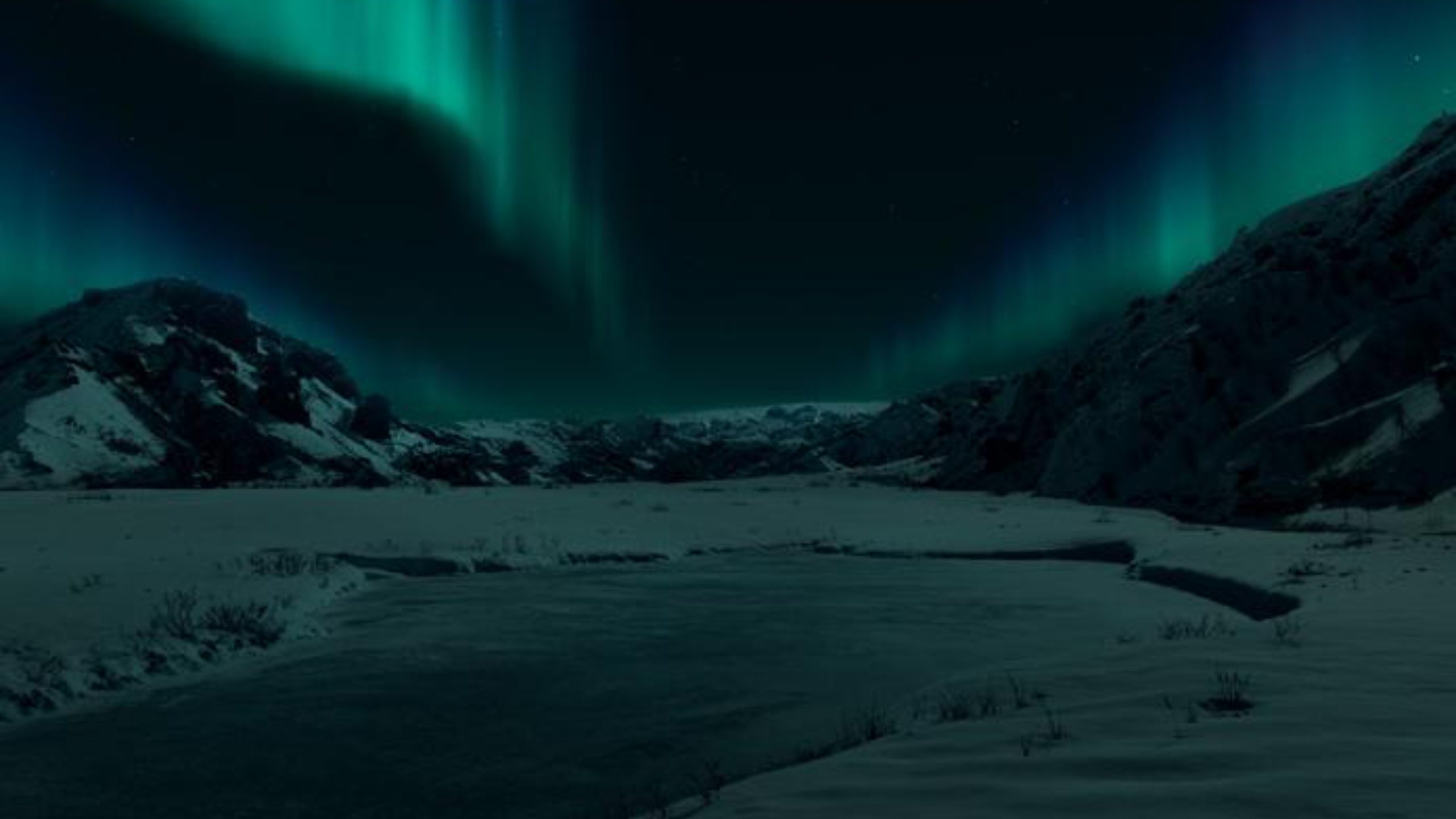
"Thórsmörk" is a mountain ridge in Iceland that was named after the Norse god Thor. It offers a nighttime and daytime experience of the icy landscape surrounding a lake, complete with wintry sound effects and running water. It also includes a view of the Northern Lights.
Environments let you transform your physical surroundings into a different place, like Yosemite, Mount Hood, or the Moon. Environments can be used while you're using apps or they can provide a backdrop when you're watching movies. In Thórsmörk, for example, if you're watching a video, the scene's colors are reflected in the snow and the water for extra immersion.
Last year, visionOS 26 introduced an interactive Jupiter Environment that uses imagery from NASA for maximum authenticity.
There were only a handful of passing references to visionOS 27 during Apple's keynote, but the Vision Pro software is set to benefit from the same Siri AI features that are coming to iOS 27, iPadOS 27, and macOS 27 Golden Gate. visionOS 27 is expected to be released in the fall.
This article, "visionOS 27 Gains New Icelandic Environment Called 'Thórsmörk'" first appeared on MacRumors.com
Discuss this article in our forums
"Thórsmörk" is a mountain ridge in Iceland that was named after the Norse god Thor. It offers a nighttime and daytime experience of the icy landscape surrounding a lake, complete with wintry sound effects and running water. It also includes a view of the Northern Lights.
Environments let you transform your physical surroundings into a different place, like Yosemite, Mount Hood, or the Moon. Environments can be used while you're using apps or they can provide a backdrop when you're watching movies. In Thórsmörk, for example, if you're watching a video, the scene's colors are reflected in the snow and the water for extra immersion.
Last year, visionOS 26 introduced an interactive Jupiter Environment that uses imagery from NASA for maximum authenticity.
There were only a handful of passing references to visionOS 27 during Apple's keynote, but the Vision Pro software is set to benefit from the same Siri AI features that are coming to iOS 27, iPadOS 27, and macOS 27 Golden Gate. visionOS 27 is expected to be released in the fall.
Related Roundup: Apple Vision Pro
Tag: WWDC 2026
Buyer's Guide: Vision Pro (Neutral)
Related Forum: Apple Vision Pro
This article, "visionOS 27 Gains New Icelandic Environment Called 'Thórsmörk'" first appeared on MacRumors.com
Discuss this article in our forums
Recommended Comments
Join the conversation
You can post now and register later. If you have an account, sign in now to post with your account.