_811205.png)
_e196d8.png)
_32b3d9.png)
_1c53fe.png)

Vivaldi has released version 7.9 of its iOS browser, introducing two-level tab stacks, Safari import tools, and a new Daily Image feature.
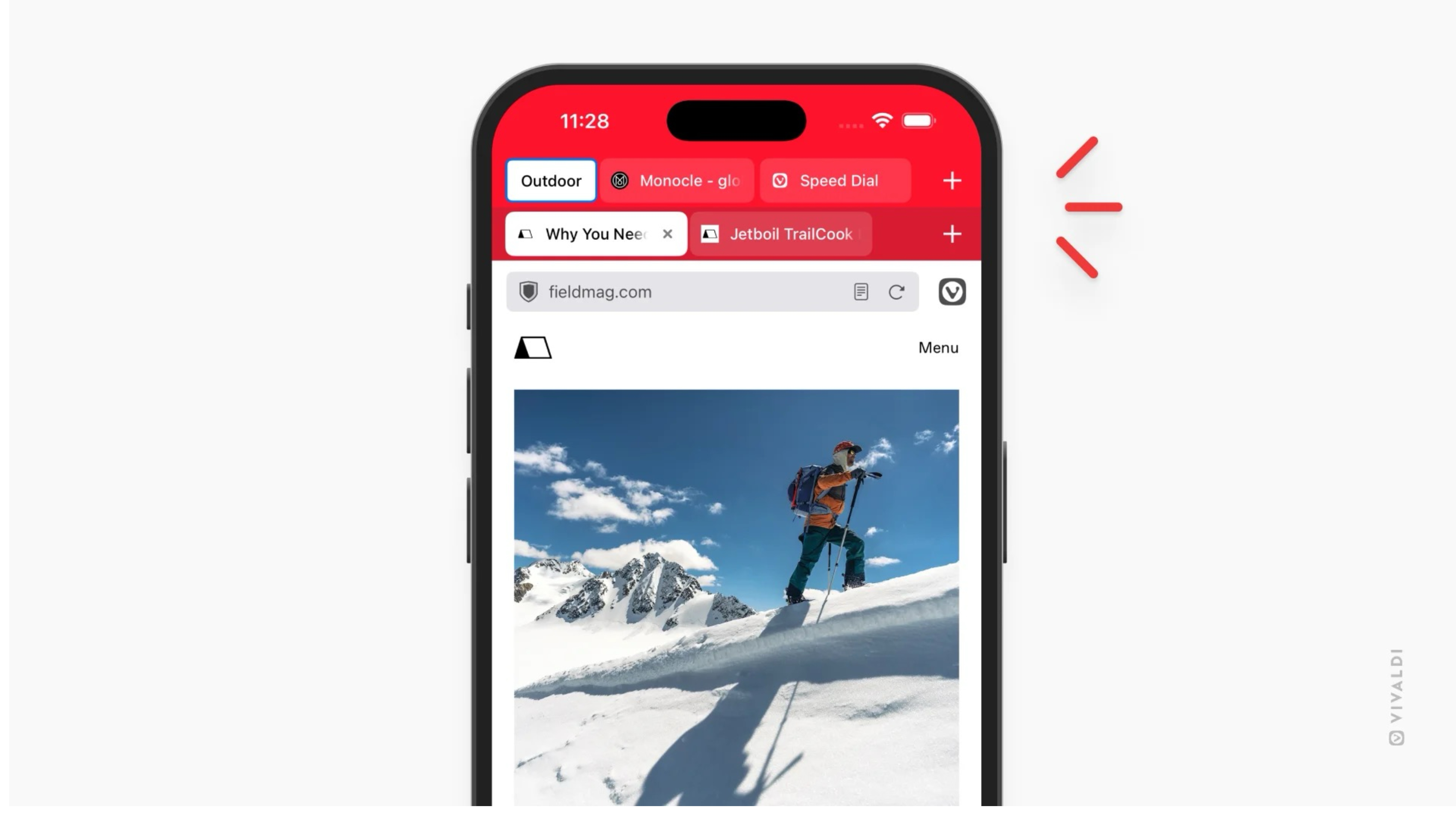
Two-level tab stacks is said to be the browser's most-requested iOS feature, having been available on Android since 2021. Tabs are now grouped into stacks displayed in the top row of the Tab Bar, with the tabs inside each stack appearing in a second row below, but only when that stack is active, in order to keep the interface clean.
There are two stacking styles included: Two-Level and Accordion. Users can select their preference in the app via Settings ➝ Tabs ➝ Tab Stacking Style. Creating a stack involves long-pressing the New Tab button and selecting New Tab Stack.
As mentioned, version 7.9 also comes with a new option to import bookmarks, passwords, browsing history, and stored payment information directly from Safari. The feature can be found in Settings ➝ Safari Import, and requires just a single step and confirmation.
Elsewhere, the new Daily Image feature shows a new curated photograph on the Start Page each day. Users can now also optionally sync that image as their iPhone wallpaper, keeping their Start Page and Home screen in step and refreshed automatically every day.
Vivaldi 7.9 is available now for iPhone and iPad via the App Store. [Direct Link]
This article, "Vivaldi Browser Brings Two-Level Tab Stacks to iPhone and iPad" first appeared on MacRumors.com
Discuss this article in our forums
Two-level tab stacks is said to be the browser's most-requested iOS feature, having been available on Android since 2021. Tabs are now grouped into stacks displayed in the top row of the Tab Bar, with the tabs inside each stack appearing in a second row below, but only when that stack is active, in order to keep the interface clean.
There are two stacking styles included: Two-Level and Accordion. Users can select their preference in the app via Settings ➝ Tabs ➝ Tab Stacking Style. Creating a stack involves long-pressing the New Tab button and selecting New Tab Stack.
As mentioned, version 7.9 also comes with a new option to import bookmarks, passwords, browsing history, and stored payment information directly from Safari. The feature can be found in Settings ➝ Safari Import, and requires just a single step and confirmation.
Elsewhere, the new Daily Image feature shows a new curated photograph on the Start Page each day. Users can now also optionally sync that image as their iPhone wallpaper, keeping their Start Page and Home screen in step and refreshed automatically every day.
Vivaldi 7.9 is available now for iPhone and iPad via the App Store. [Direct Link]
Tag: Vivaldi
This article, "Vivaldi Browser Brings Two-Level Tab Stacks to iPhone and iPad" first appeared on MacRumors.com
Discuss this article in our forums
Recommended Comments
Join the conversation
You can post now and register later. If you have an account, sign in now to post with your account.