_811205.png)
_e196d8.png)
_32b3d9.png)
_1c53fe.png)

Users of Apple's latest iPhone and iPad Pro models who have been beta testing iOS 26.3 and iPadOS 26.3 may want to hold off on updating to the third betas released earlier this week, as several Continuity-related features are currently broken on these devices.
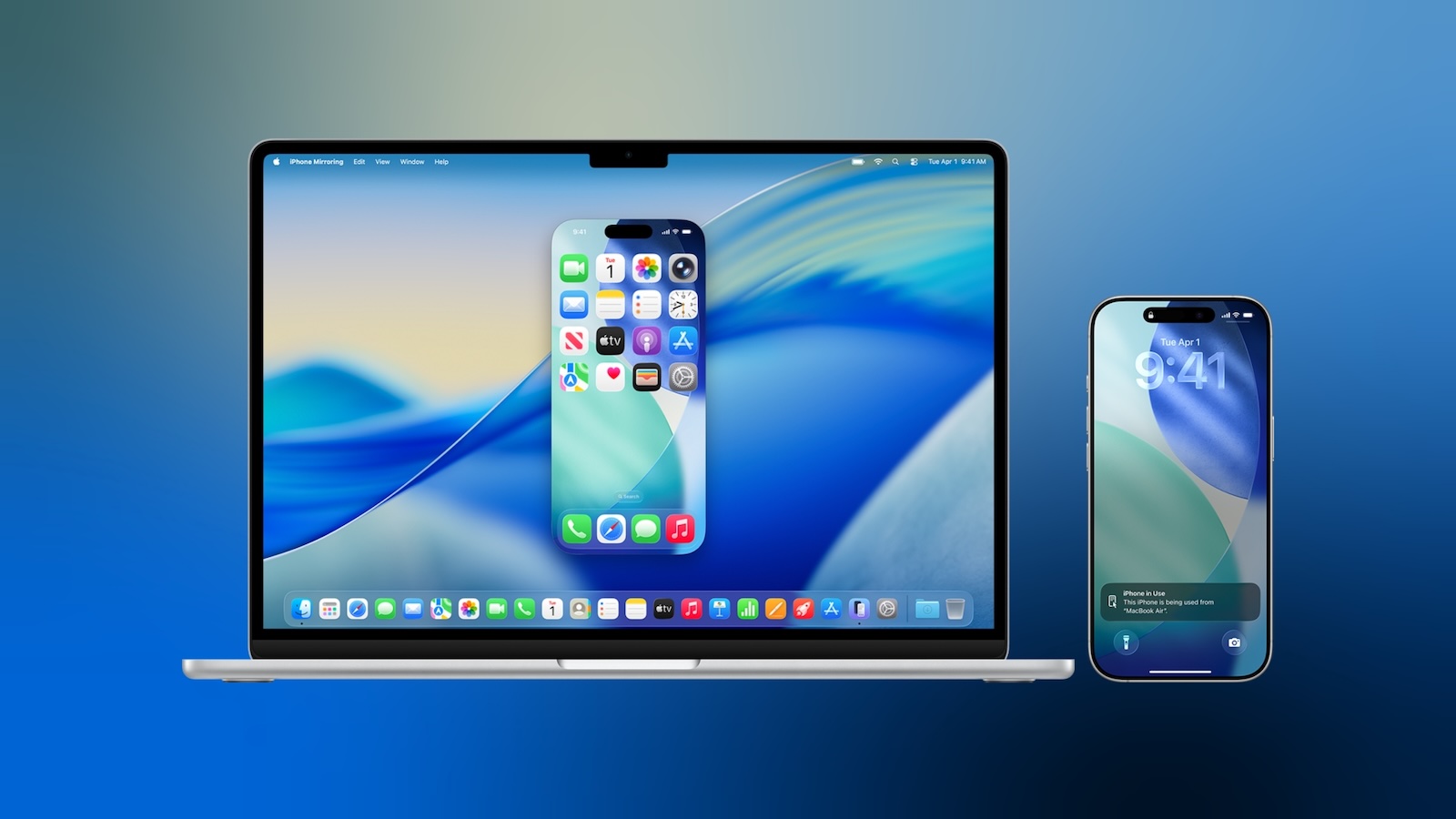
Apple has updated its developer release notes for the third betas of iOS and iPadOS 26.3 to outline the devices and features that are affected:
We're expecting a public release of iOS 26.3 and related updates fairly soon, as the x.3 updates typically drop in late January each year. With just a few days left in the month, it appears the release schedule may slip into early February for this cycle, but we should be seeing release candidate versions seeded to developers and beta testers relatively soon ahead of the public releases.
This article, "Warning: These Continuity Features Are Broken on Latest iOS 26.3 and iPadOS 26.3 Betas" first appeared on MacRumors.com
Discuss this article in our forums
Apple has updated its developer release notes for the third betas of iOS and iPadOS 26.3 to outline the devices and features that are affected:
The following Continuity features do not work on iPhone 17, Phone 17 Pro, iPhone 17 Pro Max, iPhone Air and iPad Pro (M5) with iOS / iPadOS 26.3 Beta 3:Apple has not provided any details on why these features are not working on the latest betas, but the issue will presumably be fixed in the next round of betas.
- iPhone Mirroring
AirPlay mirroring to Apple TV 4K
Using Continuity Camera wirelessly with Mac or Apple TV 4K
Sidecar from Mac to iPad Pro (M5)
We're expecting a public release of iOS 26.3 and related updates fairly soon, as the x.3 updates typically drop in late January each year. With just a few days left in the month, it appears the release schedule may slip into early February for this cycle, but we should be seeing release candidate versions seeded to developers and beta testers relatively soon ahead of the public releases.
Related Forum: iOS 26
This article, "Warning: These Continuity Features Are Broken on Latest iOS 26.3 and iPadOS 26.3 Betas" first appeared on MacRumors.com
Discuss this article in our forums
Recommended Comments
Join the conversation
You can post now and register later. If you have an account, sign in now to post with your account.