_811205.png)
_e196d8.png)
_32b3d9.png)
_1c53fe.png)

Apple today confirmed that watchOS 27 will not support the Apple Watch Series 9, Apple Watch Ultra (first generation), or Apple Watch SE (second generation), effectively drawing a line at devices equipped with the S9 or S10 chip.
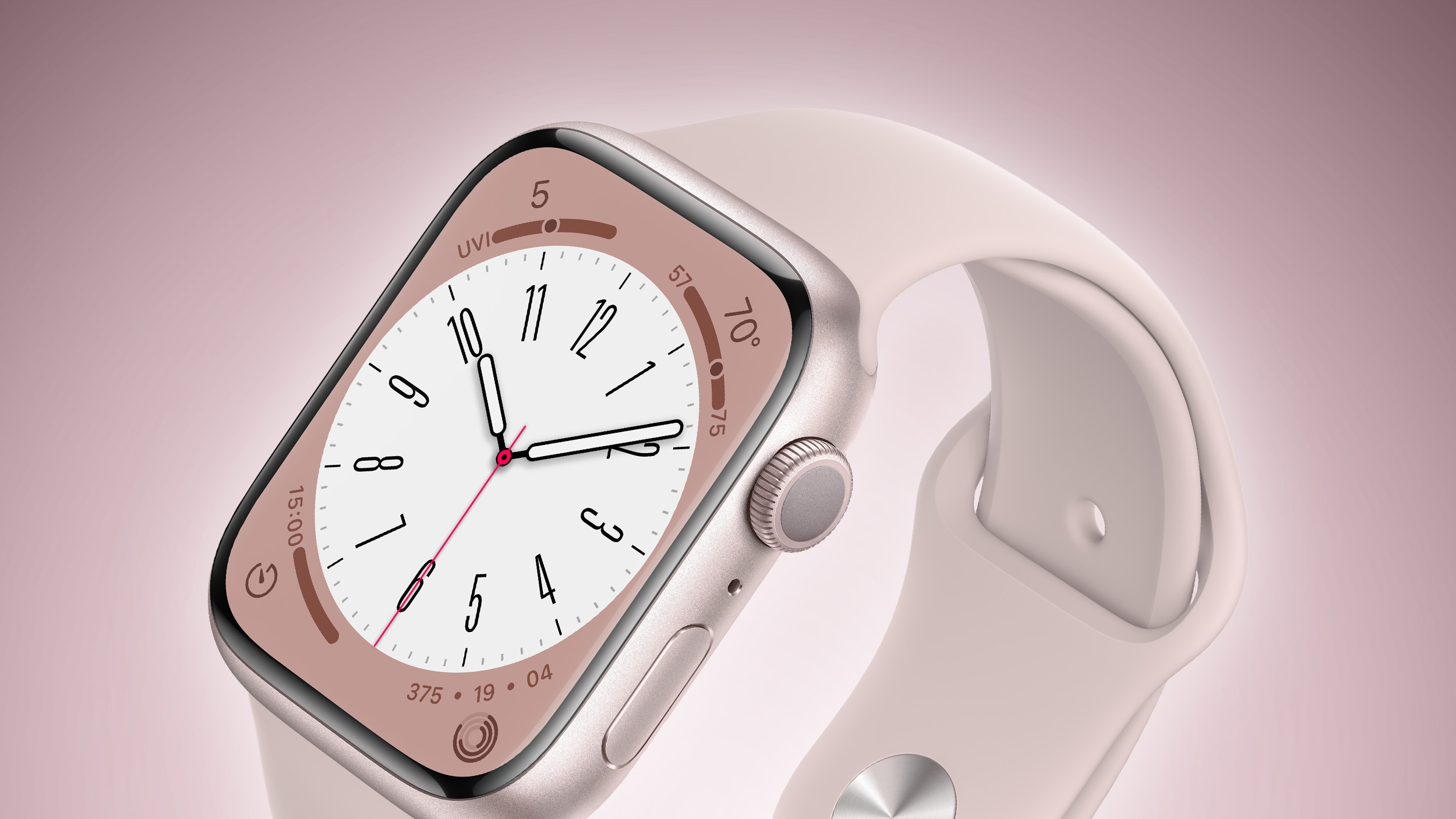
The only Apple Watch models compatible with watchOS 27 are the Apple Watch Series 10, Series 11, Ultra 2, Ultra 3, and SE 3. Despite the fact that the Apple Watch Ultra 2 contains the S9 chip, the Series 9 which contains the same chip will no longer be supported.
The cuts are the biggest loss of latest generation software support for the Apple Watch to date. watchOS 26 supported exactly the same devices as watchOS 11 before it: the Apple Watch Series 6 and later, Apple Watch SE (2nd generation) and later, and all Apple Watch Ultra models. With watchOS 27, Apple is effectively dropping four years' worth of device support in a single software update.
This article, "watchOS 27 Drops Support for Apple Watch Series 9, Ultra 1, SE 2, and Older" first appeared on MacRumors.com
Discuss this article in our forums
The only Apple Watch models compatible with watchOS 27 are the Apple Watch Series 10, Series 11, Ultra 2, Ultra 3, and SE 3. Despite the fact that the Apple Watch Ultra 2 contains the S9 chip, the Series 9 which contains the same chip will no longer be supported.
The cuts are the biggest loss of latest generation software support for the Apple Watch to date. watchOS 26 supported exactly the same devices as watchOS 11 before it: the Apple Watch Series 6 and later, Apple Watch SE (2nd generation) and later, and all Apple Watch Ultra models. With watchOS 27, Apple is effectively dropping four years' worth of device support in a single software update.
Related Roundups: Apple Watch 11, watchOS 26
Buyer's Guide: Apple Watch (Caution)
Related Forum: Apple Watch
This article, "watchOS 27 Drops Support for Apple Watch Series 9, Ultra 1, SE 2, and Older" first appeared on MacRumors.com
Discuss this article in our forums
Recommended Comments
Join the conversation
You can post now and register later. If you have an account, sign in now to post with your account.