_811205.png)
_e196d8.png)
_32b3d9.png)
_1c53fe.png)

watchOS 27 contains a series of enhancements to fitness and sleep tracking, including new Workout Buddy insights, improved indoor run tracking, and more.
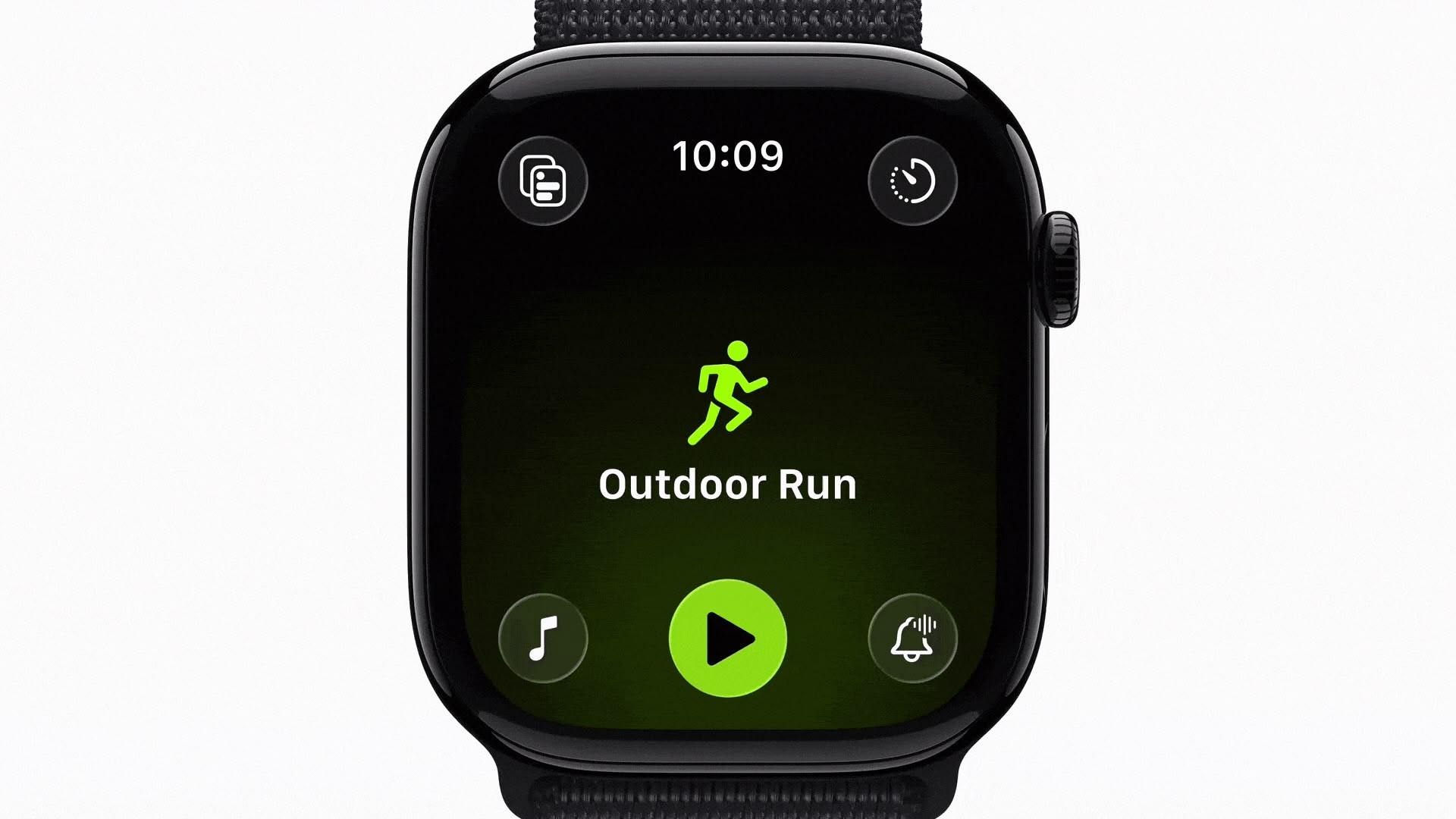
Workout Buddy is gaining new data-driven motivation features, delivering progress updates for pace, distance, and workout duration based on a user's fitness history. Apple is also enabling Workout Buddy to function without an iPhone nearby, allowing users to stay motivated during workouts without needing a phone in their pocket or hand. Workout Buddy is additionally expanding to Spanish, letting Spanish-speaking users receive personalized fitness motivation in their preferred language.
Indoor run and walk distance tracking is also getting more accurate in watchOS 27. Apple says improved motion tracking algorithms will more precisely measure treadmill distance directly from the wrist, without requiring a connected iPhone. Route maps in the Fitness app are also receiving an accuracy improvement, giving users a more precise view of their workout paths after the fact.
Sleep tracking is becoming more accurate as well, though Apple has not yet detailed the specific changes underlying the improvement. The update also brings a step count sync fix where steps counted in the Health app will now sync with the Fitness app directly.
This article, "watchOS 27 Introduces Workout Buddy Upgrades, Better Sleep Tracking, and More" first appeared on MacRumors.com
Discuss this article in our forums
Workout Buddy is gaining new data-driven motivation features, delivering progress updates for pace, distance, and workout duration based on a user's fitness history. Apple is also enabling Workout Buddy to function without an iPhone nearby, allowing users to stay motivated during workouts without needing a phone in their pocket or hand. Workout Buddy is additionally expanding to Spanish, letting Spanish-speaking users receive personalized fitness motivation in their preferred language.
Indoor run and walk distance tracking is also getting more accurate in watchOS 27. Apple says improved motion tracking algorithms will more precisely measure treadmill distance directly from the wrist, without requiring a connected iPhone. Route maps in the Fitness app are also receiving an accuracy improvement, giving users a more precise view of their workout paths after the fact.
Sleep tracking is becoming more accurate as well, though Apple has not yet detailed the specific changes underlying the improvement. The update also brings a step count sync fix where steps counted in the Health app will now sync with the Fitness app directly.
Related Roundup: watchOS 26
Related Forum: Apple Watch
This article, "watchOS 27 Introduces Workout Buddy Upgrades, Better Sleep Tracking, and More" first appeared on MacRumors.com
Discuss this article in our forums
Recommended Comments
Join the conversation
You can post now and register later. If you have an account, sign in now to post with your account.