_811205.png)
_e196d8.png)
_32b3d9.png)
_1c53fe.png)

Bloomberg's Mark Gurman today outlined what to expect from the Apple Watch Series 12 and Apple Watch Ultra 4 this year. Spoiler: not very much.
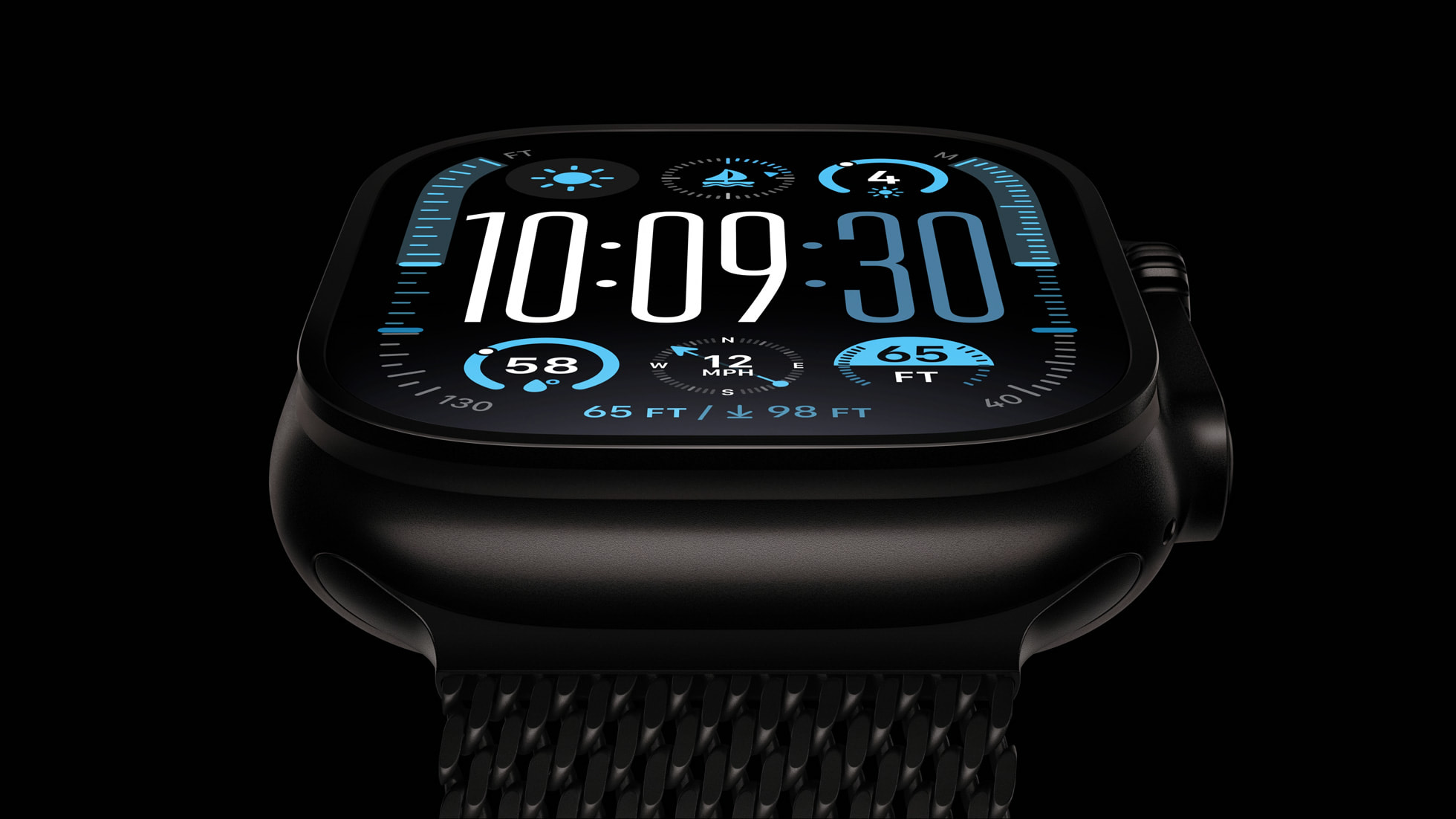
While it was rumored that Touch ID may be coming to the Apple Watch Series 12, Gurman said he does not expect the Series 12 or Ultra 4 to have any major design changes compared to the current Series 11 and Ultra 3 models. Touch ID probably counts as a major design change, so the rumor now sounds increasingly unlikely.
Another sketchy rumor claimed that the Series 12 will have a band with an embedded health sensor, but Gurman did not mention that.
Instead, he expects more ordinary changes, including faster performance and unspecified improvements to health and fitness tracking. The Series 11 and Ultra 3 both have an S10 chip that debuted in the Series 10 and Ultra 2, so the S11 chip or newer should provide the first Apple Watch performance improvements in years.
There will not be an Apple Watch SE 4 this year, he said.
Bigger changes are in the works for the Apple Watch, but he said they are unlikely to arrive for another year or two. Even further ahead, he added that Apple continues to develop a blood sugar detection feature with a goal of releasing it by 2030.
This article, "What to Expect From Apple Watch Series 12 and Apple Watch Ultra 4" first appeared on MacRumors.com
Discuss this article in our forums
While it was rumored that Touch ID may be coming to the Apple Watch Series 12, Gurman said he does not expect the Series 12 or Ultra 4 to have any major design changes compared to the current Series 11 and Ultra 3 models. Touch ID probably counts as a major design change, so the rumor now sounds increasingly unlikely.
Another sketchy rumor claimed that the Series 12 will have a band with an embedded health sensor, but Gurman did not mention that.
Instead, he expects more ordinary changes, including faster performance and unspecified improvements to health and fitness tracking. The Series 11 and Ultra 3 both have an S10 chip that debuted in the Series 10 and Ultra 2, so the S11 chip or newer should provide the first Apple Watch performance improvements in years.
There will not be an Apple Watch SE 4 this year, he said.
Bigger changes are in the works for the Apple Watch, but he said they are unlikely to arrive for another year or two. Even further ahead, he added that Apple continues to develop a blood sugar detection feature with a goal of releasing it by 2030.
Related Roundups: Apple Watch 11, Apple Watch Ultra 3
Tag: Mark Gurman
Buyer's Guide: Apple Watch (Don't Buy), Apple Watch Ultra (Neutral)
Related Forum: Apple Watch
This article, "What to Expect From Apple Watch Series 12 and Apple Watch Ultra 4" first appeared on MacRumors.com
Discuss this article in our forums
Recommended Comments
Join the conversation
You can post now and register later. If you have an account, sign in now to post with your account.