_811205.png)
_e196d8.png)
_32b3d9.png)
_1c53fe.png)

The Photos app is one of a handful of apps that Apple paid extra attention to in iOS 27. It has multiple improvements to performance, and several quality-of-life upgrades. There are also new AI photo editing tools that use Apple Intelligence.
There is a set of AI photo editing tools in the Photos app, accessible by tapping on the icon featuring three sliders, and then selecting the Apple Intelligence icon labeled "Tools."
Clean Up uses new AI models, and it's better at removing objects. The original version of Clean Up was best for small items with little complexity in the surrounding area, but now it is able to do more work reconstructing backgrounds with generative AI.
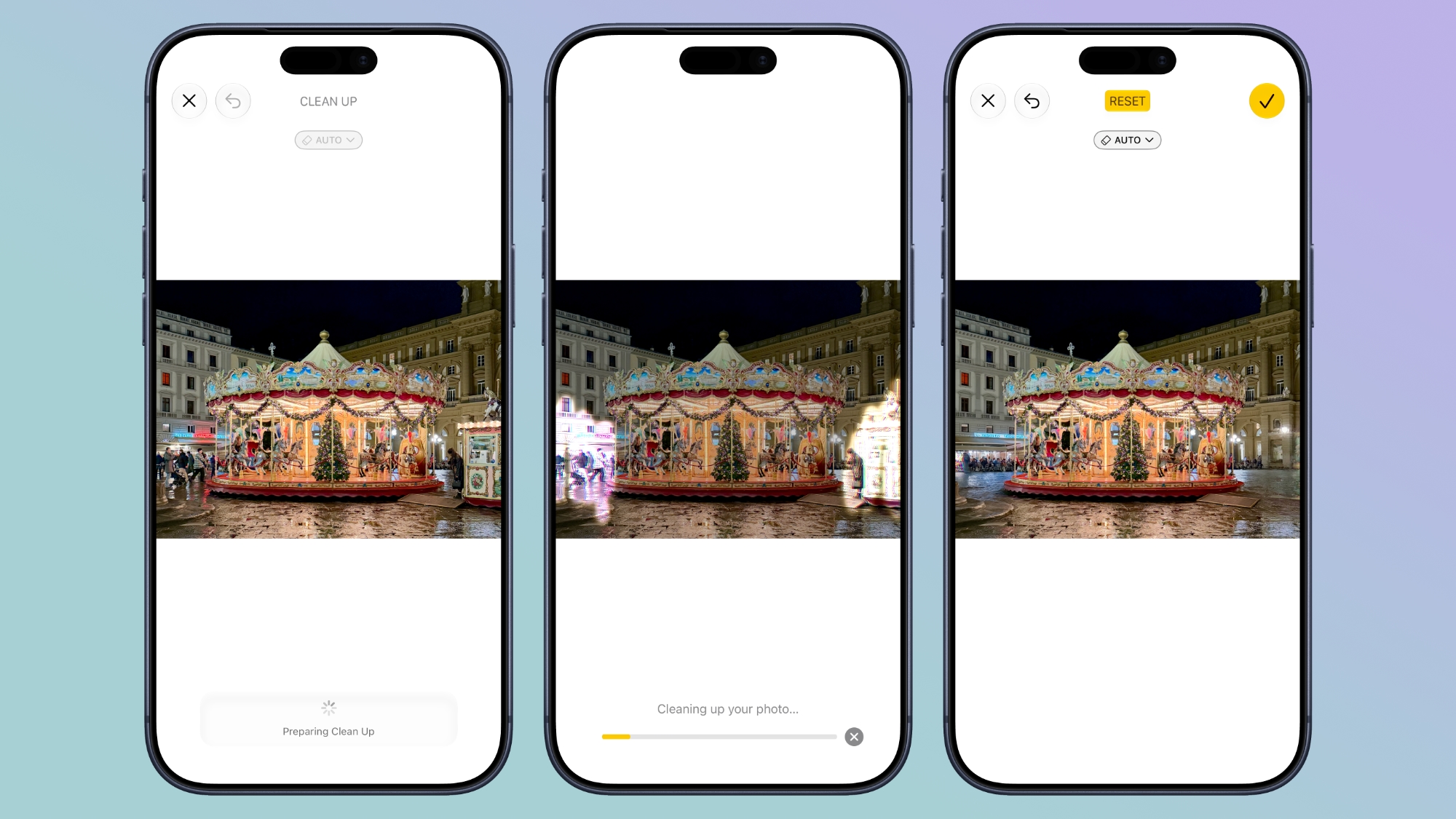
There are now three options for object removal. Fast works more quickly and can still be used for simple edits, while High Quality works better for more detailed scenes. Auto lets the Photos app decide which option is best.
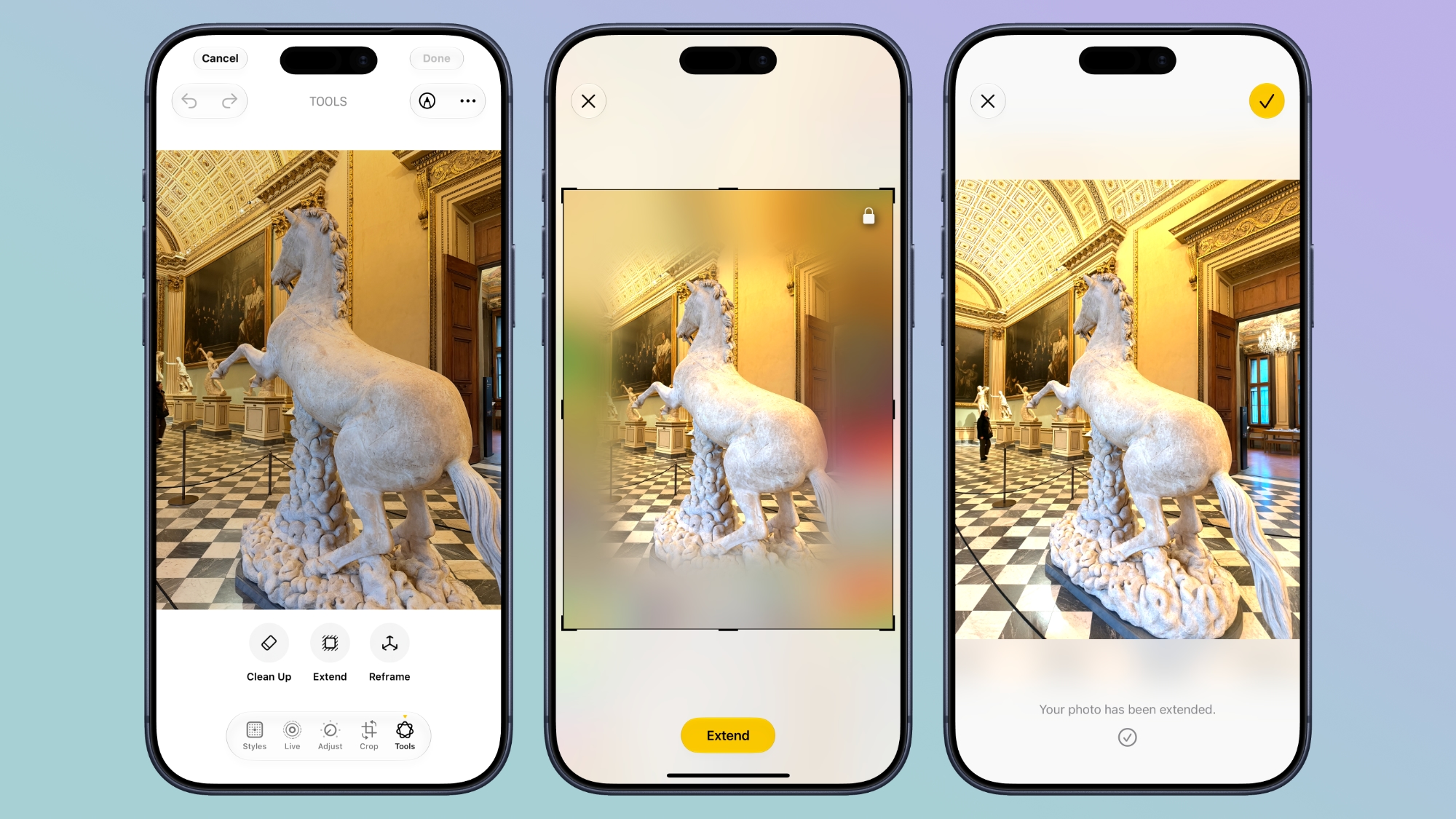
Extend lets you change the crop of an image, expanding the borders around content to zoom out a bit or change the photo's composition. It uses generative AI to fill in missing areas, and you can adjust the borders with pinch gestures.
Apple also uses the Extend feature for expanding iPhone Lock Screen wallpapers that don't quite fit the display.
Reframe can change the perspective of the photo, making adjustments to the angle of a person or object. It draws on the spatial information the iPhone gathers when a photo is taken, and combines it with AI to change the angle of the camera in post-processing. The spatial data is used for adjusting the subject of the image, and then AI fills in any pixels that are missing.
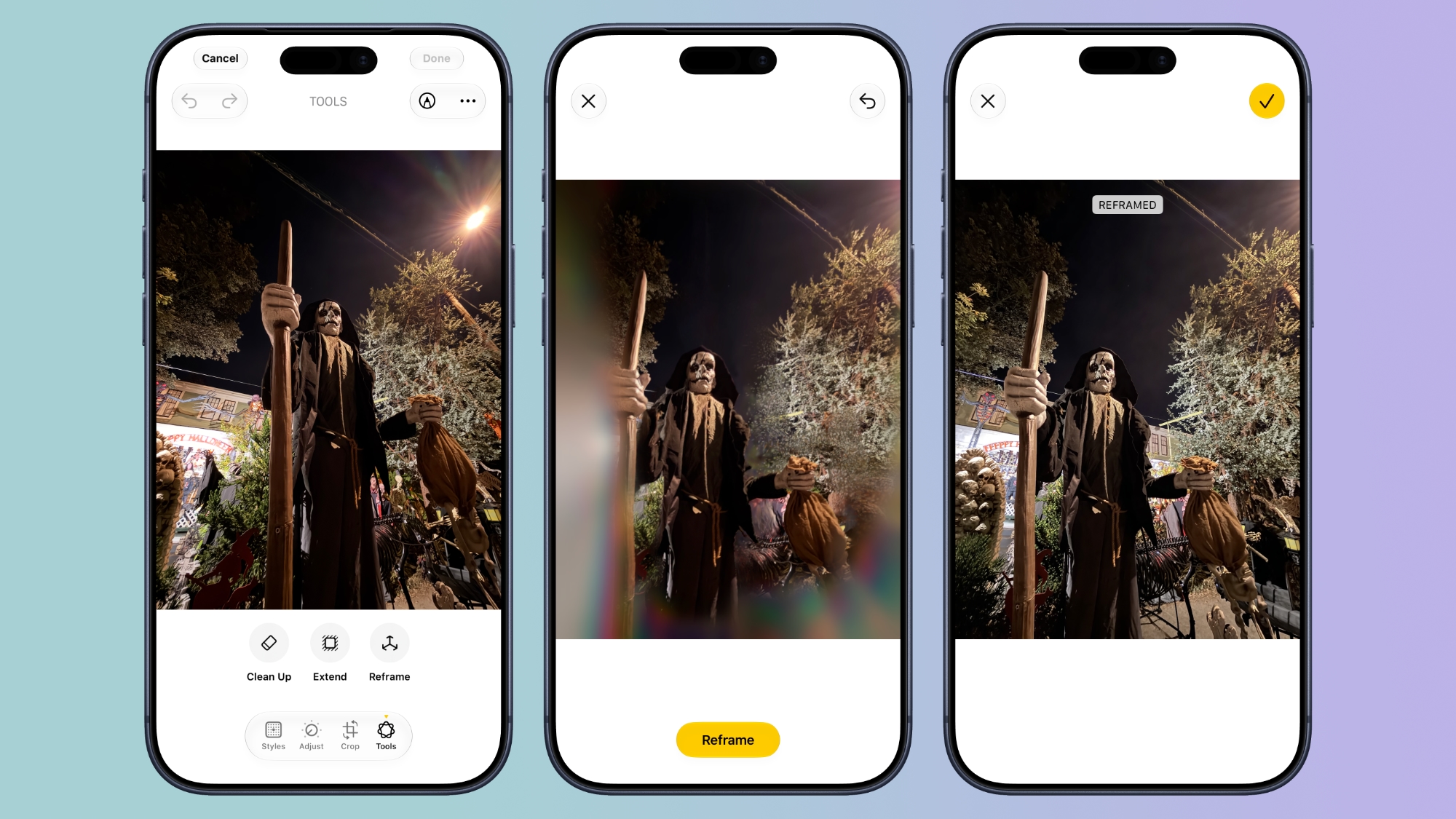
Reframe uses touch and drag gestures to adjust perspective, and two fingers for panning, zooming, or rotating an image to get the right angle.
While not part of the Photos app, the Image Playground app can be used to make photorealistic edits to your image. If you have a photo of a friend and want to add a hat or an accessory that looks real, you can do so with Image Playground. You can select specific areas in an image to modify and make AI edits using natural language, plus there's an option to combine images.
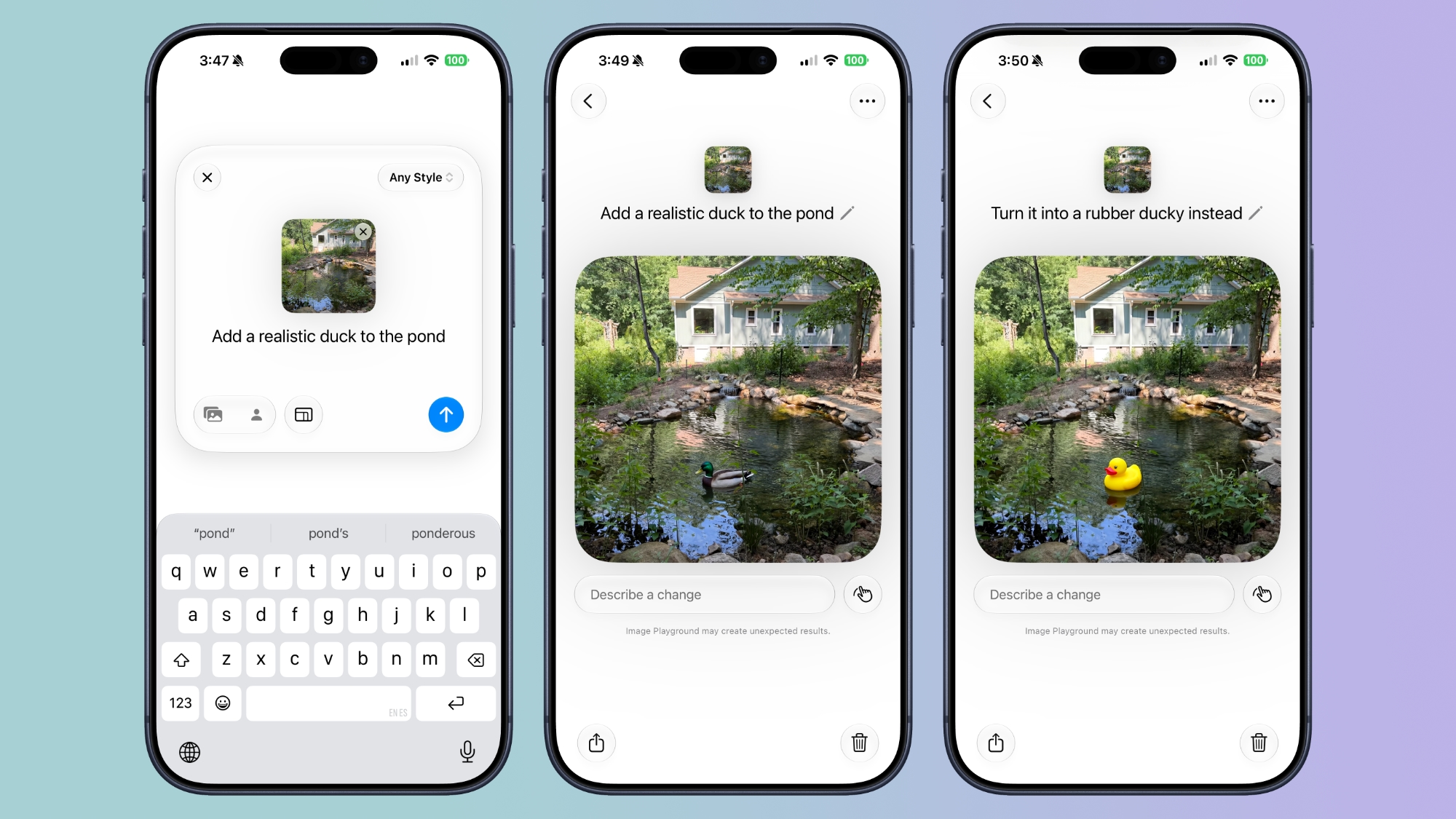
Image Playground can be used for free, but there will be daily caps, with extra usage available through iCloud+ plans.
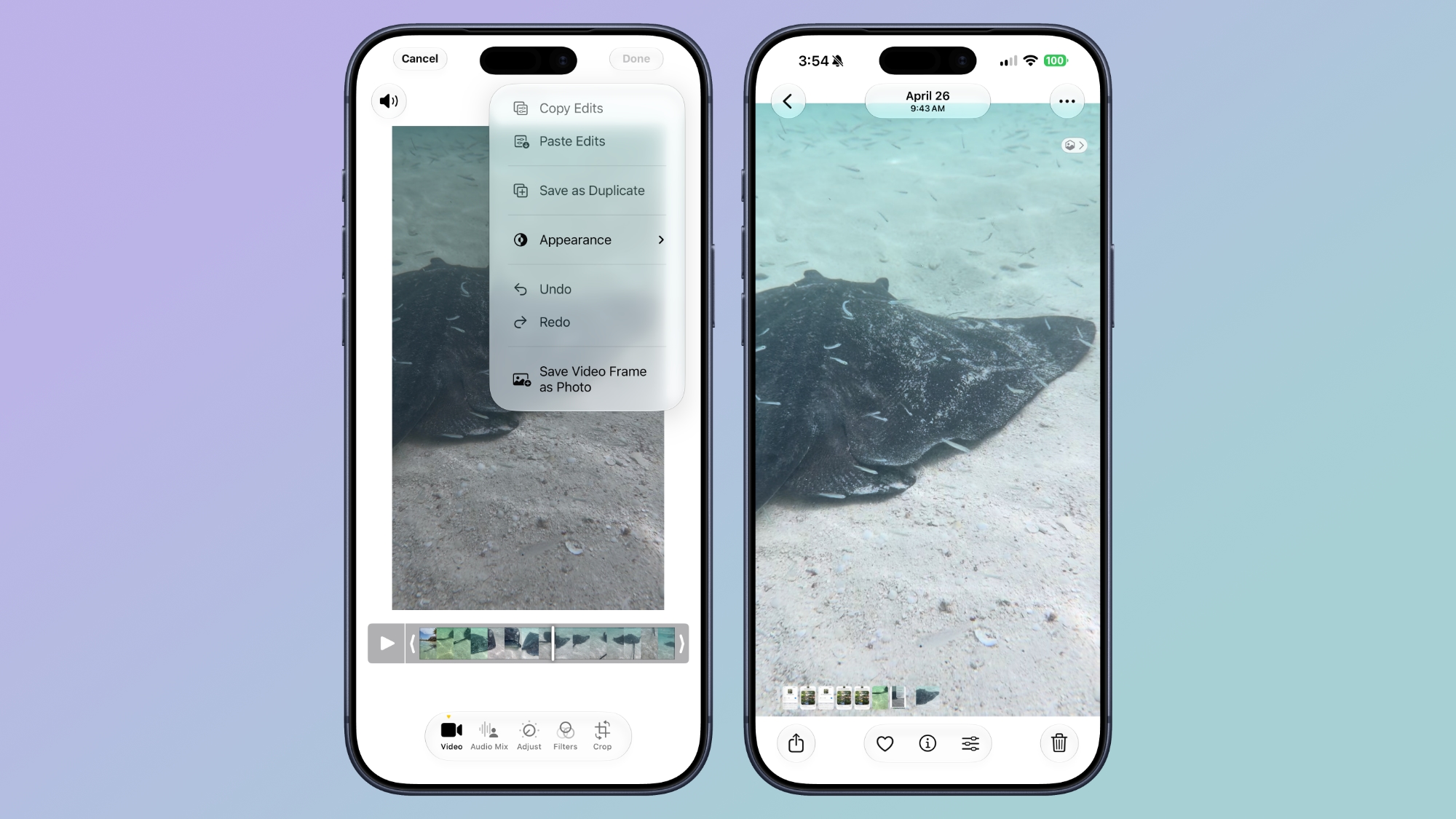
You can now save a frame of a video as an individual photo.
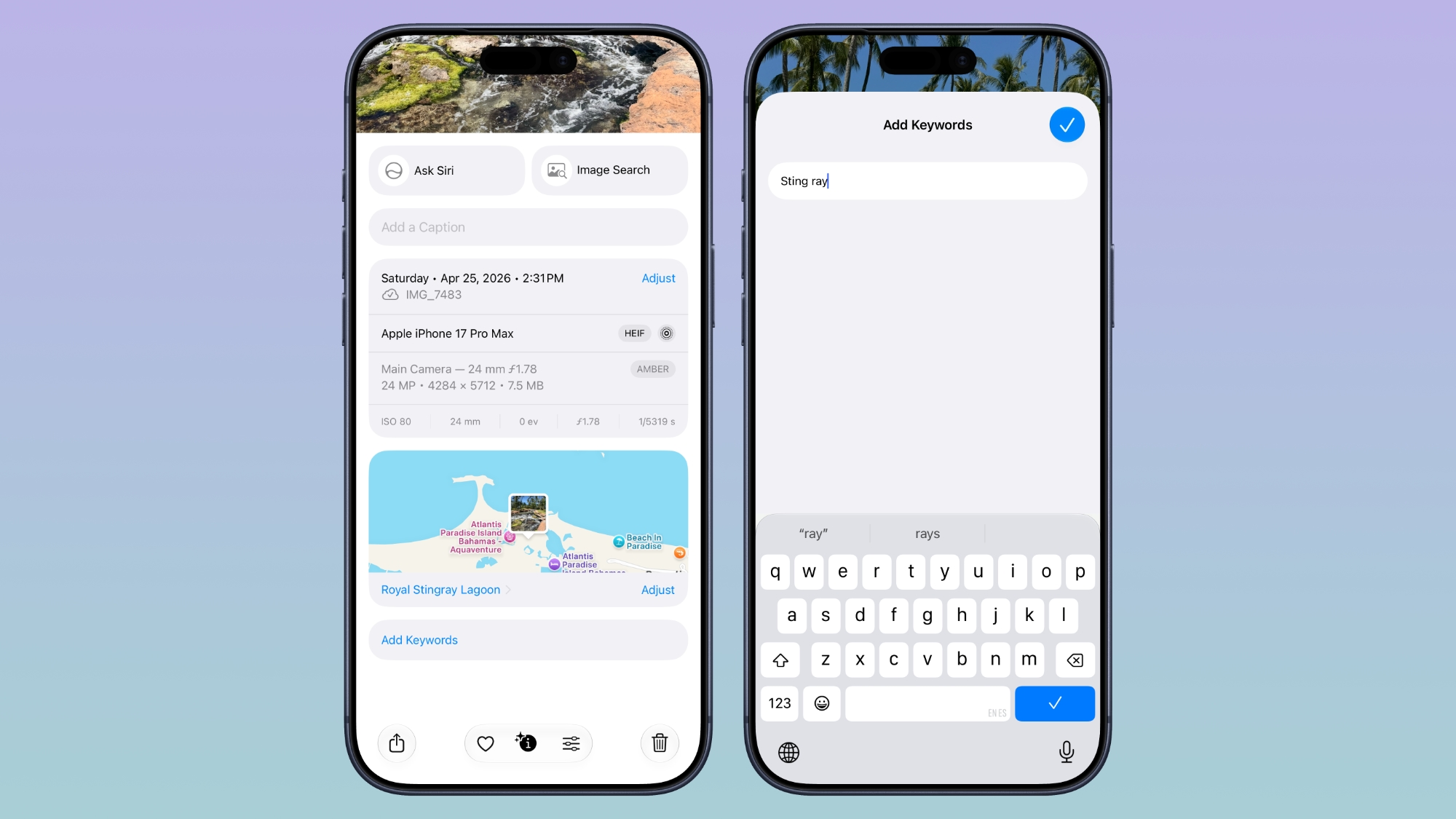
Apple now lets you add keywords and star ratings to photos and videos in the Photos app. You can rate images with one to five stars and then filter images by rating.
Apple improved album organization in iOS 27 and added new features for Shared Albums, including an option for Android and Windows users to contribute to iCloud albums.
Shared Albums can be filtered by photos or videos.
It's easier to save images from Shared Albums.
You can set Shared Albums to expire after 30 days, which is useful for sharing photos without having a permanent album.
It's easier to invite people to Shared Albums with a dedicated "Create Shared Album" option in any album menu.
You can create a link for people to upload images to a Shared Album, and there are new permissions so you can require explicit access to be granted.
Shared Albums have a recent activity log.
You can react to images in Shared Albums with any emoji.
You can create a slideshow from any album or collection of images in the Photos app instead of being limited to what's in the Memories section. Just tap into an album, tap the icon in the upper right of the display, and choose "Start Slideshow." Alternatively, select several photos and then follow the same steps from the main Library interface.
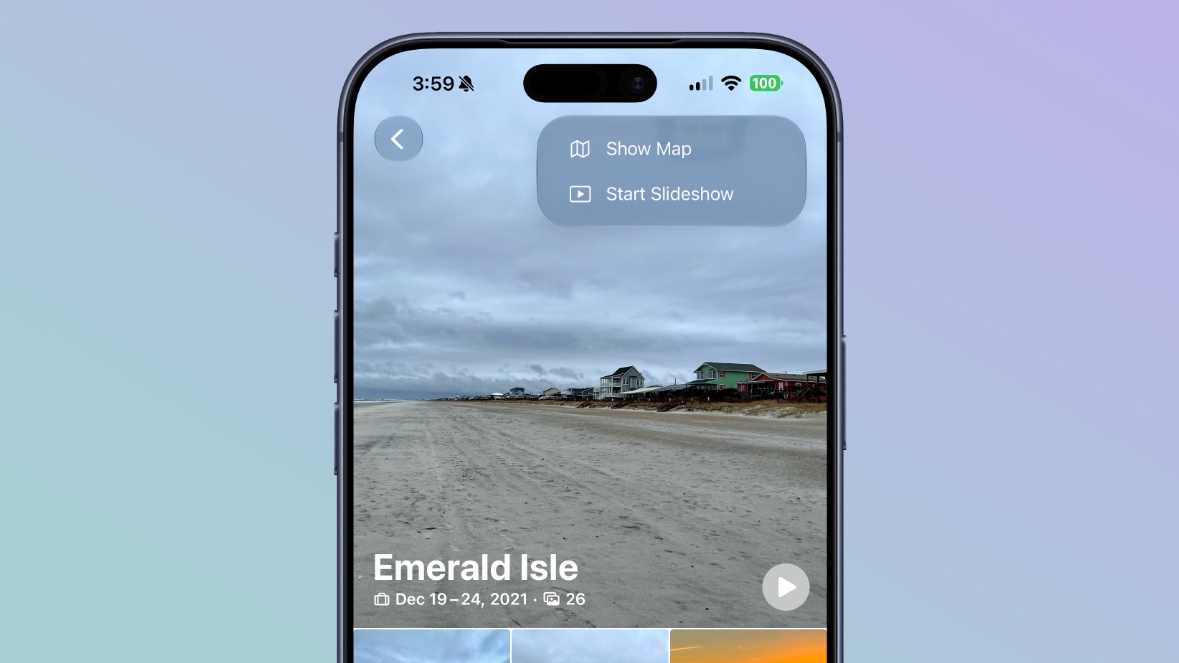
Slideshows can be customized with transition styles, slide duration, and background music. The resulting file can be shared on social media, and saved as a video.
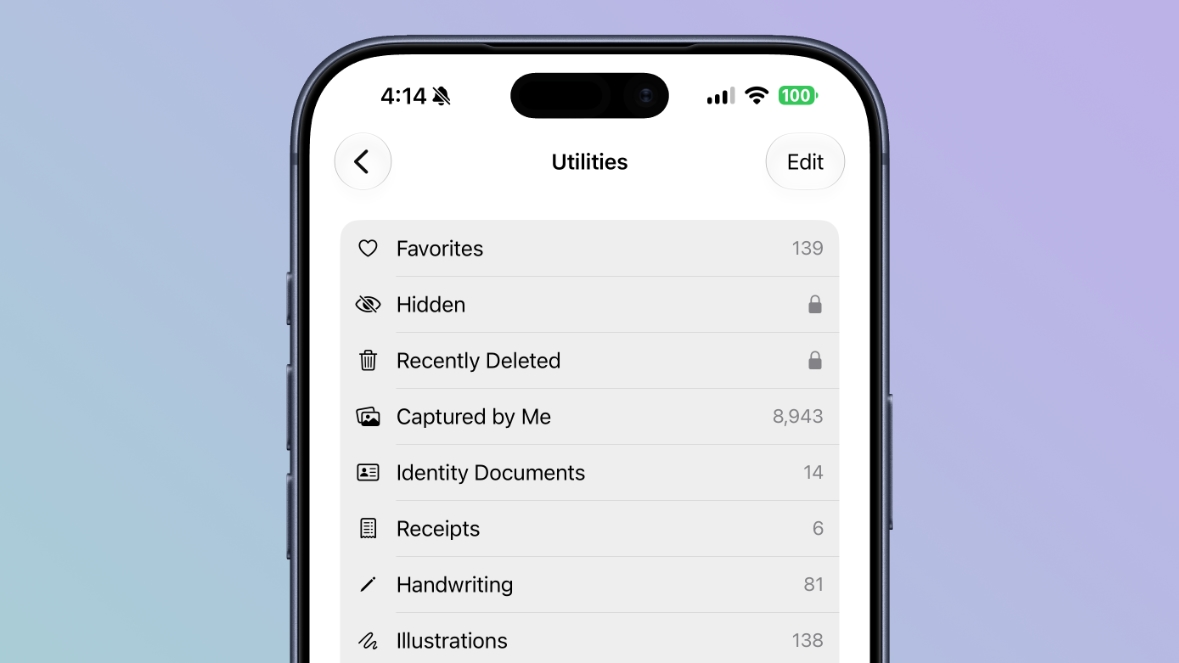
There are two new Utilities folders in the Photos app. Captured by Me includes all of the images that you've taken from the Camera app on your current or past iPhone, while Identity Documents aggregates pictures of passports, licenses, and similar documents.
In the Photos section of the Settings app, there's a "Sync Immediately" option that lets you prioritize immediate iCloud uploads for the day.
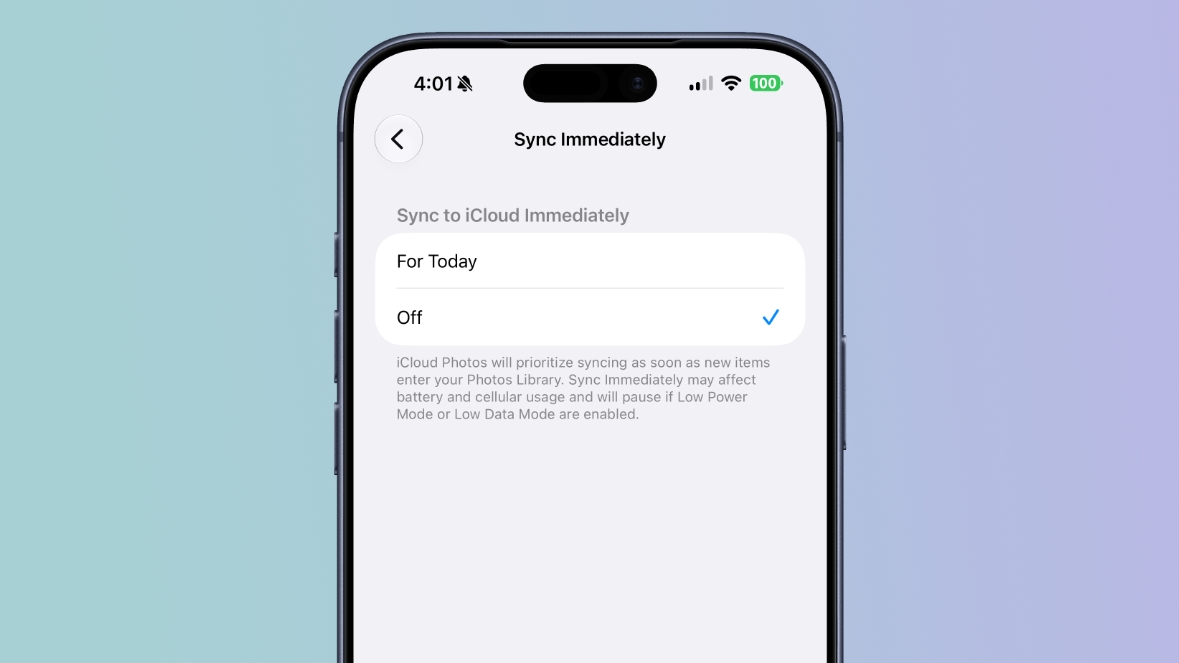
With the setting enabled, iCloud Photos will sync as soon as new images enter the Photos Library instead of holding uploads to save battery.
Full-resolution photos and videos can be added to iCloud Shared Albums, with support for all common photo and video formats.
You can select a specific pet to use with the Photo Shuffle wallpaper.
Search returns more pleasing photos of people and pets in Top Results.
The Collections tab is faster to render.
New captures from the Camera app load quicker in Photos.
You can include images of yourself in Photo Shuffle.
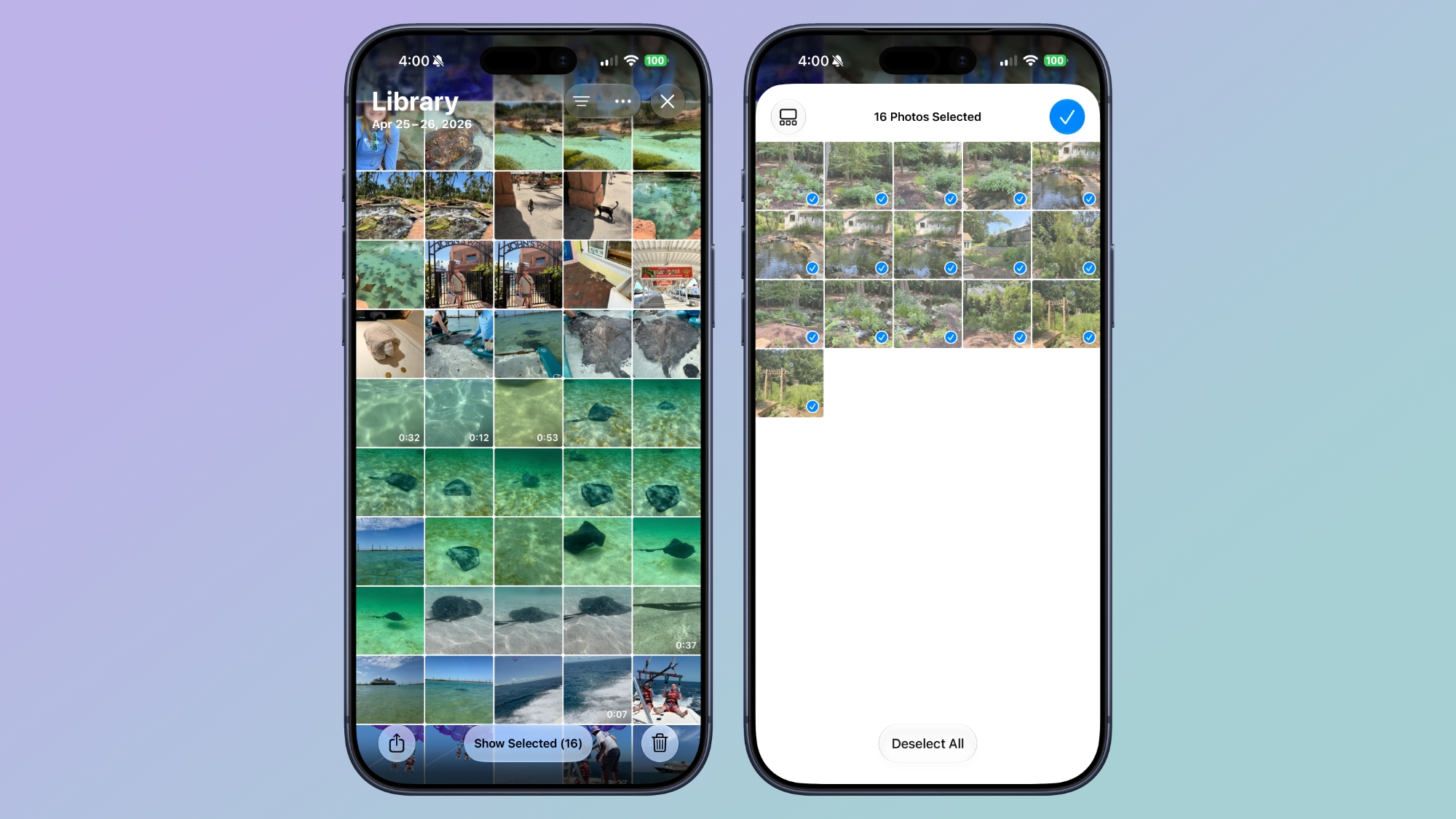
A "Show Selected" option in the Library shows you all of the photos you have checked so you can modify metadata.
The AI photo editing tools are available on devices that support Apple Intelligence, which includes the iPhone 15 Pro and later. Performance and organizational tools are available on devices that run iOS 27, which includes the iPhone 11 and later.
This article, "What's New in the iOS 27 Photos App" first appeared on MacRumors.com
Discuss this article in our forums
AI Tools
There is a set of AI photo editing tools in the Photos app, accessible by tapping on the icon featuring three sliders, and then selecting the Apple Intelligence icon labeled "Tools."
Clean Up
Clean Up uses new AI models, and it's better at removing objects. The original version of Clean Up was best for small items with little complexity in the surrounding area, but now it is able to do more work reconstructing backgrounds with generative AI.
There are now three options for object removal. Fast works more quickly and can still be used for simple edits, while High Quality works better for more detailed scenes. Auto lets the Photos app decide which option is best.
Extend
Extend lets you change the crop of an image, expanding the borders around content to zoom out a bit or change the photo's composition. It uses generative AI to fill in missing areas, and you can adjust the borders with pinch gestures.
Apple also uses the Extend feature for expanding iPhone Lock Screen wallpapers that don't quite fit the display.
Reframe
Reframe can change the perspective of the photo, making adjustments to the angle of a person or object. It draws on the spatial information the iPhone gathers when a photo is taken, and combines it with AI to change the angle of the camera in post-processing. The spatial data is used for adjusting the subject of the image, and then AI fills in any pixels that are missing.
Reframe uses touch and drag gestures to adjust perspective, and two fingers for panning, zooming, or rotating an image to get the right angle.
Image Playground
While not part of the Photos app, the Image Playground app can be used to make photorealistic edits to your image. If you have a photo of a friend and want to add a hat or an accessory that looks real, you can do so with Image Playground. You can select specific areas in an image to modify and make AI edits using natural language, plus there's an option to combine images.
Image Playground can be used for free, but there will be daily caps, with extra usage available through iCloud+ plans.
Videos to Photos
You can now save a frame of a video as an individual photo.
Metadata
Apple now lets you add keywords and star ratings to photos and videos in the Photos app. You can rate images with one to five stars and then filter images by rating.
Album Changes
Apple improved album organization in iOS 27 and added new features for Shared Albums, including an option for Android and Windows users to contribute to iCloud albums.
Shared Albums can be filtered by photos or videos.
It's easier to save images from Shared Albums.
You can set Shared Albums to expire after 30 days, which is useful for sharing photos without having a permanent album.
It's easier to invite people to Shared Albums with a dedicated "Create Shared Album" option in any album menu.
You can create a link for people to upload images to a Shared Album, and there are new permissions so you can require explicit access to be granted.
Shared Albums have a recent activity log.
You can react to images in Shared Albums with any emoji.
Slideshows
You can create a slideshow from any album or collection of images in the Photos app instead of being limited to what's in the Memories section. Just tap into an album, tap the icon in the upper right of the display, and choose "Start Slideshow." Alternatively, select several photos and then follow the same steps from the main Library interface.
Slideshows can be customized with transition styles, slide duration, and background music. The resulting file can be shared on social media, and saved as a video.
Utilities
There are two new Utilities folders in the Photos app. Captured by Me includes all of the images that you've taken from the Camera app on your current or past iPhone, while Identity Documents aggregates pictures of passports, licenses, and similar documents.
iCloud
In the Photos section of the Settings app, there's a "Sync Immediately" option that lets you prioritize immediate iCloud uploads for the day.
With the setting enabled, iCloud Photos will sync as soon as new images enter the Photos Library instead of holding uploads to save battery.
Full-resolution photos and videos can be added to iCloud Shared Albums, with support for all common photo and video formats.
Other Changes
You can select a specific pet to use with the Photo Shuffle wallpaper.
Search returns more pleasing photos of people and pets in Top Results.
The Collections tab is faster to render.
New captures from the Camera app load quicker in Photos.
You can include images of yourself in Photo Shuffle.
A "Show Selected" option in the Library shows you all of the photos you have checked so you can modify metadata.
Compatibility
The AI photo editing tools are available on devices that support Apple Intelligence, which includes the iPhone 15 Pro and later. Performance and organizational tools are available on devices that run iOS 27, which includes the iPhone 11 and later.
Tag: Photos
This article, "What's New in the iOS 27 Photos App" first appeared on MacRumors.com
Discuss this article in our forums
Recommended Comments
Join the conversation
You can post now and register later. If you have an account, sign in now to post with your account.