_811205.png)
_e196d8.png)
_32b3d9.png)
_1c53fe.png)

WhatsApp appears to be introducing a new visual indicator that shows when a contact is online, according to WaBetaInfo.

The feature adds a small green circle to a contact's profile photo when they're active in the app, and which disappears the moment they leave, all updated in real time. The indicator is now being tested for the WhatsApp iPhone app in TestFlight after it debuted on Android last month.
As it currently works, the dot only surfaces in the chat info screen (the page that opens when you tap a contact's name at the top of a conversation). It doesn't yet appear in the chat list or the conversation view itself, but that could change in the future.
The change appears to stick to WhatsApp's existing privacy rules, so if someone has specifically chosen to hide their last seen and online status, the green dot won't show up for them.
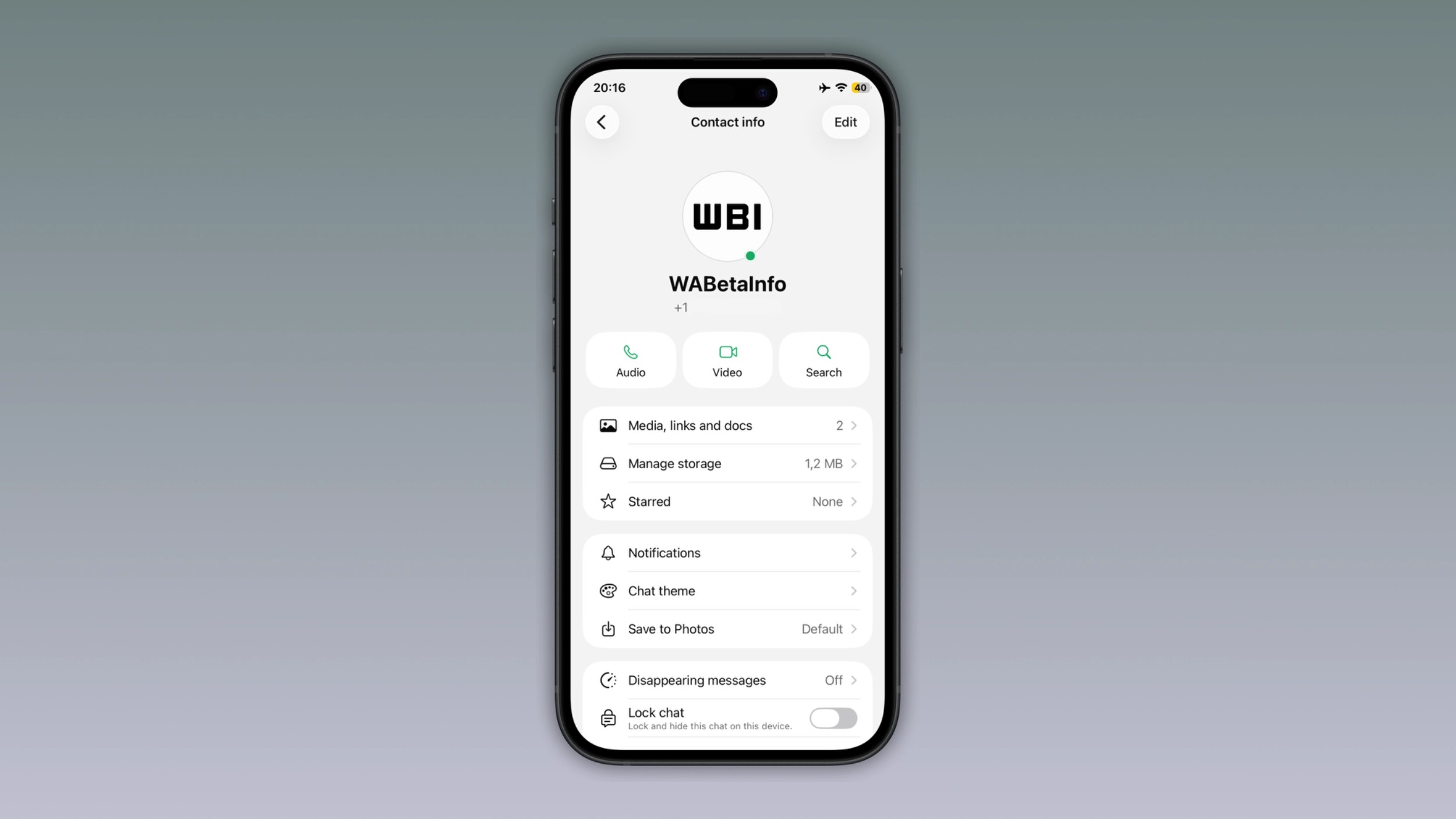
The indicator is live in the WhatsApp beta for iOS 26.26.10.72. WABetaInfo reports that it's available to some beta testers now, with a wider beta rollout expected over the coming weeks. There's no word yet on when the green dot will reach the stable version for everyone, though.
This article, "WhatsApp Beta Adds Green Dot to Show Who's Online" first appeared on MacRumors.com
Discuss this article in our forums
The feature adds a small green circle to a contact's profile photo when they're active in the app, and which disappears the moment they leave, all updated in real time. The indicator is now being tested for the WhatsApp iPhone app in TestFlight after it debuted on Android last month.
As it currently works, the dot only surfaces in the chat info screen (the page that opens when you tap a contact's name at the top of a conversation). It doesn't yet appear in the chat list or the conversation view itself, but that could change in the future.
The change appears to stick to WhatsApp's existing privacy rules, so if someone has specifically chosen to hide their last seen and online status, the green dot won't show up for them.
Green dot for online contacts shown (image: WaBetaInfo)
The indicator is live in the WhatsApp beta for iOS 26.26.10.72. WABetaInfo reports that it's available to some beta testers now, with a wider beta rollout expected over the coming weeks. There's no word yet on when the green dot will reach the stable version for everyone, though.
Tag: WhatsApp
This article, "WhatsApp Beta Adds Green Dot to Show Who's Online" first appeared on MacRumors.com
Discuss this article in our forums
Recommended Comments
Join the conversation
You can post now and register later. If you have an account, sign in now to post with your account.