_811205.png)
_e196d8.png)
_32b3d9.png)
_1c53fe.png)

WhatsApp is getting a new setting for disappearing messages that causes them to vanish based on a countdown that starts only after they've been read.

Spotted by WaBetaInfo in the latest WhatsApp TestFlight beta, the new option starts a countdown after the recipient reads the message, rather than starting the countdown when the message is sent.
The countdown options with the "After reading" setting chosen include the usual "5 minutes," "1 hour," and "12 hours." The setting appears in the "Default messsage timer" menu, so perhaps WhatsApp will find a different home for the option or (more likely) rename the settings page to something like "Message timer options."
The new feature is said to be available to "some" beta testers on iOS and Android, but WABetaInfo believes that some users on the public WhatsApp version on the App Store may have access to the option already.
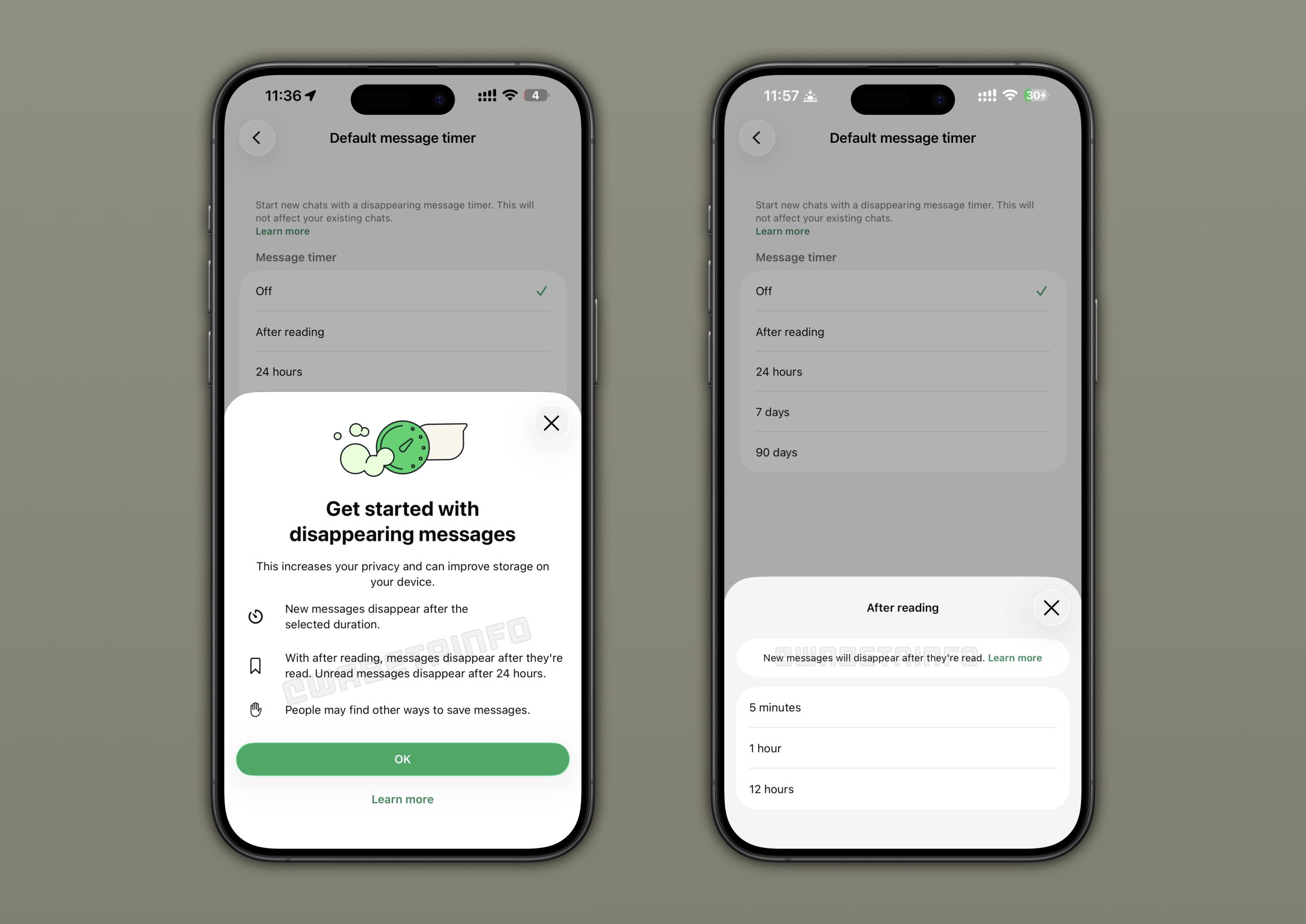
Disappearing messages can be set as the default behavior for all new chats on the end-to-end encrypted messaging platform, so this new After reading option will likely be a welcome addition for particularly privacy-conscious users, and it could also be a potential storage-saver for heavy users of the app.
This article, "WhatsApp Tests Read-Triggered Disappearing Messages" first appeared on MacRumors.com
Discuss this article in our forums
Spotted by WaBetaInfo in the latest WhatsApp TestFlight beta, the new option starts a countdown after the recipient reads the message, rather than starting the countdown when the message is sent.
The countdown options with the "After reading" setting chosen include the usual "5 minutes," "1 hour," and "12 hours." The setting appears in the "Default messsage timer" menu, so perhaps WhatsApp will find a different home for the option or (more likely) rename the settings page to something like "Message timer options."
The new feature is said to be available to "some" beta testers on iOS and Android, but WABetaInfo believes that some users on the public WhatsApp version on the App Store may have access to the option already.
Disappearing messages can be set as the default behavior for all new chats on the end-to-end encrypted messaging platform, so this new After reading option will likely be a welcome addition for particularly privacy-conscious users, and it could also be a potential storage-saver for heavy users of the app.
Tags: WABetaInfo, WhatsApp
This article, "WhatsApp Tests Read-Triggered Disappearing Messages" first appeared on MacRumors.com
Discuss this article in our forums
Recommended Comments
Join the conversation
You can post now and register later. If you have an account, sign in now to post with your account.