_811205.png)
_e196d8.png)
_32b3d9.png)
_1c53fe.png)

WWDC 2026 is set to begin on Monday, June 8, and the event will highlight Apple's "AI advancements." Apple included the tidbit in its WWDC 2026 announcement.
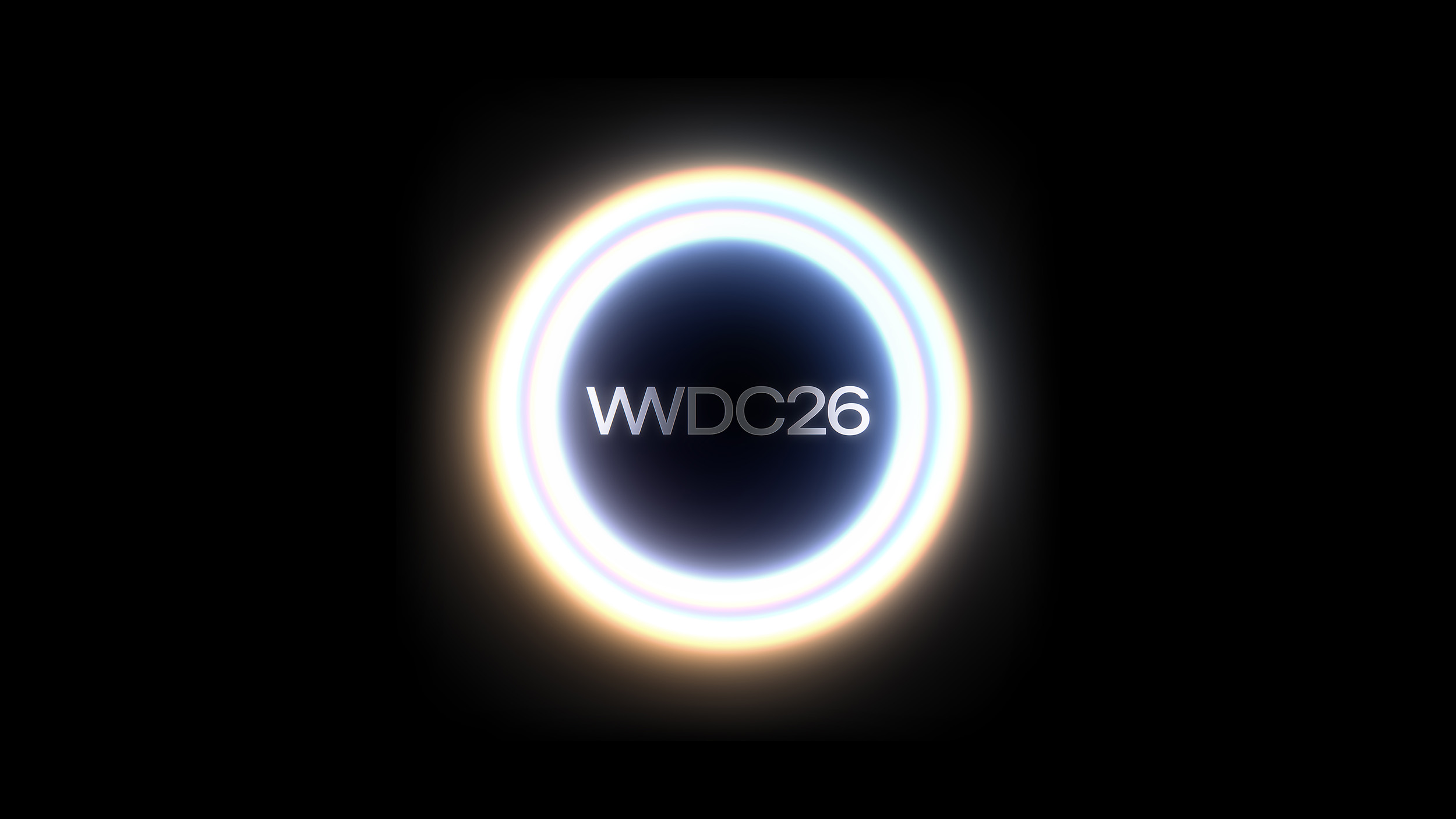
Since iOS 18, we've been waiting for Apple to introduce a more intelligent version of Siri, and that might finally happen with iOS 27. We are expecting the Apple Intelligence version of Siri that includes personal context with support for new, deeper search capabilities, onscreen awareness so Siri can answer questions about what you're looking at, and the ability to do more in and between apps.
Apple is also working on a chatbot version of Siri that will rival ChatGPT, Gemini, and Claude, and we could potentially get a chatbot Siri preview at WWDC.
Apple's AI advancements wording hints at the inclusion of new Siri features, plus it suggests we could get other new AI capabilities as well. We have a full iOS 27 roundup on all of the iOS 27 rumors we've heard so far, which is worth checking out if you want a refresh on what could be coming.
This article, "WWDC 2026 to Showcase Apple's 'AI Advancements'" first appeared on MacRumors.com
Discuss this article in our forums
WWDC26 will spotlight incredible updates for Apple platforms, including AI advancements and exciting new software and developer tools.
Since iOS 18, we've been waiting for Apple to introduce a more intelligent version of Siri, and that might finally happen with iOS 27. We are expecting the Apple Intelligence version of Siri that includes personal context with support for new, deeper search capabilities, onscreen awareness so Siri can answer questions about what you're looking at, and the ability to do more in and between apps.
Apple is also working on a chatbot version of Siri that will rival ChatGPT, Gemini, and Claude, and we could potentially get a chatbot Siri preview at WWDC.
Apple's AI advancements wording hints at the inclusion of new Siri features, plus it suggests we could get other new AI capabilities as well. We have a full iOS 27 roundup on all of the iOS 27 rumors we've heard so far, which is worth checking out if you want a refresh on what could be coming.
Related Roundup: WWDC 2026
Related Forum: Apple, Inc and Tech Industry
This article, "WWDC 2026 to Showcase Apple's 'AI Advancements'" first appeared on MacRumors.com
Discuss this article in our forums
Recommended Comments
Join the conversation
You can post now and register later. If you have an account, sign in now to post with your account.