_811205.png)
_e196d8.png)
_32b3d9.png)
_1c53fe.png)

X (Twitter) has rolled out a set of widgets for its iOS app, enabling users to add feeds to their Home screen as well as a real-time notification count to their Lock Screen.
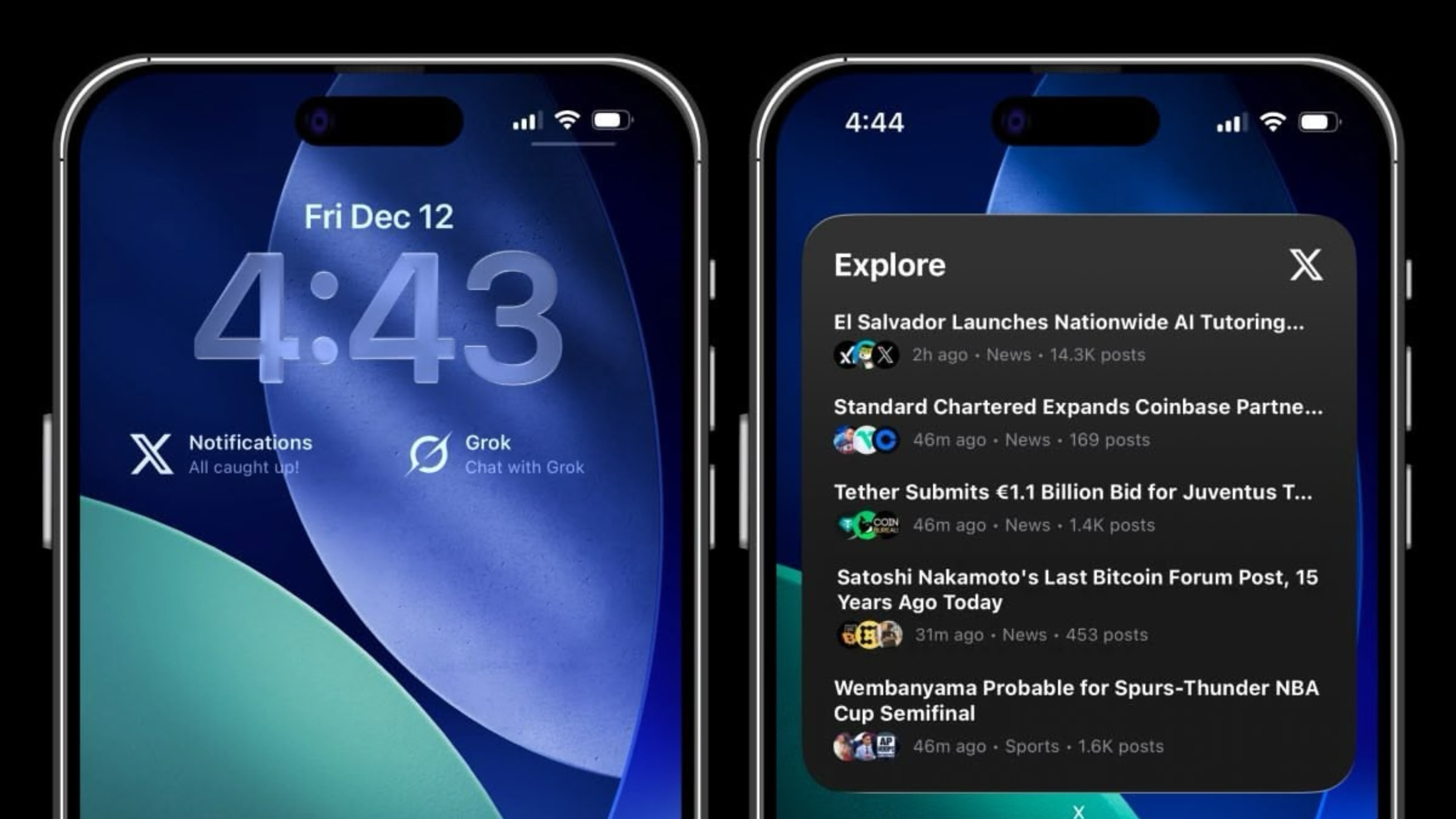
The Home screen widget offers only one kind, called "X News Highlights," which displays headlines of what's trending on the social media platform. The widget is available in three sizes.
There's more to be said for the Lock Screen widgets, which all come in larger and smaller kinds. "X Notifications" shows the user's notification count, while "X Messages" displays the number of unread messages in X Chat (encrypted DMs). There are also two Grok AI widgets, one for jumping straight into chat and one for voice conversations.
Apple actually teased Twitter Home screen widgets at WWDC 2020 during its iOS 14 preview, but they never came to anything, until now.
X/Twitter used to be the go-to place for breaking news and real-time information, but changes to the platform brought about by owner Elon Musk have been criticised for causing feeds to be increasingly awash with fake accounts, AI slop, and misinformation.
This article, "X App for iOS Now Includes Widgets for Lock Screen and Home Screen" first appeared on MacRumors.com
Discuss this article in our forums
The Home screen widget offers only one kind, called "X News Highlights," which displays headlines of what's trending on the social media platform. The widget is available in three sizes.
There's more to be said for the Lock Screen widgets, which all come in larger and smaller kinds. "X Notifications" shows the user's notification count, while "X Messages" displays the number of unread messages in X Chat (encrypted DMs). There are also two Grok AI widgets, one for jumping straight into chat and one for voice conversations.
Apple actually teased Twitter Home screen widgets at WWDC 2020 during its iOS 14 preview, but they never came to anything, until now.
X/Twitter used to be the go-to place for breaking news and real-time information, but changes to the platform brought about by owner Elon Musk have been criticised for causing feeds to be increasingly awash with fake accounts, AI slop, and misinformation.
Tag: Twitter
This article, "X App for iOS Now Includes Widgets for Lock Screen and Home Screen" first appeared on MacRumors.com
Discuss this article in our forums
Recommended Comments
Join the conversation
You can post now and register later. If you have an account, sign in now to post with your account.