_811205.png)
_e196d8.png)
_32b3d9.png)
_1c53fe.png)

Social network X is now limiting X Pro access to customers who subscribe to the X Premium+ plan, which is priced at $40 per month (or $33/month when paid annually). X Pro is a multi-column web interface for managing multiple feeds and lists.
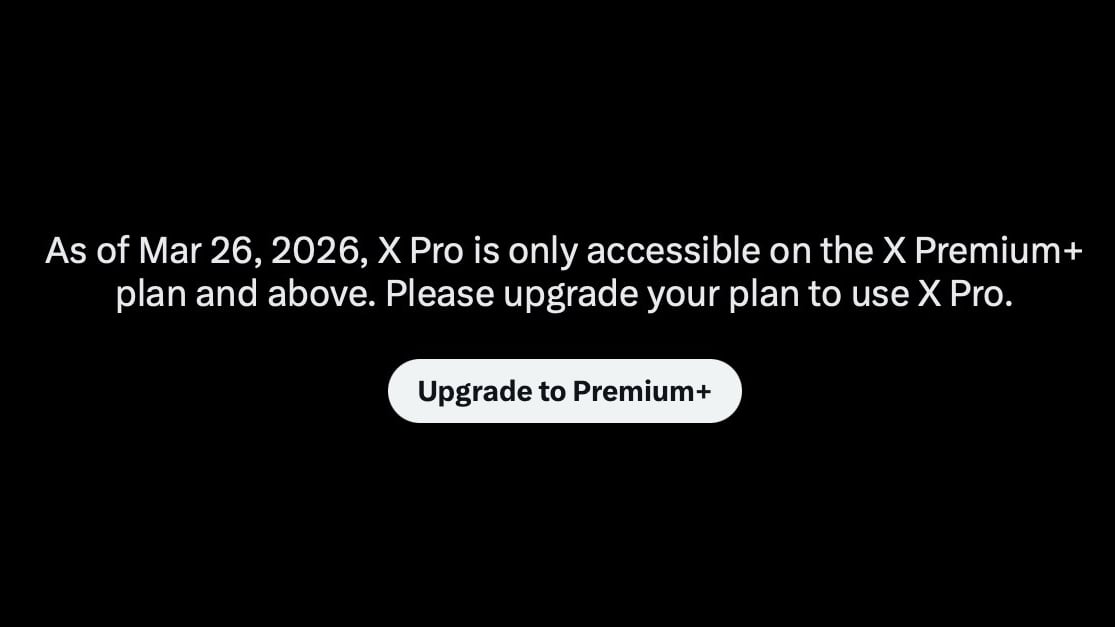
X Pro was known as TweetDeck before Elon Musk bought Twitter, and it was free to use. Before March 26, X subscribers with the standard $8/month Premium plan were able to use X Pro, and now X is requiring a plan that's 5x more expensive.
No notice was provided to X Pro users about the change and access was suddenly cut off, leading to multiple complaints on the social network. On its website, X says features included in Premium "are subject to change at any time as we continue to improve the service." The X Help center clearly states that access to X Pro is now limited to the Premium+ tier.
X has three subscription tiers: Basic for $3/month or $32/year, Premium for $8/month or $84/year, and Premium+ for $40/month or $395/year. Basic still includes ads, Premium has half the number of ads, and Premium+ has no ads except for sponsored content. Paid plans provide vanity blue checkmarks that used to serve as an actual account verification method prior to Musk's takeover.
Other premium features include expanded post reach, post editing, longer post length, and longer video uploads.
This article, "X Moves X Pro Behind $40/Month Premium+ Paywall With No Notice to Users" first appeared on MacRumors.com
Discuss this article in our forums
X Pro was known as TweetDeck before Elon Musk bought Twitter, and it was free to use. Before March 26, X subscribers with the standard $8/month Premium plan were able to use X Pro, and now X is requiring a plan that's 5x more expensive.
No notice was provided to X Pro users about the change and access was suddenly cut off, leading to multiple complaints on the social network. On its website, X says features included in Premium "are subject to change at any time as we continue to improve the service." The X Help center clearly states that access to X Pro is now limited to the Premium+ tier.
X has three subscription tiers: Basic for $3/month or $32/year, Premium for $8/month or $84/year, and Premium+ for $40/month or $395/year. Basic still includes ads, Premium has half the number of ads, and Premium+ has no ads except for sponsored content. Paid plans provide vanity blue checkmarks that used to serve as an actual account verification method prior to Musk's takeover.
Other premium features include expanded post reach, post editing, longer post length, and longer video uploads.
This article, "X Moves X Pro Behind $40/Month Premium+ Paywall With No Notice to Users" first appeared on MacRumors.com
Discuss this article in our forums
Recommended Comments
Join the conversation
You can post now and register later. If you have an account, sign in now to post with your account.